

# Marked Hands in Hand2Note
Not sure about a decision you just made? Mark the hand and keep playing. Regularly reviewing difficult decisions is one of the best ways to improve your game and move up the stakes.
Table of Contents:
# Mark Hands While You Play
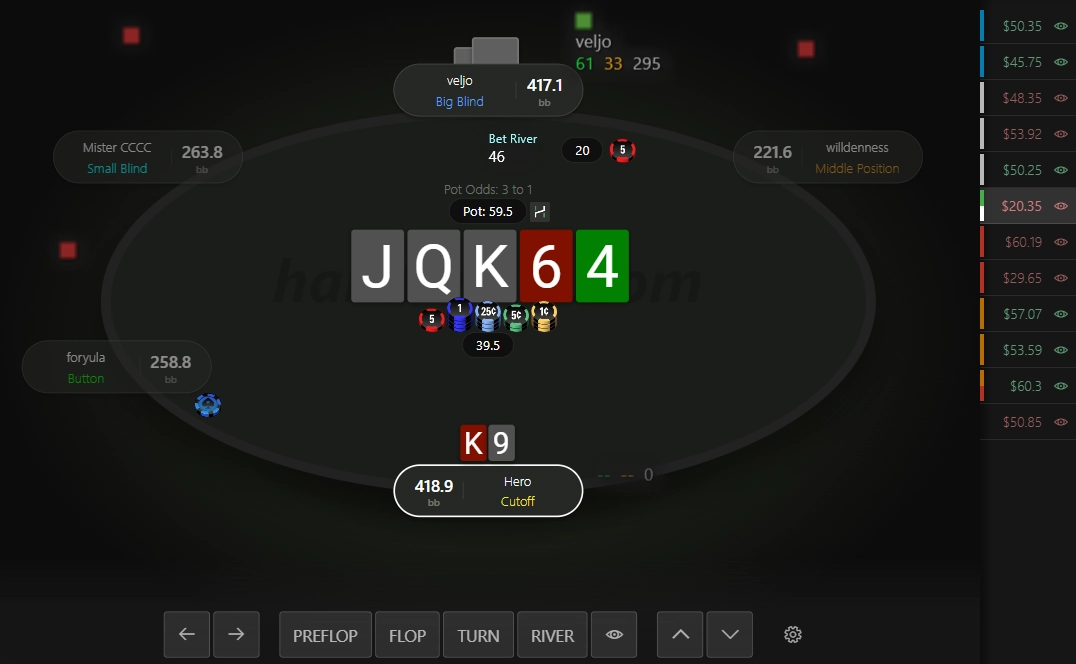
If you want to come back to a hand later, click the H icon at the table.
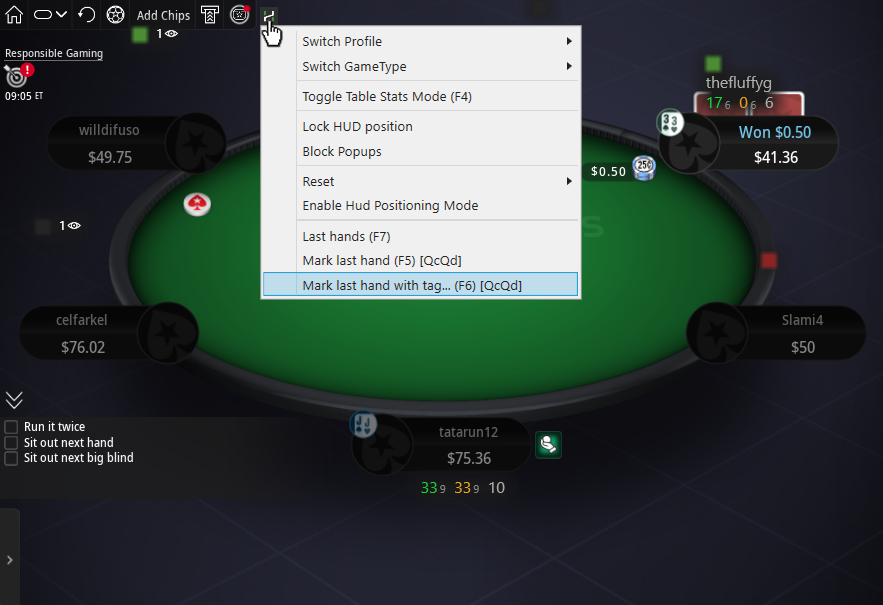
Select Mark Hand with Tags to save the last hand played and assign one or more tags.
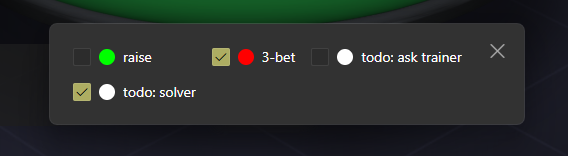
To find your marked hands later, see Review Marked Hands below.
# Missed the Hand?
Didn't get a chance to mark it? Open Last Hands to see the most recently played hands at your current table.
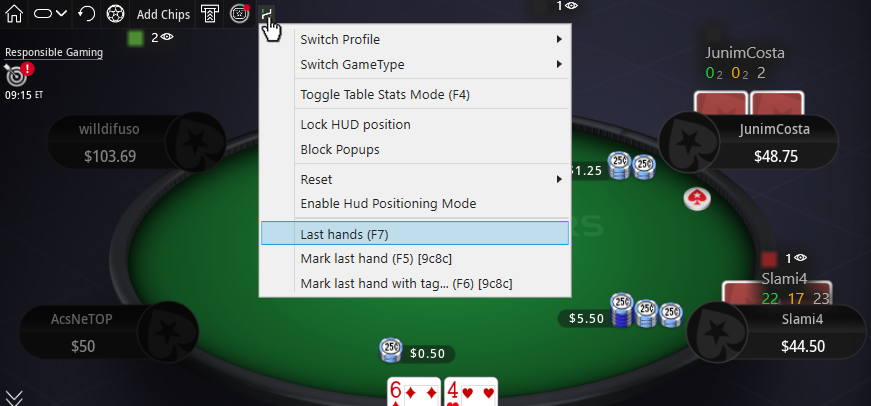
Select the hand you want and mark it.
# Mark Hands After Your Session
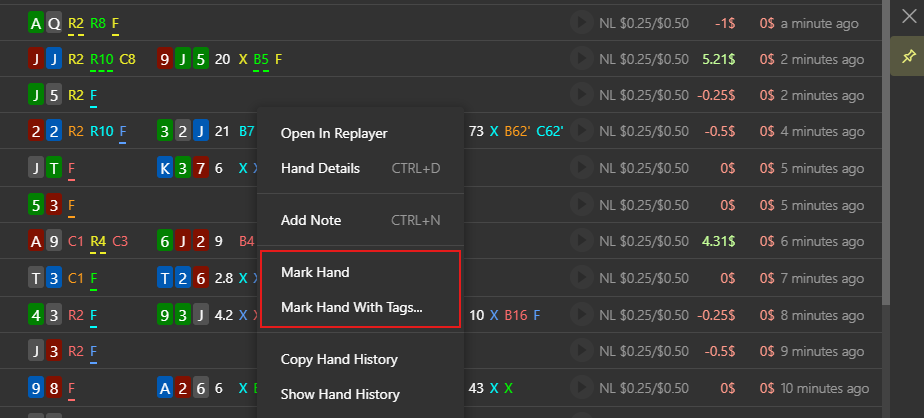
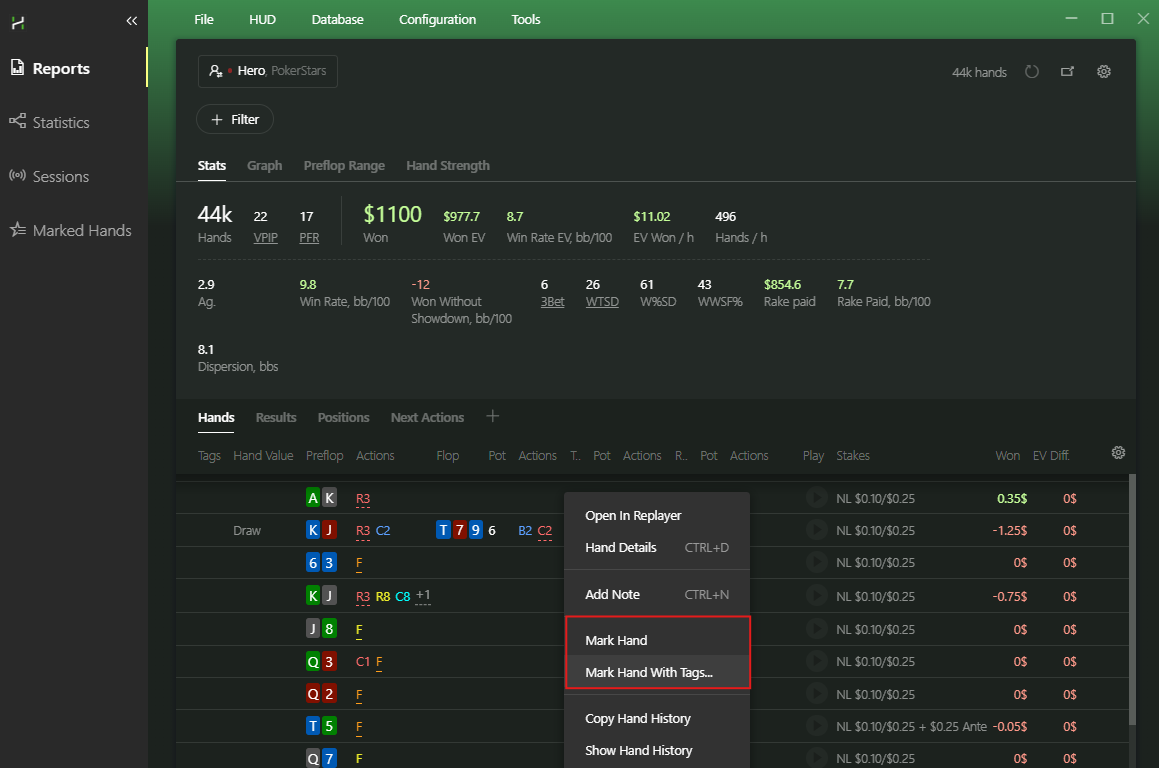
You can also mark hands anywhere the compact hand view is available.
Right-click the hand and choose Mark Hand or Mark Hand with Tags. This works throughout Hand2Note, including Reports and Sessions.
# Mark Hands from Player Popups
Notice an unusual play from an opponent? Mark the hand directly from the player's popup.
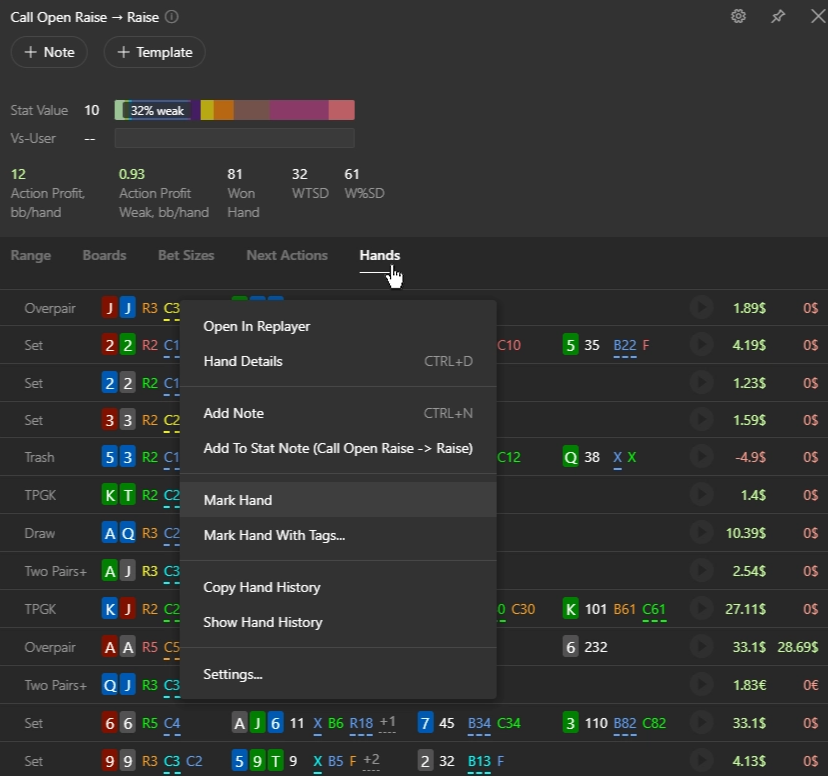
Save it as a study spot for later, then compare it with field tendencies in Statistics or break it down in Reports.
# Customize Your Tags
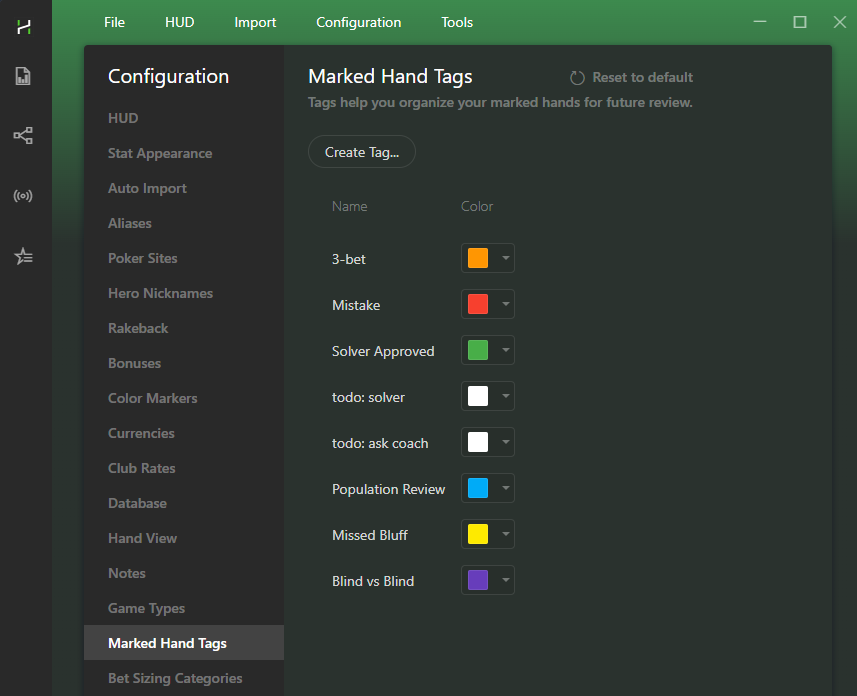
The default tags are useful, but custom tags make reviewing hands much easier.
Open Configuration → Marked Hand Tags to create your own categories.
# Review Marked Hands
Find all your marked hands in the Marked Hands section.
Use tag filters to quickly find the situations that matter most, instead of reviewing every marked hand.
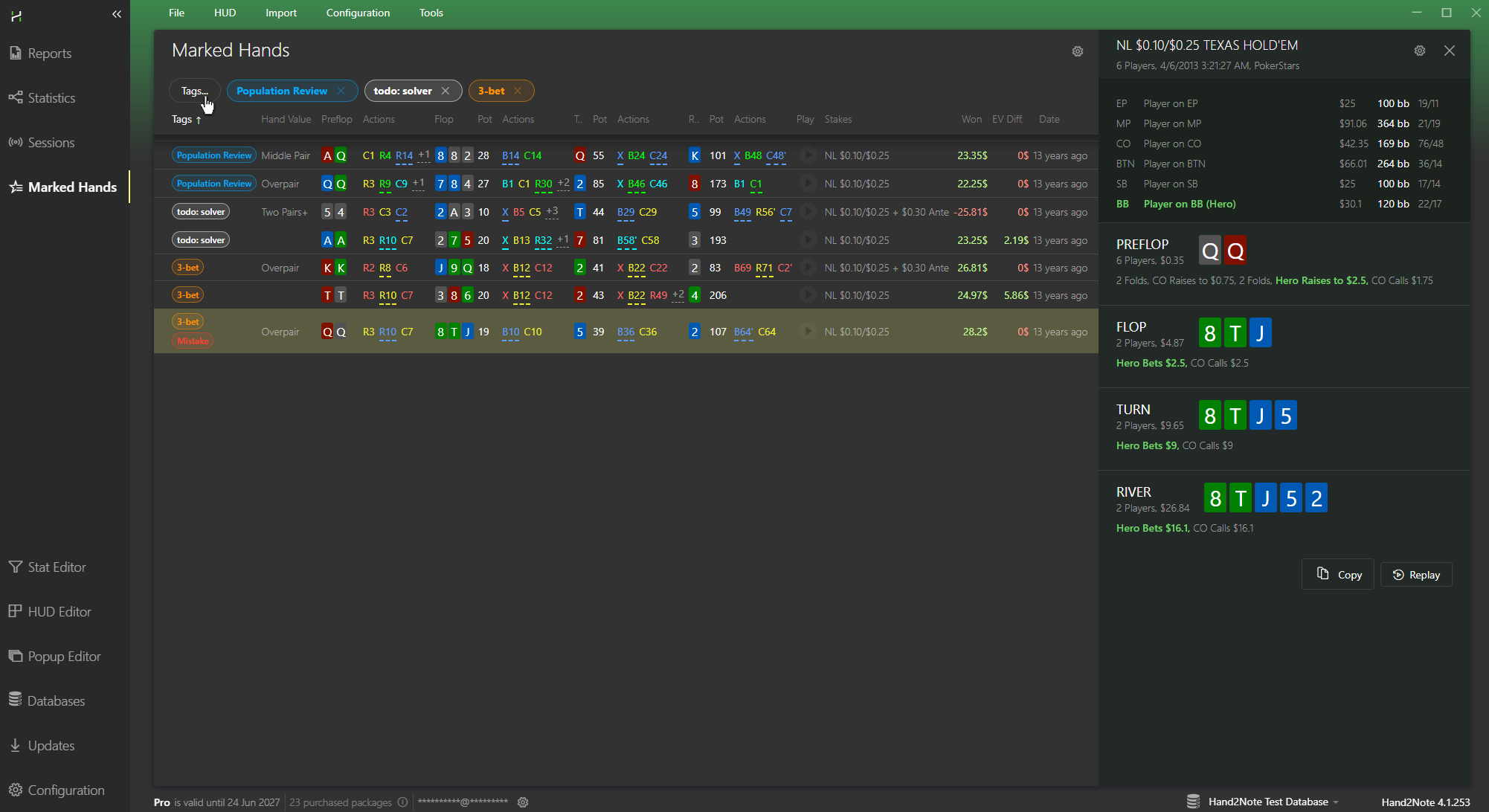
A colored indicator next to each hand shows its assigned tags.
If a hand has multiple tags, the indicator is split into color-coded segments, so you can instantly see why you saved it.
# Continue Your Review in Reports
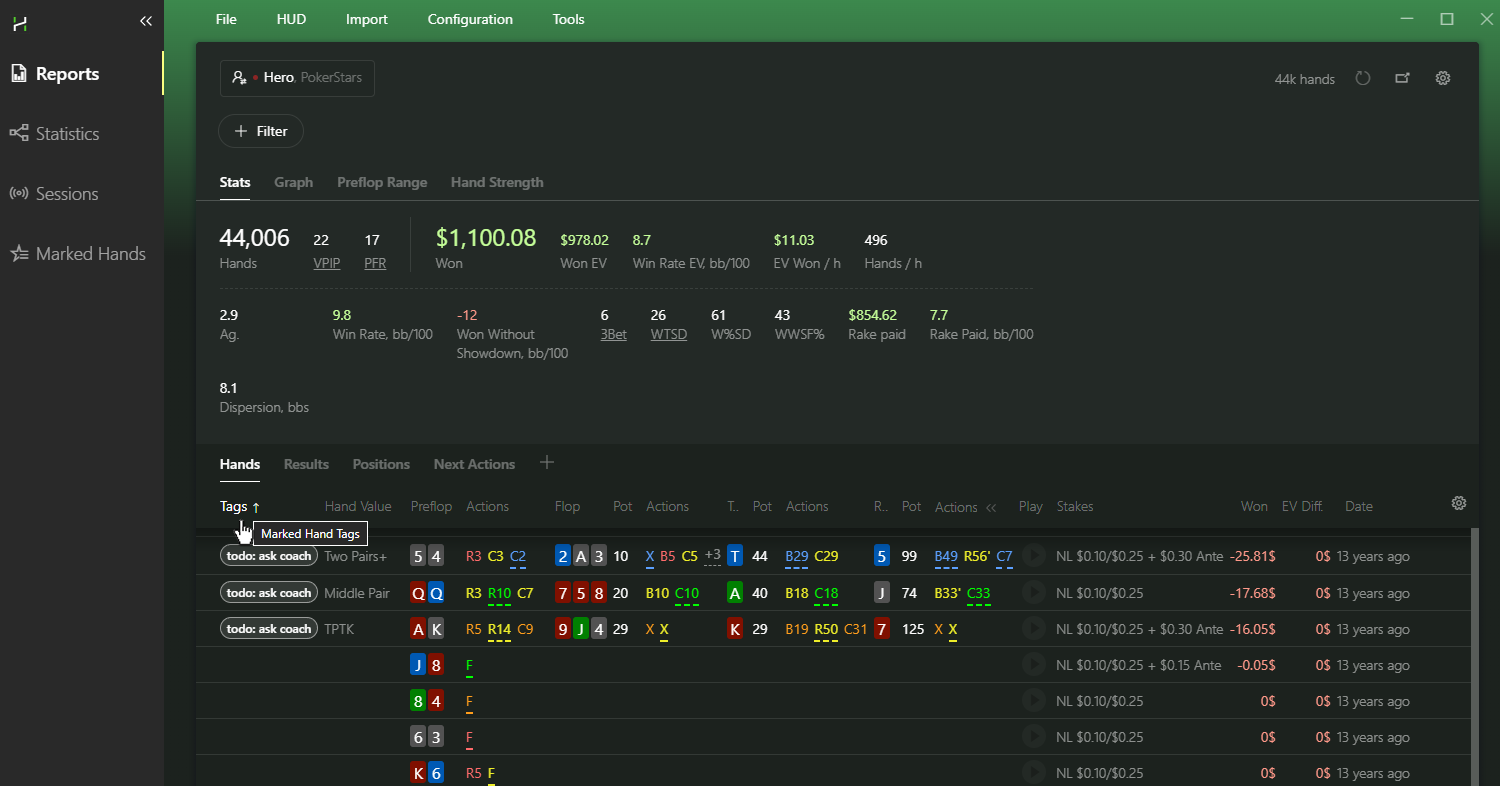
Your marked hands remain fully integrated with Reports.
Click the Tags column to group all tagged hands at the top of the list.
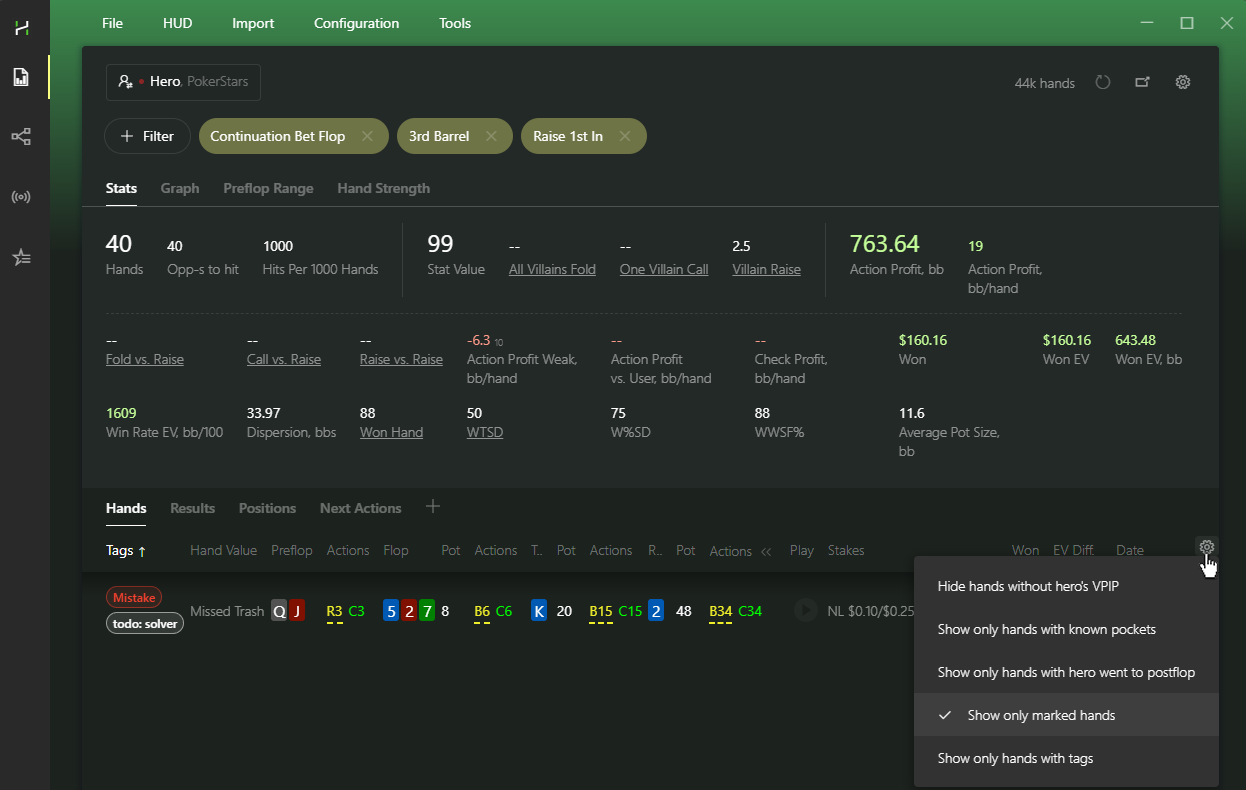
Or apply any report filter and enable Show only marked hands. Hand2Note will display only the marked hands that match your selected filters.
# Frequently Asked Questions
# How Can I Export Marked Hands?
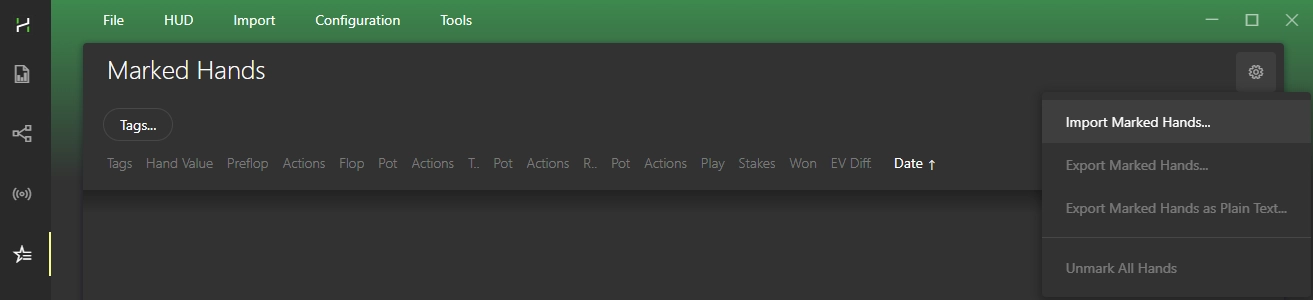
Open the Marked Hands section and click the menu button.
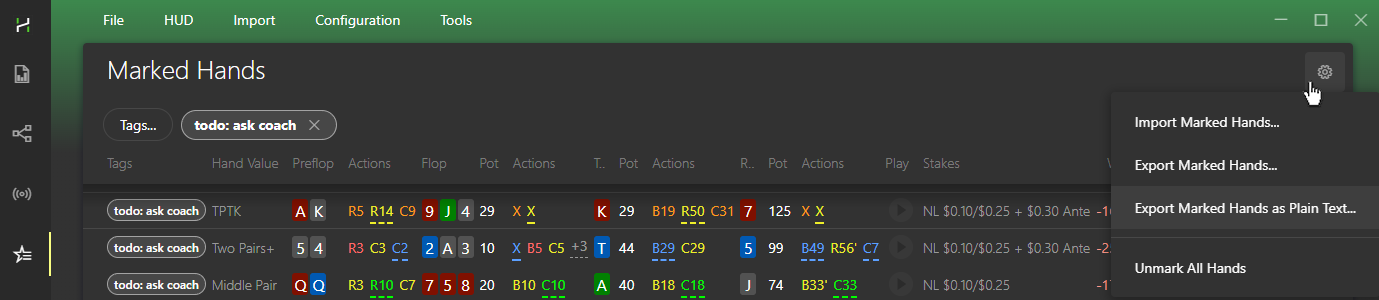
Choose an export option:
- Export Marked Hands — exports hands together with their tags. Use it to create a backup or transfer marked hands to another database.
- Export Marked Hands as Plain Text — exports hands in text format. Ideal for sending to your coach, sharing in study groups, or pasting into solvers.
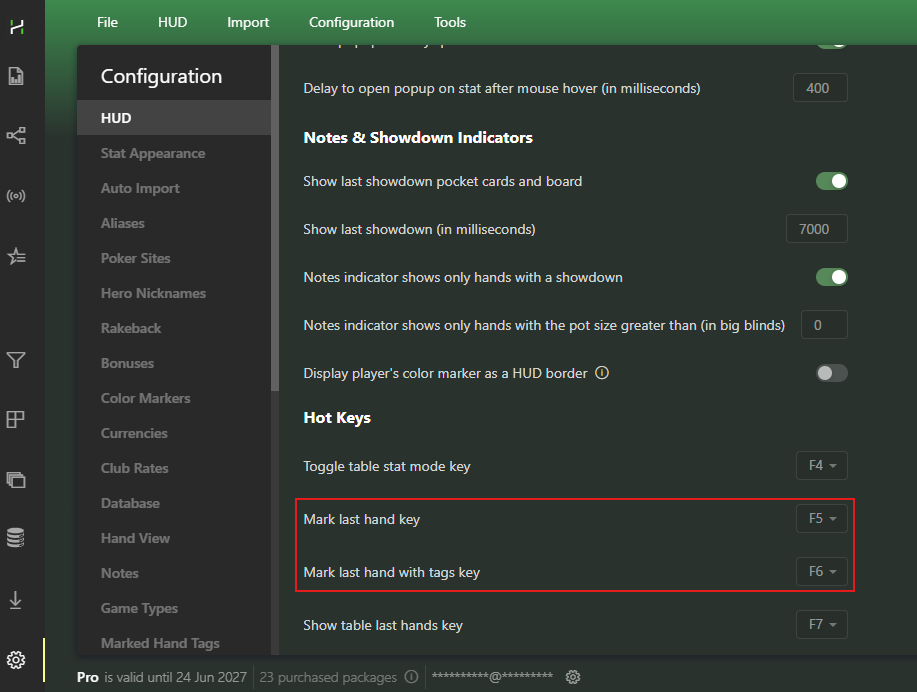
# How Do I Change Hotkeys?
Go to Configuration → HUD to assign custom hotkeys for Mark Hand, Mark Hand with Tags, and Last Hands.
# Can I import marked hands from Hand2Note 3?
Yes. Use the Import Marked Hands option.
By default, Hand2Note 3 stores marked hands in: C:Program FilesHand2NoteMarkedHands
# What’s Next?
Now you know how to mark hands during play.
Regularly reviewing marked hands is one of the most effective ways to improve your decisions and increase your win rate.
Next, take your hand reviews further with Hand2Note's analysis tools:
Action Profit in Hand2Note: Find Your Most Profitable Decisions


