

# Switch HUD in Hand2Note
The default HUDs are just a starting point. Hand2Note gives you more than one way to find the HUD that fits your game.
This article helps you if you have run into at least one of these situations:
- You do not know which HUD you see at the table or where to find other HUDs.
- You created a custom HUD but do not know how to start using it.
- You bought a ready-made HUD, but it does not appear at the table.
We show how to switch a HUD, where to find the HUDs available by default in Hand2Note, and how to start using a ready-made or custom HUD.
Table of Contents:
Which HUDs are available after installation
# Switch the HUD at the table
Check which HUD appears at the tables and switch it during play, if needed, in just three clicks.
# How to switch the HUD during play:
1. Find the Hand2Note logo at the table and left-click it.
2. A menu will appear below the logo. Click “Switch Profile”.
3. Select a HUD you want from the list.
The check mark next to the profile name shows the currently selected HUD.
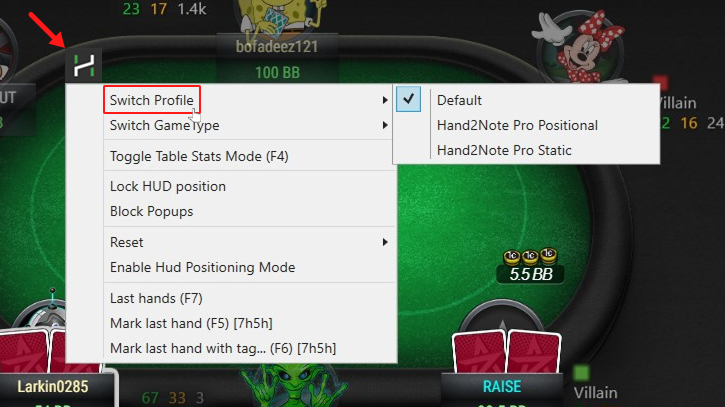
Below, we show which HUDs are available right after you install Hand2Note.
# Which HUDs are available after installation
After you install Hand2Note, you get three standard HUDs:
- Default.
- Hand2Note Pro Static.
- Hand2Note Pro Positional.
After you install Hand2Note, it uses the “Default” profile as the HUD at the table for all games.
These standard HUDs include different numbers of stats.
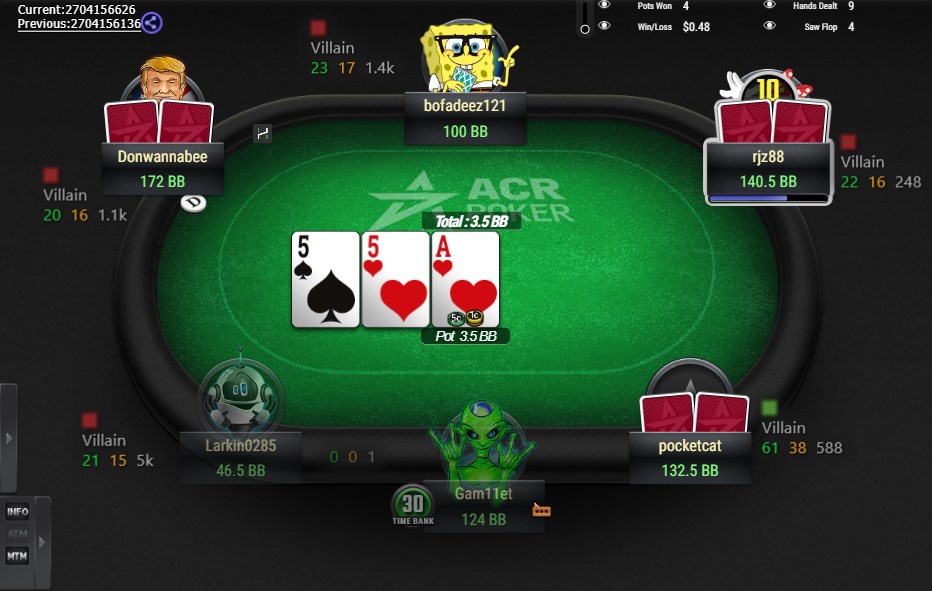
# Default
The “Default” HUD has three key stats: VPIP, PFR, and hand count.
VPIP and PFR help you understand your opponent’s playing style.
# Hand2Note Pro Static
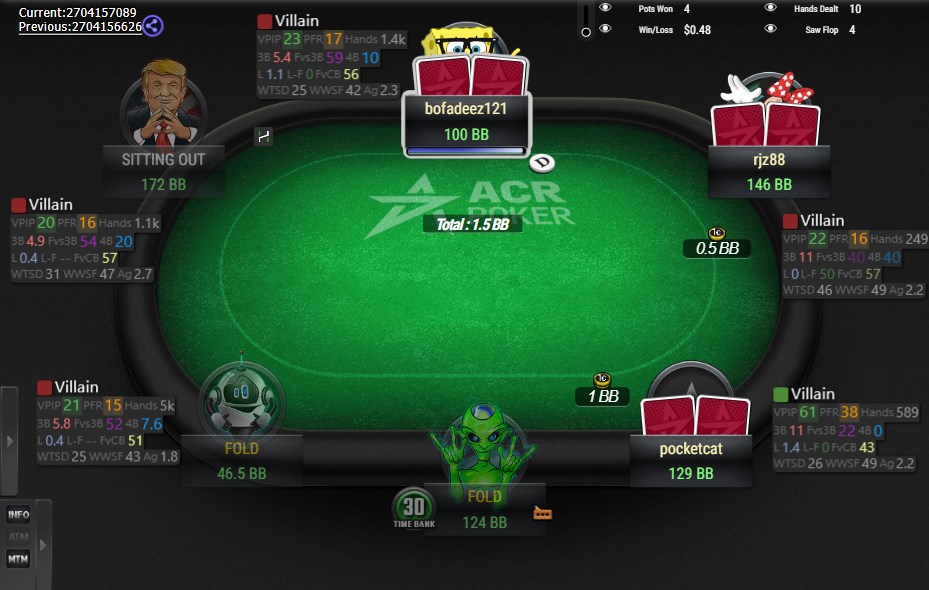
The “Hand2Note Pro Static” HUD has more stats than "Default”, but it still stays fairly simple.
The “Hand2Note Pro Static” HUD already includes key stats such as 3Bet and Fvs3Bet, which are essential in a HUD.
# Hand2Note Pro Positional
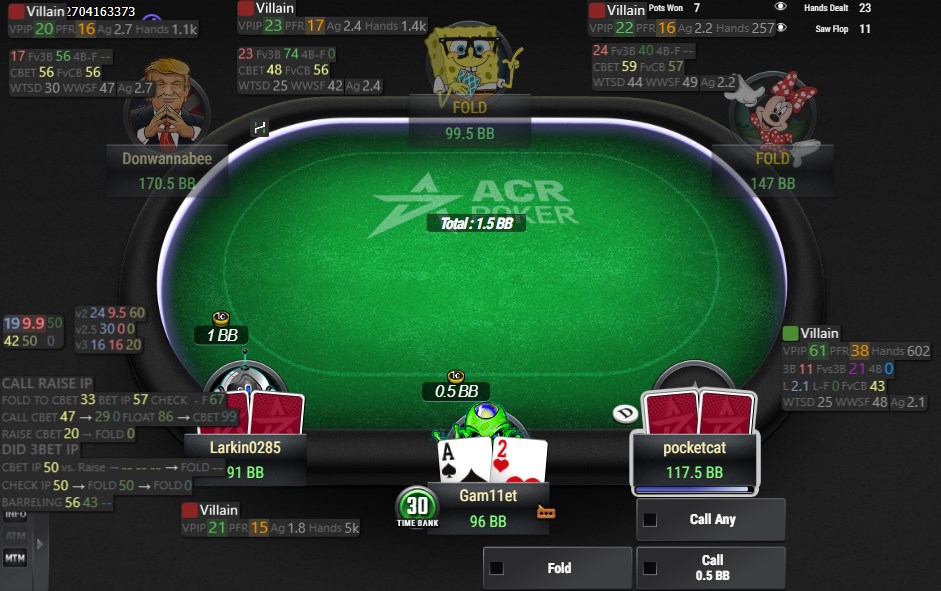
The "Hand2Note Pro Positional” HUD is a dynamic HUD and changes its stat set based on the game situation:
- The number of hands you have on the player;
- Whether the opponent acts before or after you;
- The opponent’s position relative to you;
- Whether the player is a regular or not.
The screenshot below shows that the HUD panels depend on the opponent’s position and the number of hands.
If you use “Hand2Note Pro Positional” in these poker sites, some stats and panels will not appear at the table.
For more details about what these poker sites allow and prohibit, see this article.
If you want to create a custom HUD or buy a ready-made one, we will briefly show you below where to do that.
# Creating a custom HUD
Hand2Note gives you flexible HUD settings. Use the “HUD Editor” tab to create and edit HUDs.
HUD Editor gives you options to:
- Add any number of stats to a HUD;
- Create custom color templates;
- Change the stat layout in a few clicks;
- Add several stat panels;
- Control when stats appear at the table;
- Set a stat’s color based on its value;
- Make the HUD transparent so it distracts you less during play.
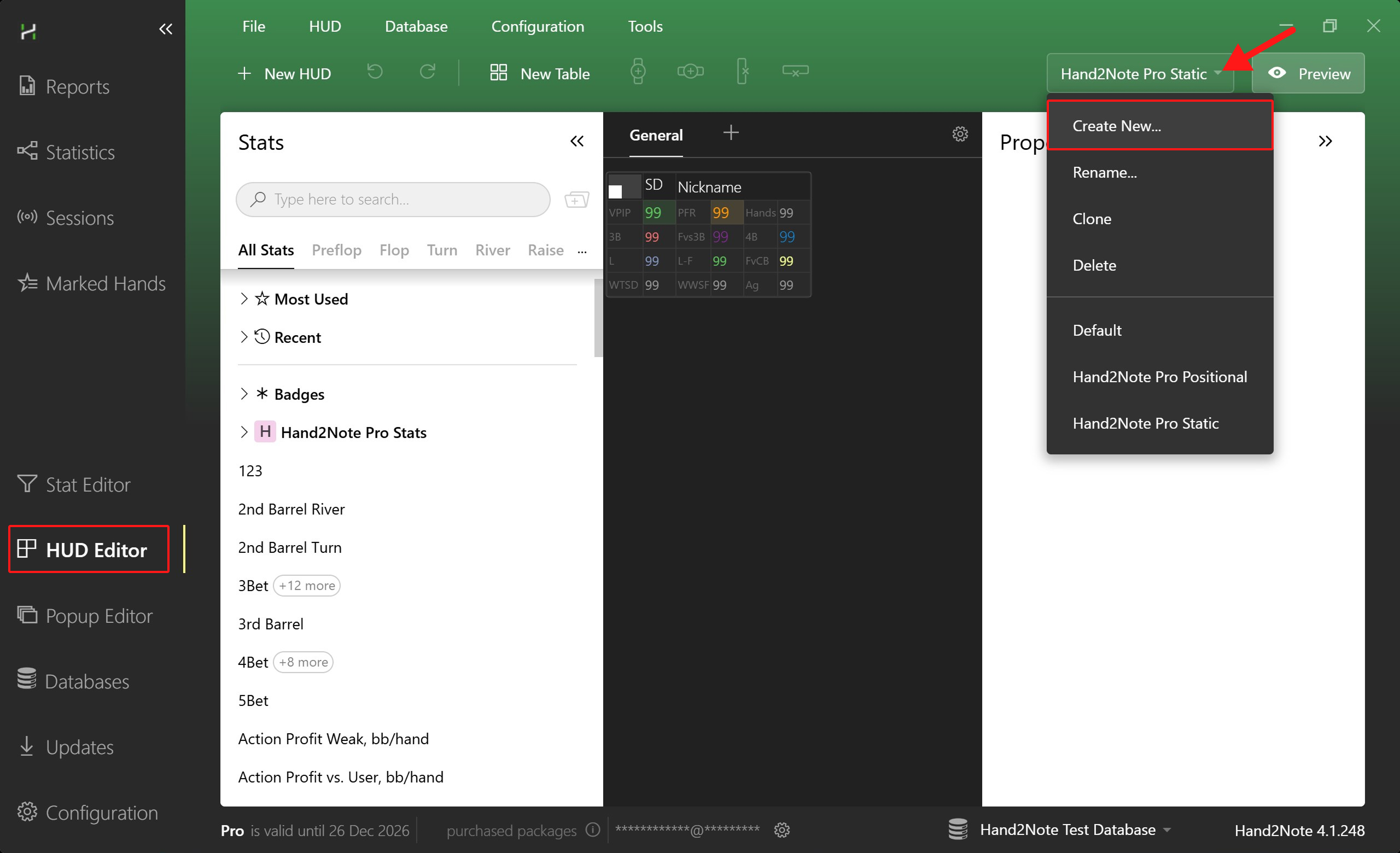
The screenshot below highlights the button for creating a new HUD.
# Buy a ready-made HUD
Hand2Note gives you powerful HUD tools, so there is no reason to stop at the default HUDs.
- Do the standard HUDs not fit your needs?
- Do you not have time to create a custom HUD?
- Are you not sure which stats to add to a HUD?
If yes, try a ready-made HUD from our official HUD Store, created by professionals.
If you already bought and installed a HUD, but it does not appear at the table, check the Switch the HUD at the table section above.
If you still have questions, see the frequent questions below.
# FAQ
# How to switch the HUD before you start playing?
Open the “Replayer” window to switch the HUD before you start playing.
Hand2Note will then save your choice, and this HUD will appear at the tables during play.
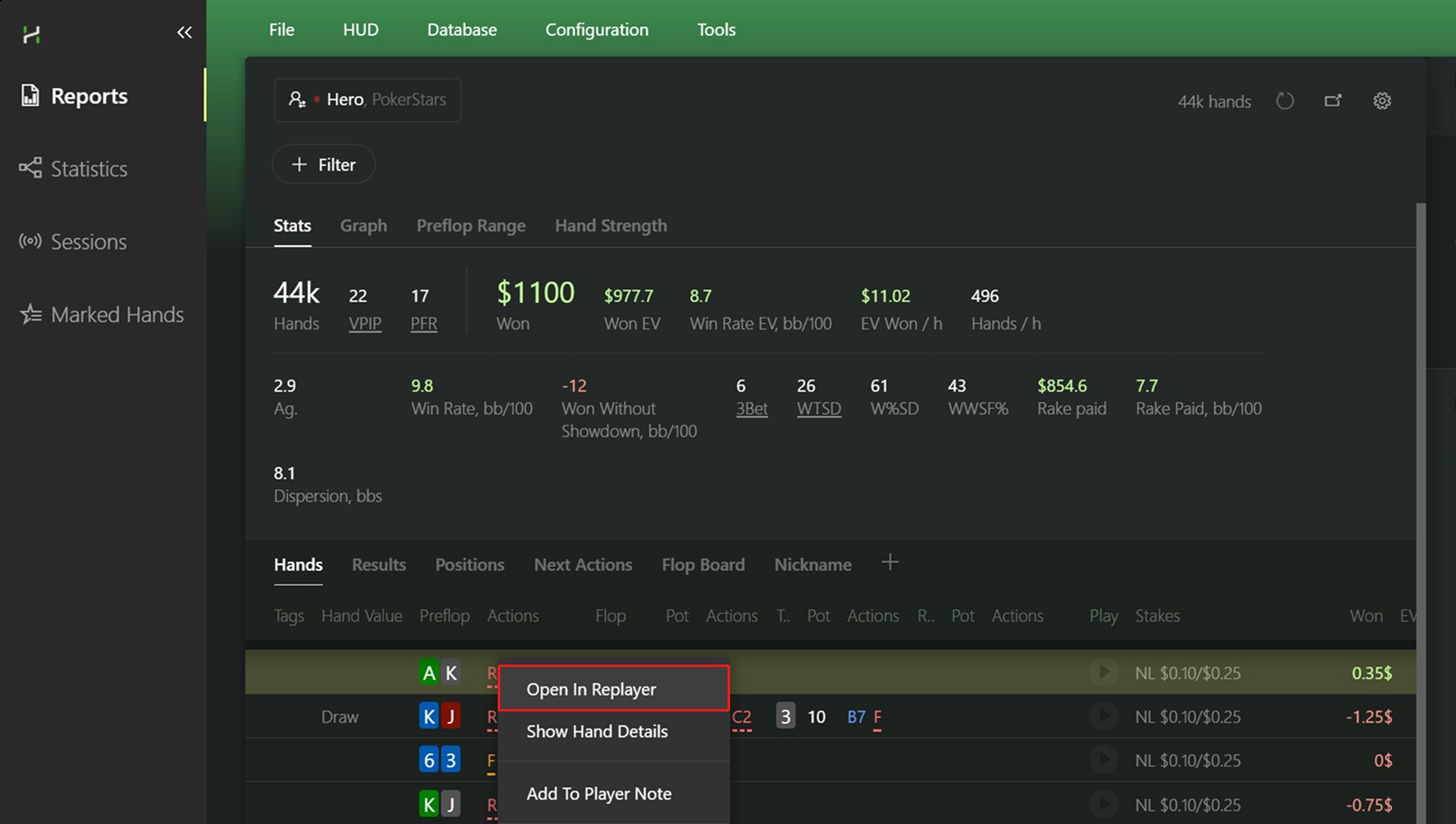
A quick way to open “Replayer”:
1. Open the “Reports” tab;
2. Right-click a row with a compact hand view;
1. In the drop-down list, click “Open in Replayer,” as shown in the screenshot below.
# Do I have to rebuild statistics after I switch the HUD?
No. You do not need to rebuild statistics after you switch the HUD.
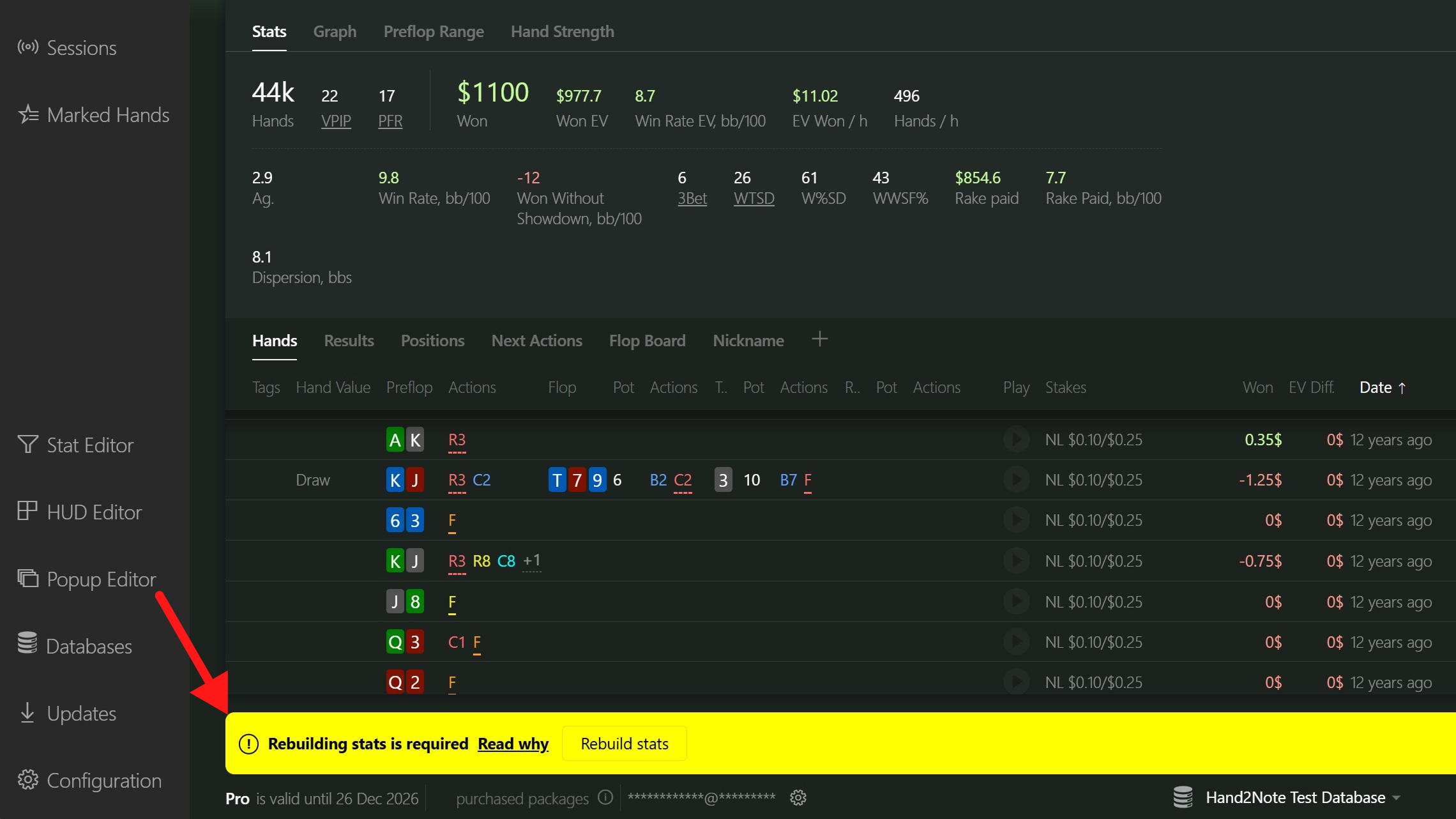
Hand2Note tracks this automatically, so you do not need to guess when a rebuild is required. When a rebuild is really needed, Hand2Note shows a banner like the one in the screenshot below.
# Do I have to switch the HUD every time?
No. You only need to switch a HUD once. Hand2Note will save your choice automatically.
You do not need to switch the HUD at the table again each new game.
# Can I play with different HUDs at the table on different poker sites?
Yes! To do this, change the categories in the “Game Types” section and switch the HUD for each poker site.
For example:
“Hand2Note Pro Static” HUD for PokerStars;
“Hand2Note Pro Positional” HUD for ClubGG.
# I switched the HUD at the table, but now nothing appears
This may happen because the HUD has dynamic filters that show some stats or panels only at certain points during play.
The standard “Hand2Note Pro Positional” HUD has such filters too.
PokerStars, iPoker, and Winamax do not allow dynamic HUDs during play.
# Why does the program ask me to buy a HUD if I already have a subscription?
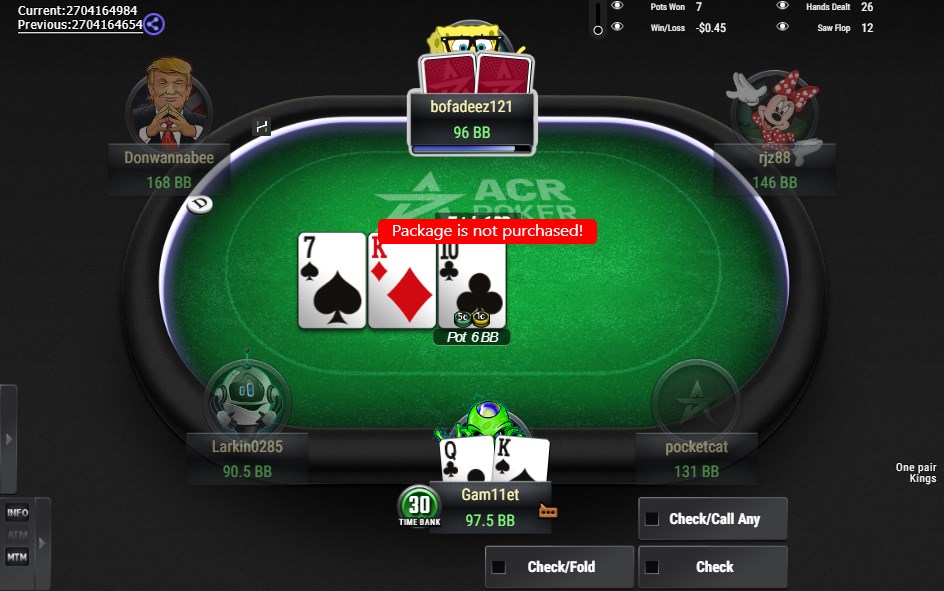
If the message “The package is not purchased” appears at the table, check which email you used to buy the HUD.
A Hand2Note subscription and a ready-made HUD license are separate. The HUD license only works with the same email as your Hand2Note account.
If you bought the HUD in the official HUD Store, find the developer’s contact details in the “My orders” tab or contact the official store support team.
A ready-made HUD does not work without an active Hand2Note subscription.


