

# WPN (Winning Poker Network) HUD
Dynamic or Positional HUDs, detailed statistics and advanced Reports with custom filters — on WPN, you can use the full range of Hand2Note features. In this guide, I’ll show you how to set everything up and get started.
Table of Contents:
Hand2Note Features for WPN Players
Supported WPN Rooms and Formats
# Hand2Note Features for WPN Players
Flexible HUD options. Use a dynamic or positional HUD to see stats based on player positions and actions at the table.
Prefer a classic static HUD? Pair it with Auto HUD and open popups whenever you need more detailed stats, visual diagrams, or player ranges.
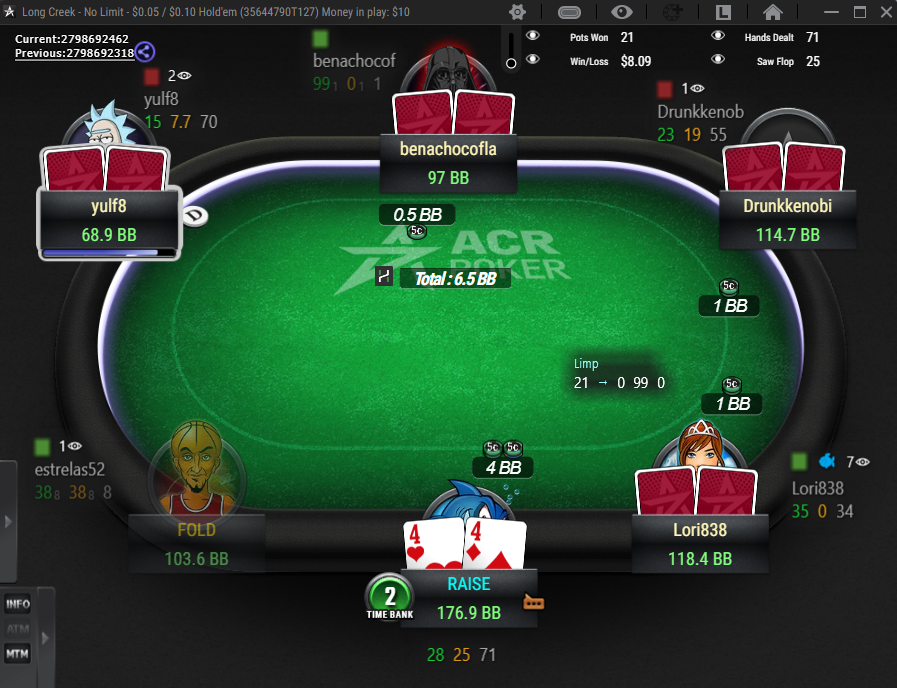
More accurate stats. Exclude hands against recreational players to better understand how regulars actually play.
Post-session analysis. Use Reports and flexible filters to spot mistakes and focus your study on the situations that impact your win rate most.
Field analysis. Explore how players behave in different situations and see their ranges with interactive stats.
# Supported WPN Rooms and Formats
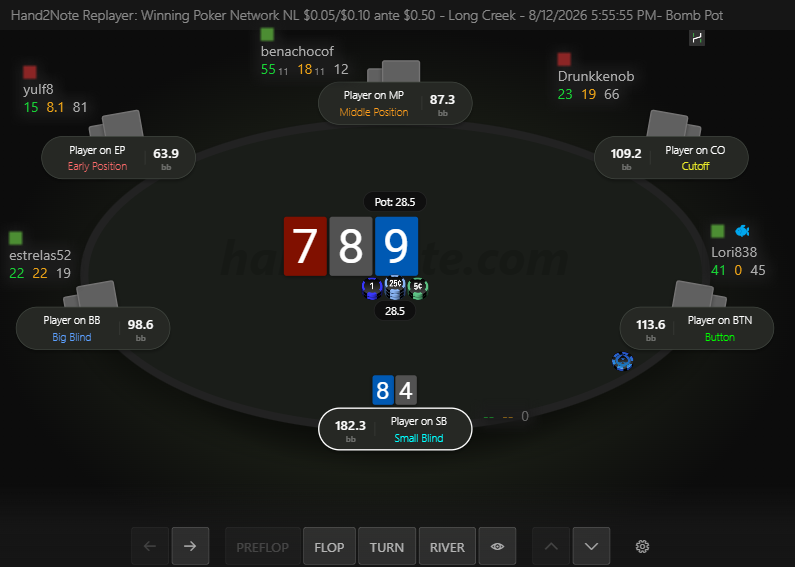
Hand2Note works with ACR Poker, PokerKing, Black Chip Poker, YaPoker, and other rooms on the network.
It supports all major formats, including NLH, PLO, PLO5, Blitz, Reshuffle, Bomb Pots, tournaments, Sit & Go, and Spinz Holdem.
See the Supported Poker Rooms guide for the full list of supported rooms and formats.
# Quick WPN Setup Guide
# Step 1. Install Hand2Note
If you haven't installed Hand2Note yet, download the latest version from our website and follow the installation steps.
# Step 2. Set Up Your WPN Client
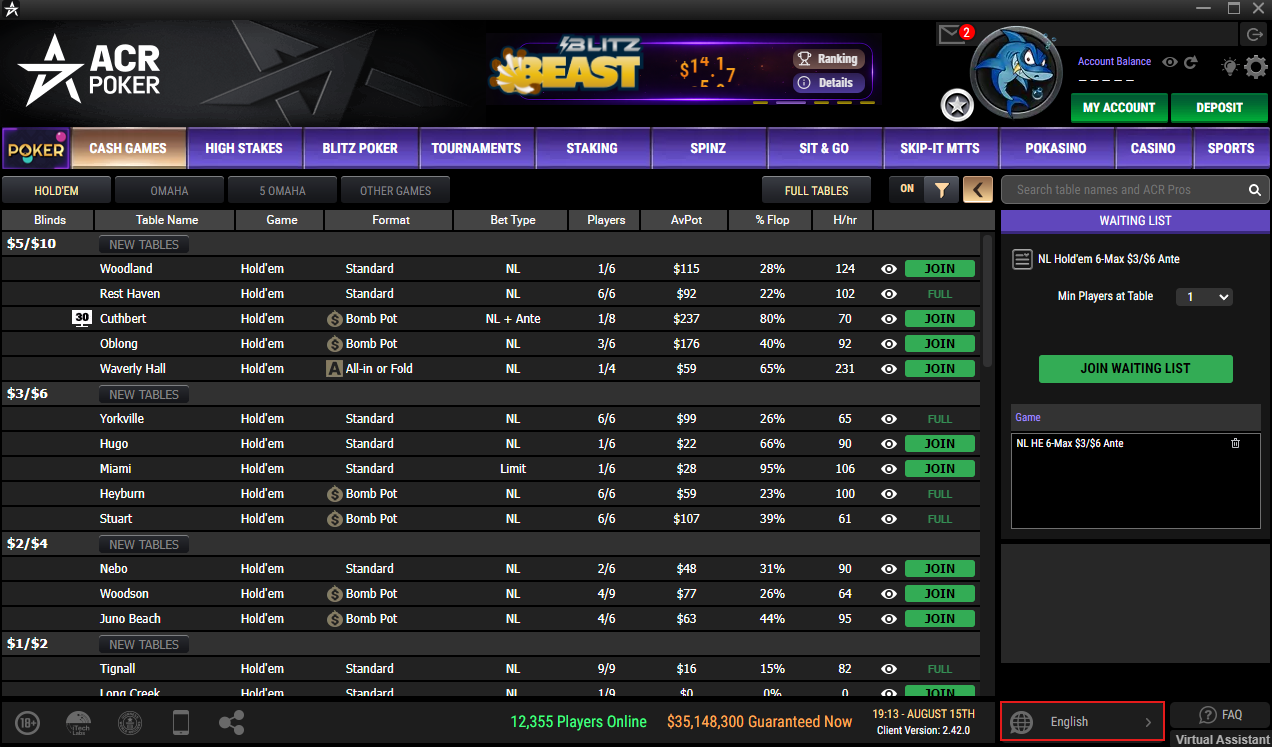
Switch the poker client to English.
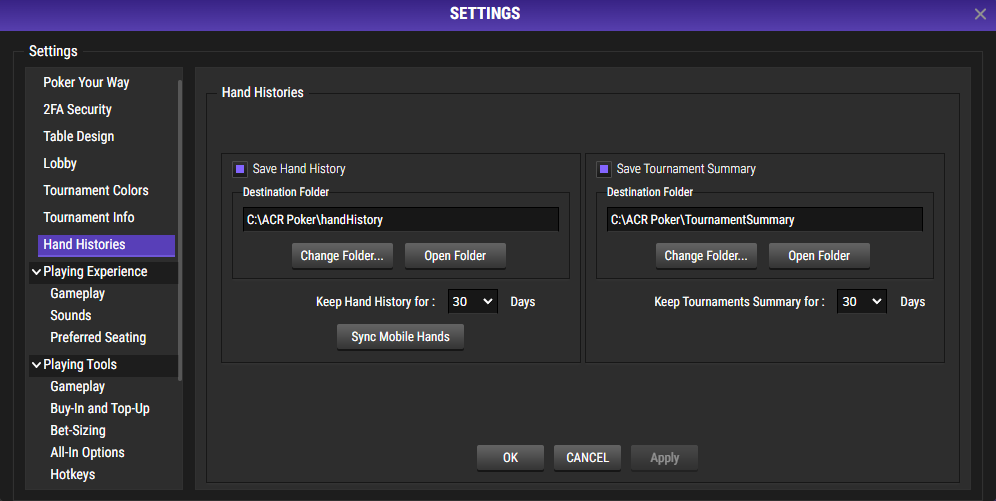
Enable hand history saving.
# Step 3. Set Up Auto Import in Hand2Note
In Hand2Note, go to Configuration → Auto Import.
Click Add auto import folder… and add these two folders:
- HandHistory — stores your played hands.
- Tournament Summary — stores tournament results, including buy-ins, finishing positions, and winnings.
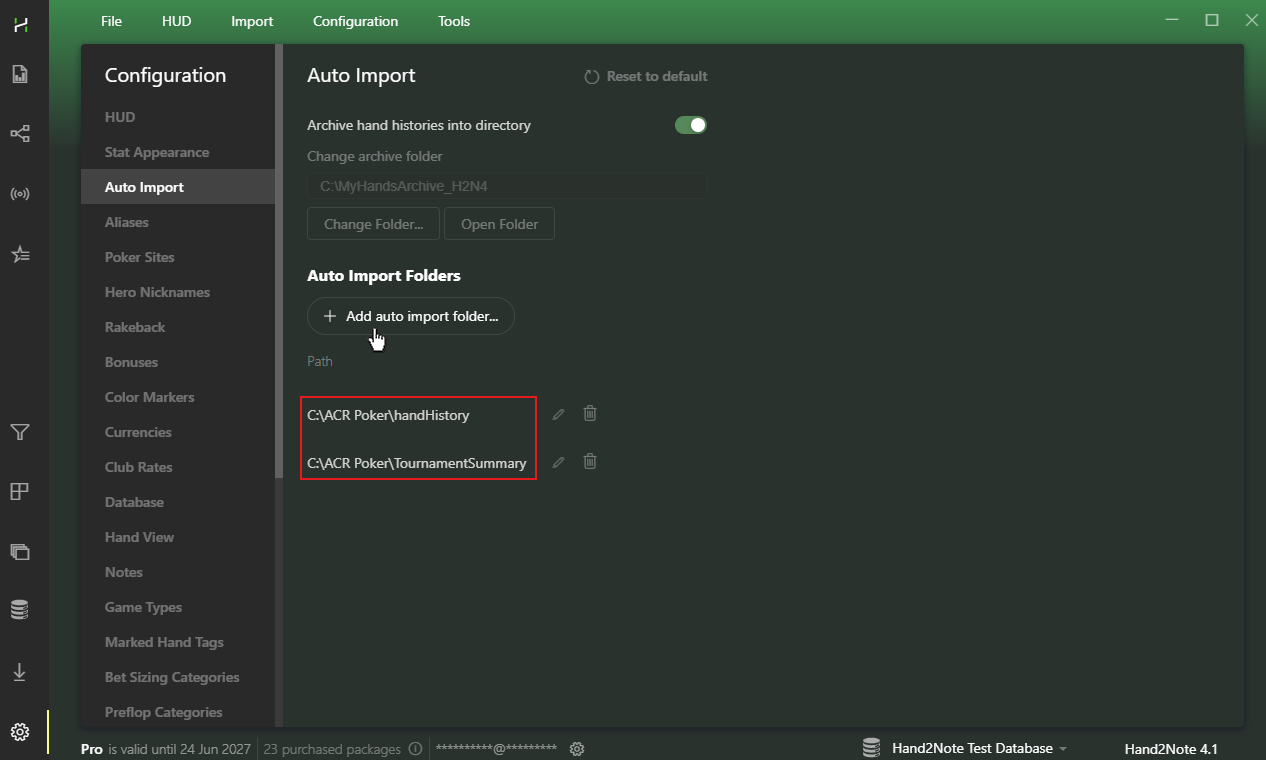
That's it. Hand2Note will now automatically import new hands, and your HUD will appear at the tables.
Want to use a different HUD? Check out our How to Change Your HUD guide.
# How to Review Your Hands
Once you finish playing, all your hands are ready to review in Hand2Note.
Here’s a simple example of how to go from your session results to finding and analyzing specific hands.
# 1. Check Your Results
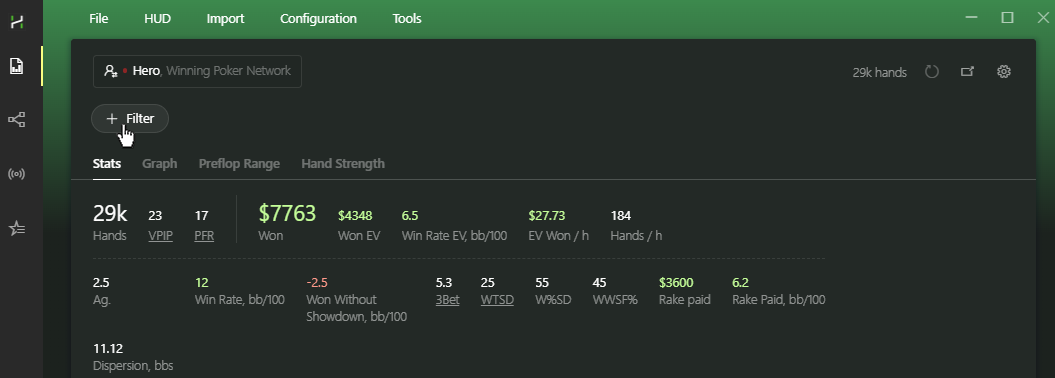
Open Reports and select your WPN nickname.

# 2. Find the Hands You Want to Review
Let’s say you want to take a closer look at the Bomb Pot hands from your session.
Click +Filter.
Go to the General tab and select Bomb Pot.
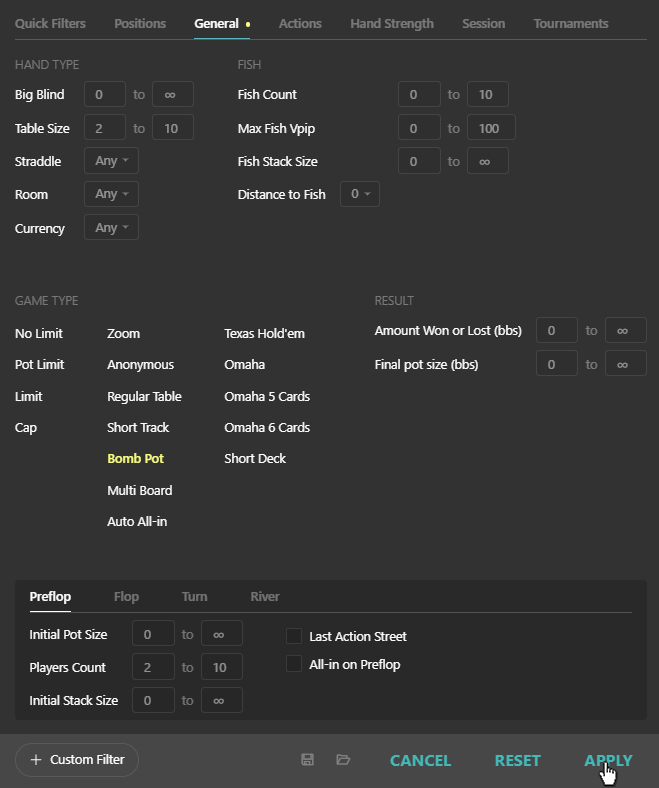
Click Apply.
You can use the same approach to review other WPN game formats. For example, select Zoom for Blitz, or choose Omaha, Omaha 5 Cards, or Omaha 6 Cards.
# 3. Mark Hands for Later Review
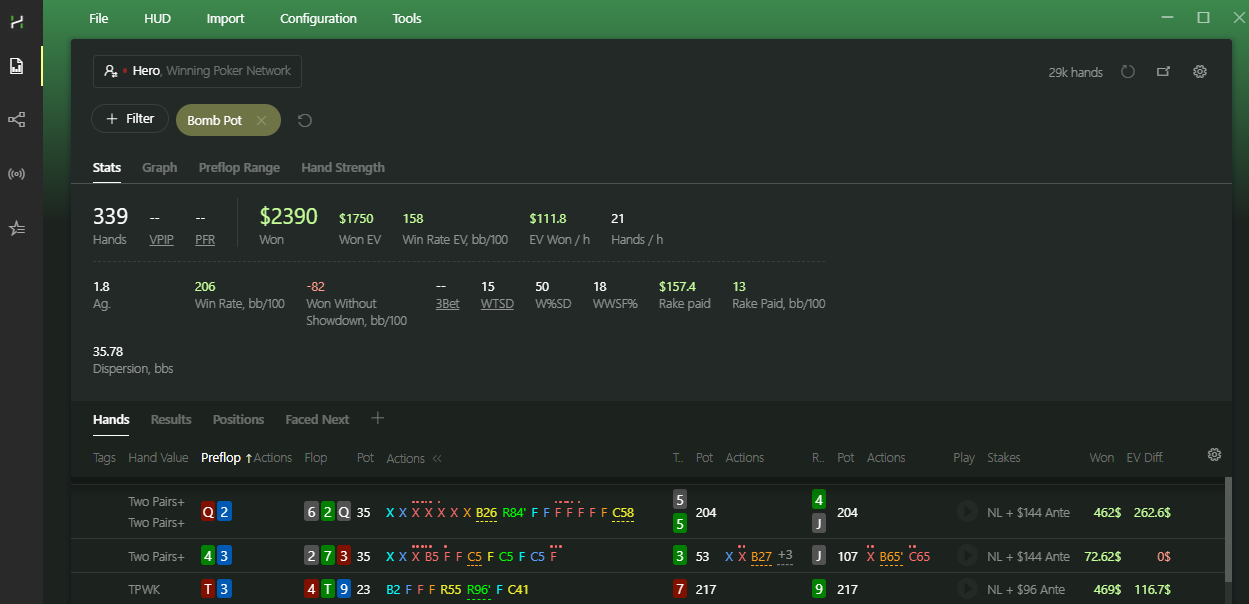
Go through the filtered hands in the Replayer and look for spots that deserve a closer look.
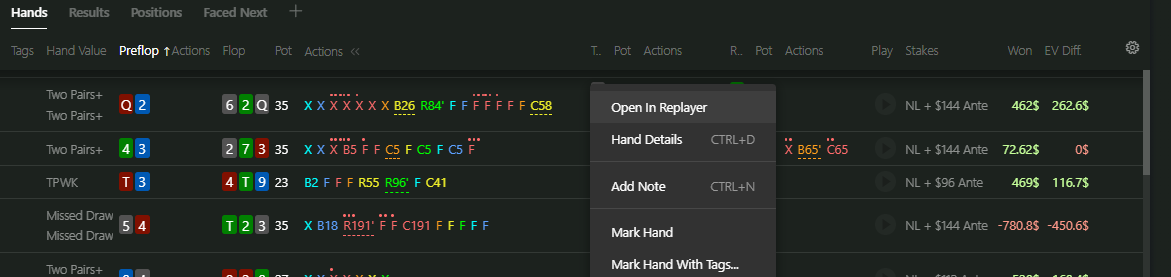
Found a tough decision or an interesting spot? Add a tag so you can quickly find it again later.
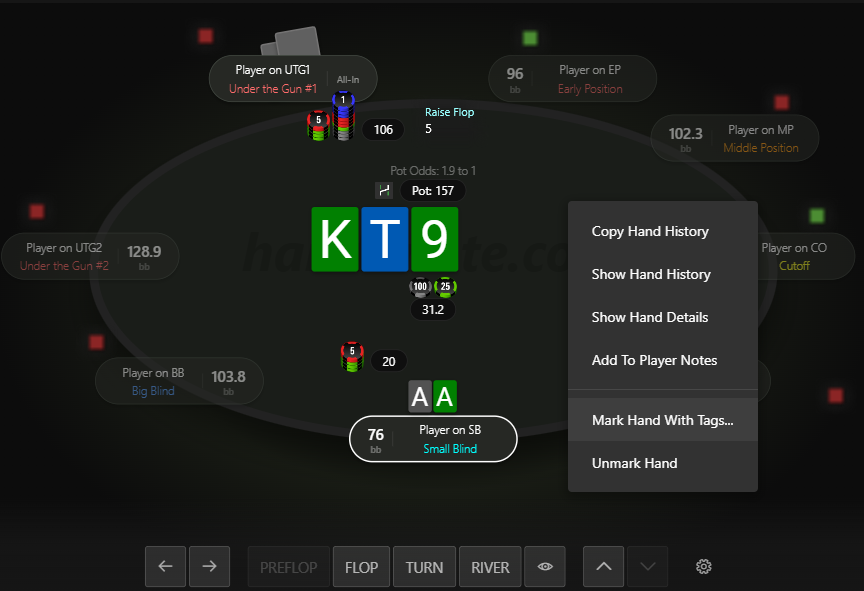
You can also create a Bomb Pot tag to collect interesting hands from this format as you play and review.

# 4. Spot Patterns in Your Game
Looking through the marked hands, I can already see a pattern: I struggle with decisions when facing a raise.
In Bomb Pots, opponents can show up with all kinds of hands on the flop, which makes putting them on a range difficult.
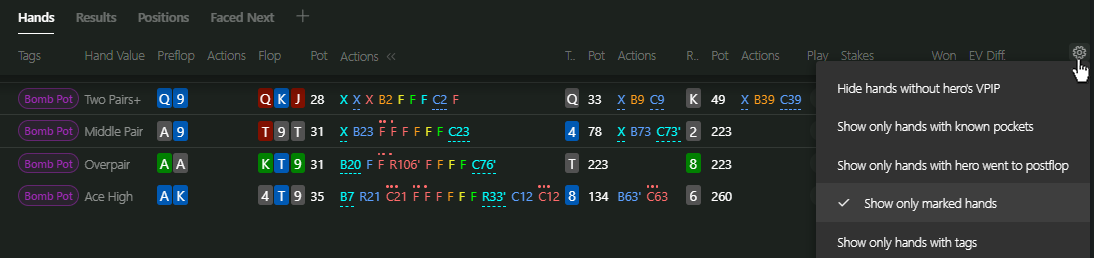
Now I should investigate this pattern further.
Statistics lets me explore raising ranges to see how the field plays these spots, and Multiple Players filters in Reports help me review similar hands from my opponents’ perspective.
# Frequently Asked Questions
# Does Hand2Note work with WPN on macOS?
Yes. Hand2Note supports Winning Poker Network rooms on both Windows and macOS.
# How do I set up a separate HUD for Bomb Pots?
1. Go to Configuration → Game Types and create a new Game Type.
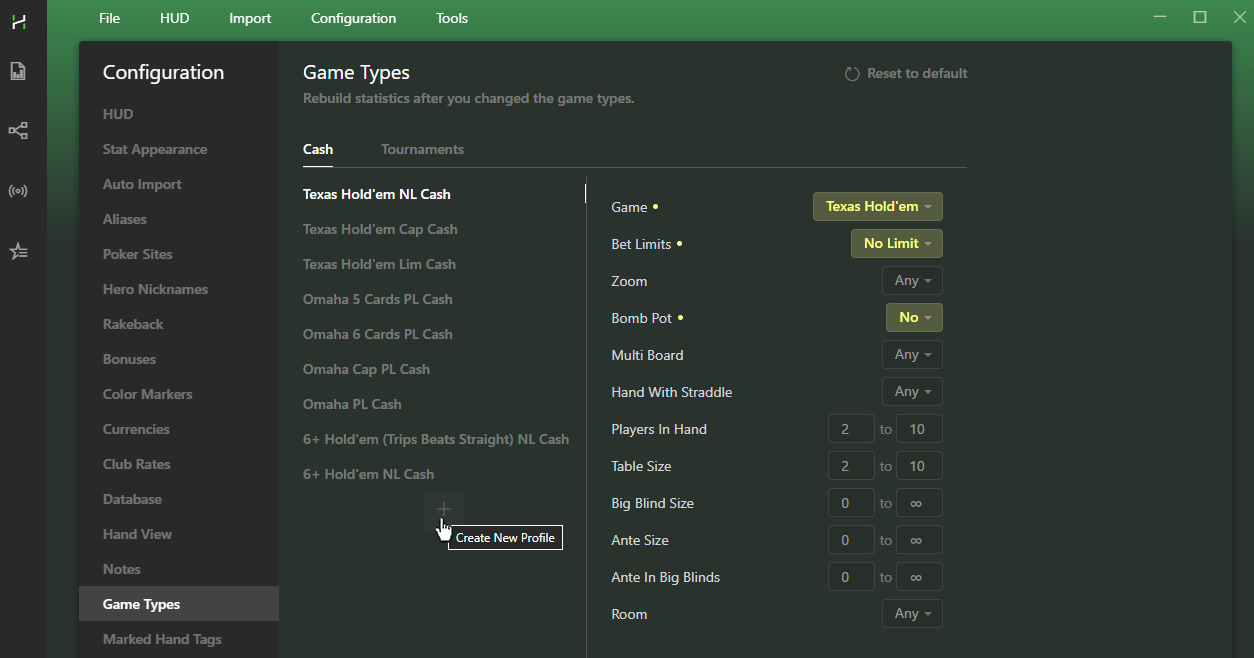
2. Set Bomb Pot to Yes in the filters.
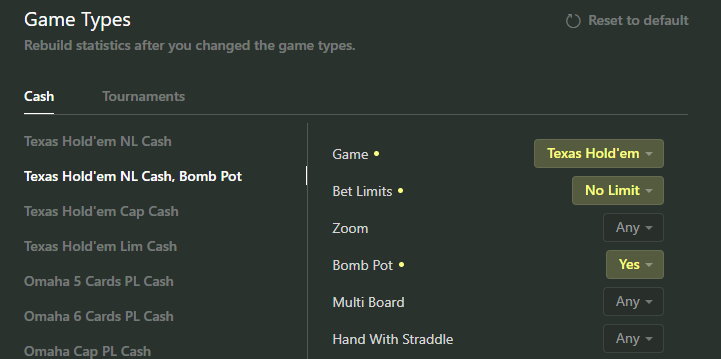
3. Rebuild Statistics.

Once the rebuild is complete, choose the HUD you want to use at the table.
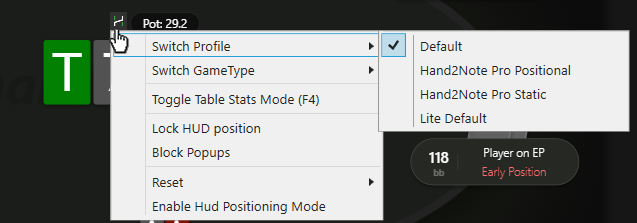
Hand2Note will remember your choice and automatically load this HUD whenever you play Bomb Pots.
# Troubleshooting
# HUD doesn’t appear at WPN tables
1. Make sure your poker client is set to English.
2. Open Updates in Hand2Note and install the latest versions of: Hand2Note, HUD Host, Winning Poker Network.
3. Restart Hand2Note and your poker client.
Still no HUD? Follow the steps in our HUD Is Not Showing troubleshooting guide.
# HUD appears, but stats don’t update
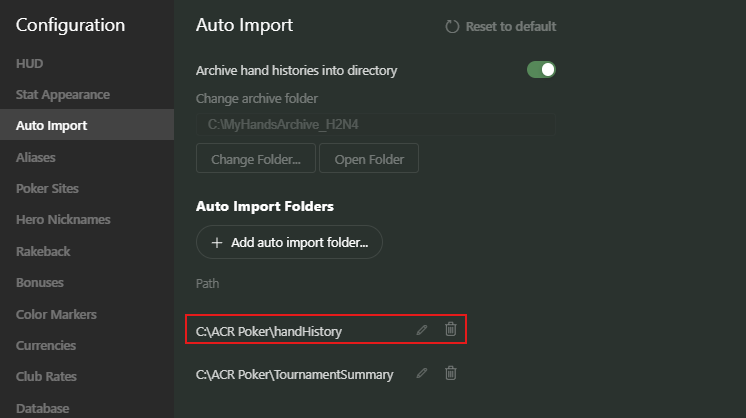
Make sure the HandHistory folder is added under Configuration → Auto Import.
# What’s Next?
Your Hand2Note setup for WPN is ready. Now you can customize your HUD, explore Reports and filters, and find new ways to improve your game.
Useful guides:


