

# Creating Custom Boards in Hand2Note
In this guide, I’ll introduce you to the board editor and show you how to create flops, combine filters, and add turn or river cards to see how your opponent plays on each board type. You’ll find these boards in Reports and stat popups for every action.
Table of Contents
# Where to Add Boards
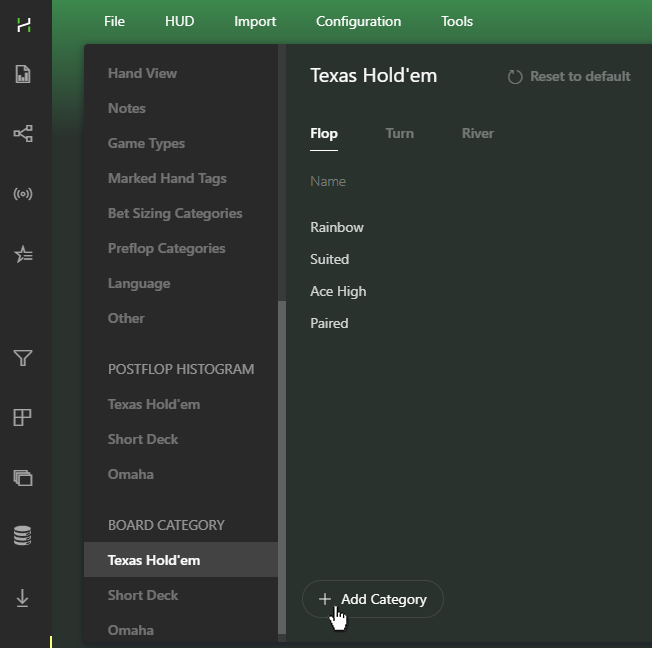
To add boards, go to Configuration → Board Category.
Select your game type—Texas Hold’em, Short Deck, or Omaha—and click + Add Category to open the editor.
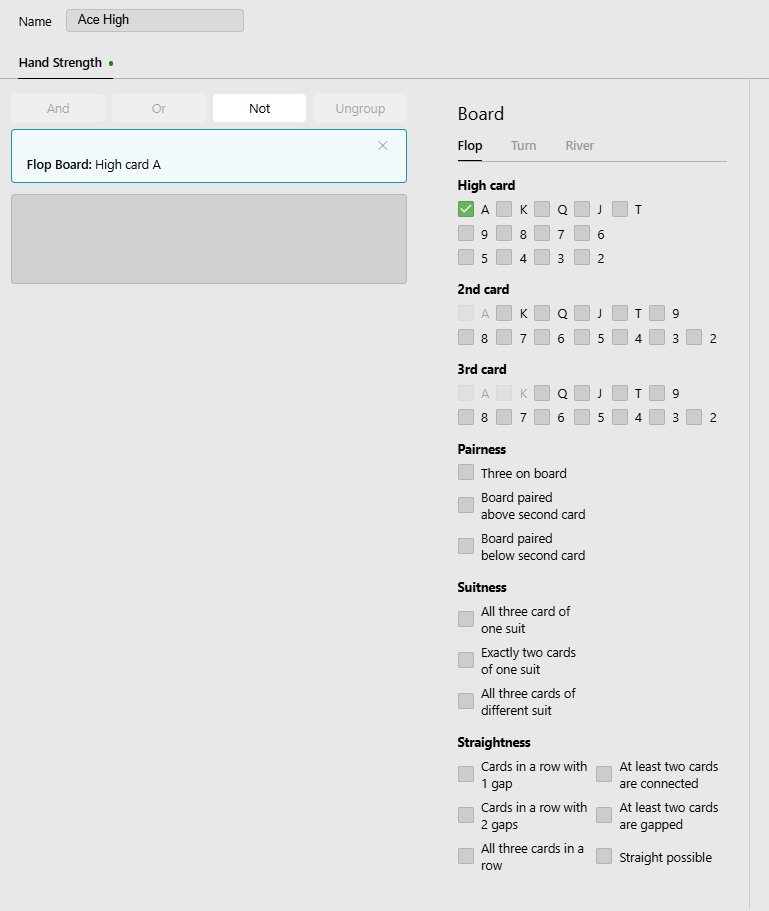
The editor works like a set of building blocks: choose filters on the right to build a description of your board on the left.
The filter groups make it easier to find what you need:
- High card, 2nd card, 3rd card — card ranks, from highest to lowest.
- Pairness — cards of the same rank.
- Suitness — suit combinations.
- Straightness — connected cards and straight possibilities.
You can combine filters within a group or across groups. For example, pick an ace and a suit combination, then use the And, Or, and Not buttons to tell the editor how to combine them.
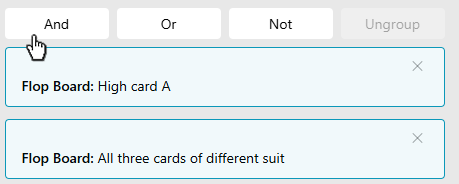 Two separate conditions: an ace and three different suits.
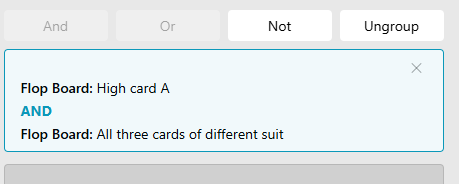 After clicking And, the flop must meet both conditions.
- And — the board must match all selected conditions.
- Or — allows any of the selected conditions.
- Not — excludes what you don’t want.
# Flop Examples
Here are a few flop types and the filters you can use to create them.
| Flop type | Example | Filters to use |
|---|---|---|
| Exactly two cards of the same suit | A 8 3 | Exactly two cards of one suit |
| Two cards of the same suit, no ace | Q 7 4 | Exactly two cards of one suit AND NOT High card: A |
| An ace, a card from ten to king, and a card from two to nine | A J 5 | High card: A AND 2nd card: K–T AND 3rd card: 9–2 |
| All cards below ten | 9 6 2 | High card: 9–2 |
| King-high, three different suits | K 8 3 | High card: K AND All cards of different suits |
| A pair, no card above ten | T 2 2 | High card: T–3 AND (Board paired above second card OR Board paired below second card) |
You can narrow these down further. For example, “All cards below ten” also includes paired flops such as 9 6 6 .
To exclude pairs, use AND NOT with the pair filters. To include only rainbow flops, add "All cards of different suits" with AND.
Next, let’s build a board step by step: start with a flop, add filters, then add a turn card.
# Adding a Flop
Suppose we want to see how an opponent plays on flops with an ace, two cards of the same suit, and no pair—for example, A 8 3 .
Start with the suits. On the Flop tab, click + Add Category.
Under Suitness, select Exactly two cards of one suit.
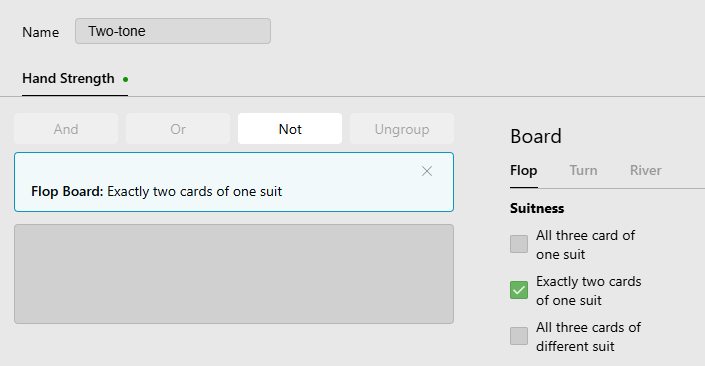
Name it Two-tone and click OK to save. For now, it includes all flops with exactly two cards of the same suit.
# Adding an Ace
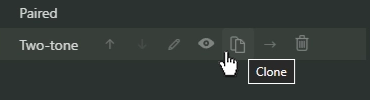
Click Clone to make a copy, keeping the original Two-tone version.
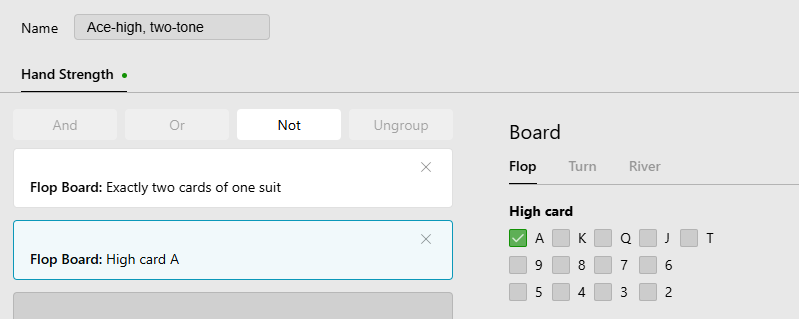
In the copy, select A under High card.
We need both an ace and two cards of the same suit. Select both conditions and click And.
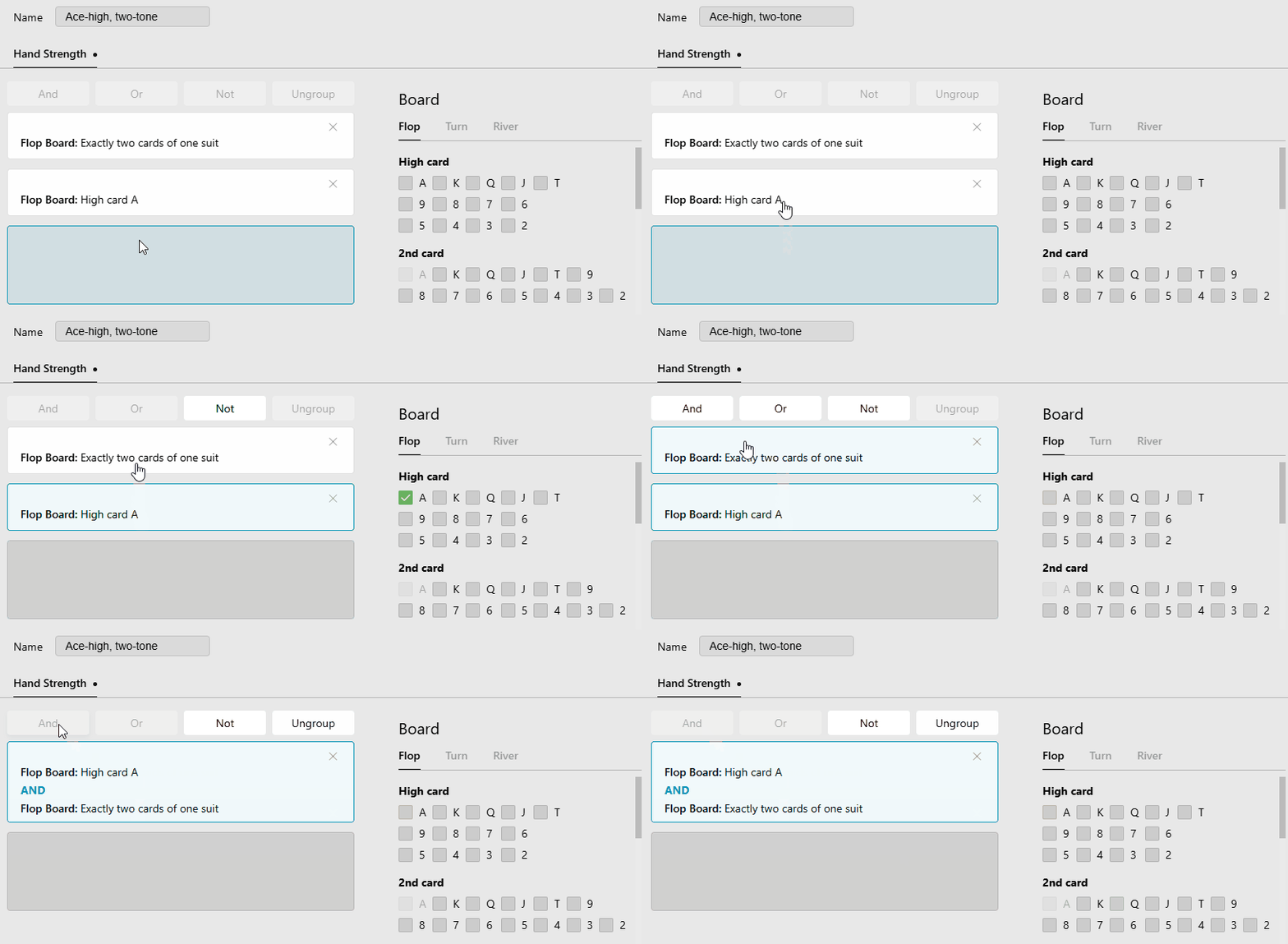
I’ll save this as Ace-high, two-tone.
We now have flops with an ace and two cards of the same suit. But paired flops like A A 3 also meet these conditions, so we still need to exclude pairs.
# Excluding Pairs
Add a new block and select both pair filters:
- Board paired above second card — the pair is higher than the remaining card, as in AA2.
- Board paired below second card — the pair is lower, as in 22A.
Apply Not to these filters, then use And to combine this block with the ace and suit conditions.
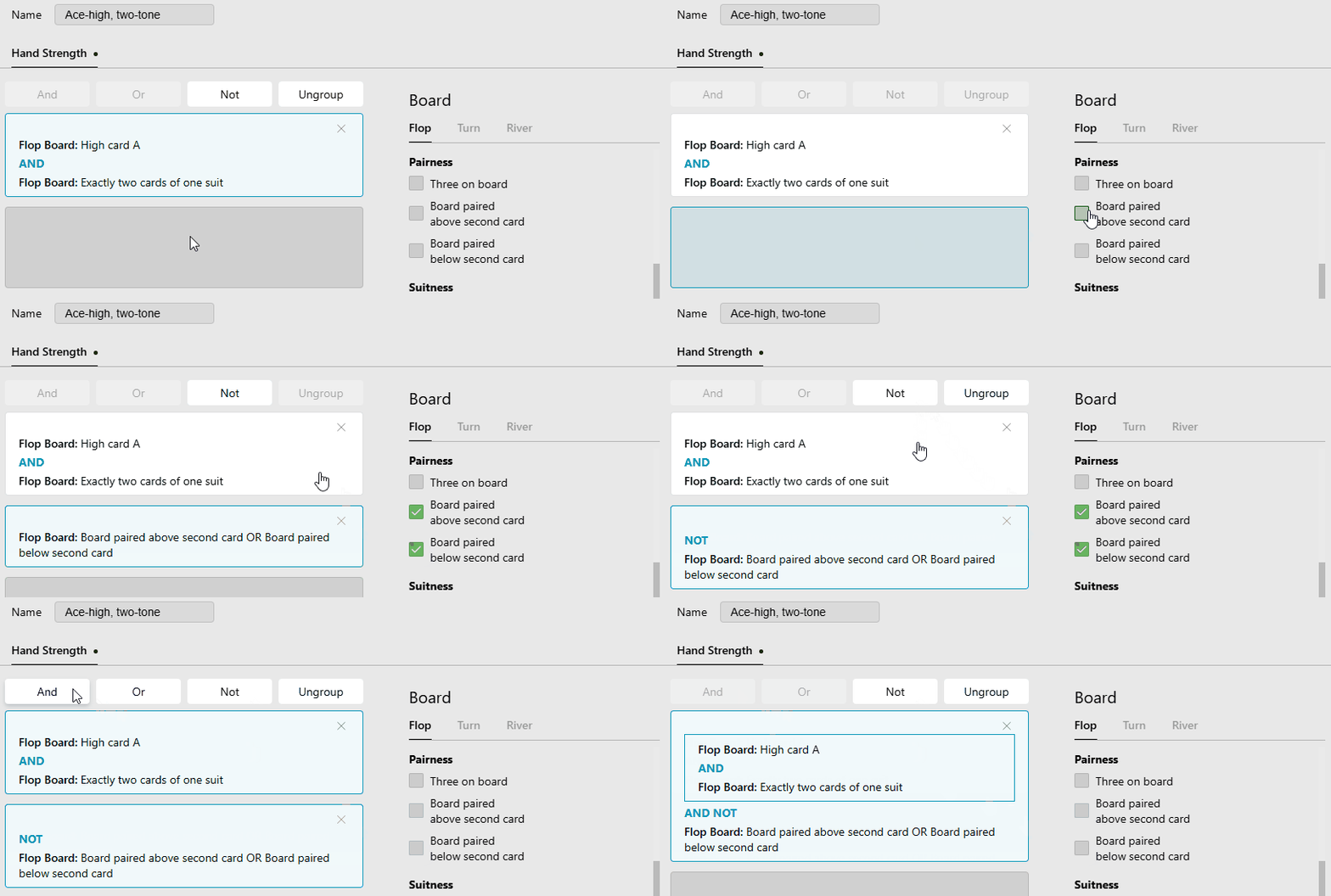
Now we have exactly the flops we wanted: an ace, two cards of the same suit, and no pair.
If I don’t have many hands on a player, I can still use Two-tone to see a larger sample. That’s why we kept the original.
# Adding the Turn
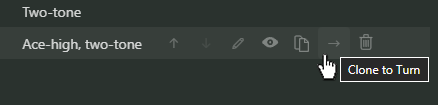
Let’s see how the opponent plays when the turn brings a third card of the same suit. Click Clone to Turn to reuse the flop conditions.
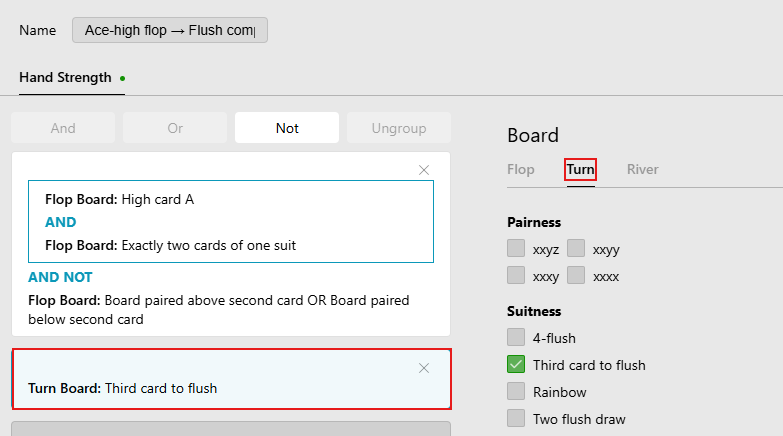
On the Turn tab, choose Third card to flush under Suitness.
Combine the flop and turn conditions using And.
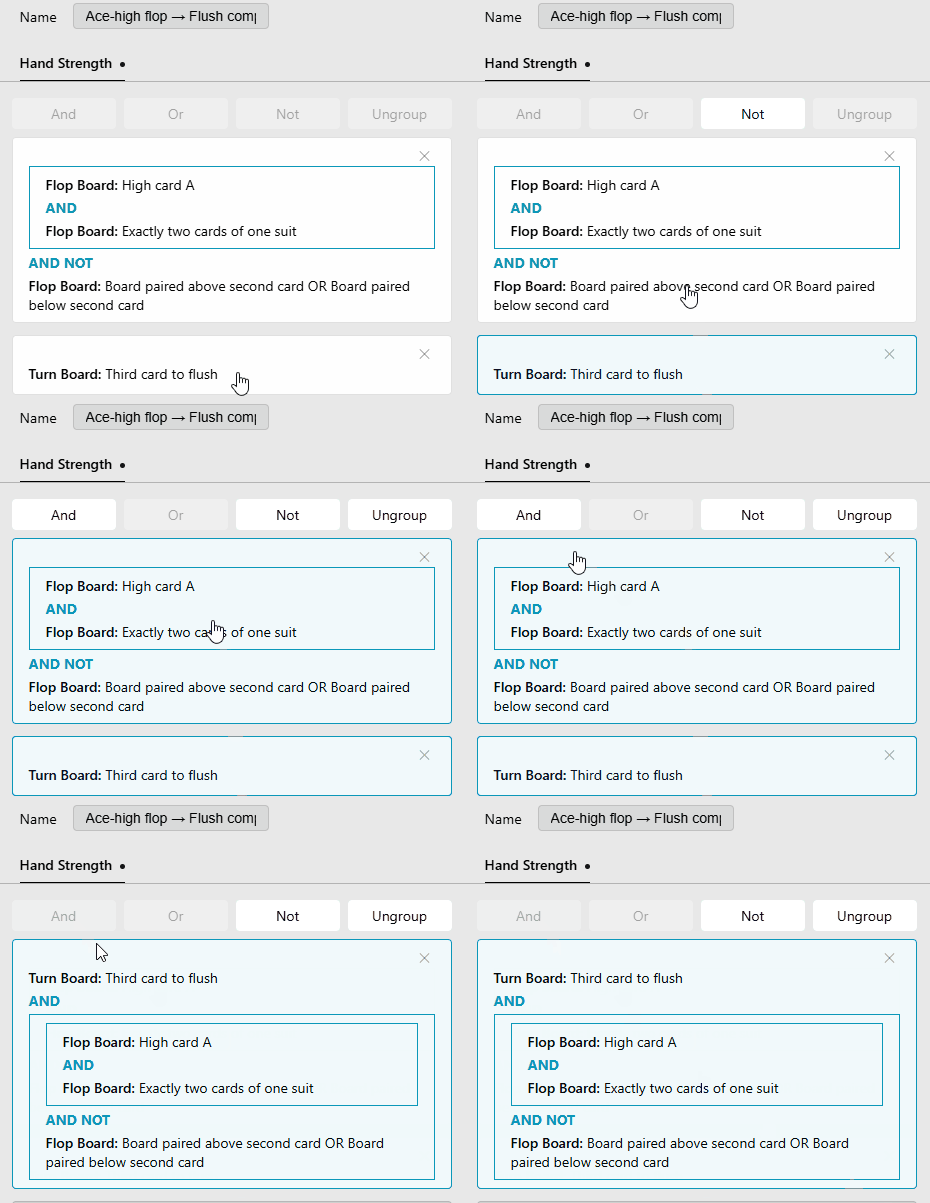
Save it as Ace-high flop → Flush completed.
You’ll see these boards in stat popups for turn actions—for example, when you hover over the turn continuation bet stat — second barrel.
To add the river, follow the same steps: clone to the next street and choose a filter for the final card.
# Checking Your Categories
Before rebuilding statistics, hover over the category name and click the eye icon to see matching hands.

Check the cards: the flop should have an ace, two cards of the same suit, and no pair. The turn should bring a third card of that suit.
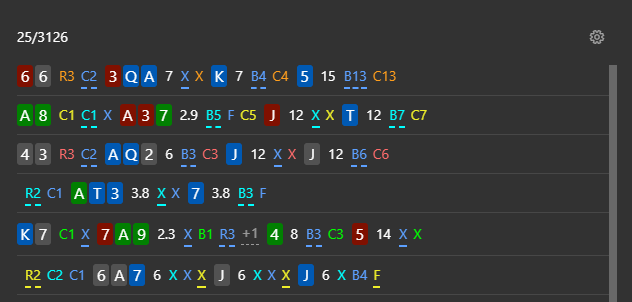
If everything looks right, rebuild your statistics. Your new boards will appear on the Boards tab in stat popups.
I’ve added a few more flops. Here’s how the popup looks now.
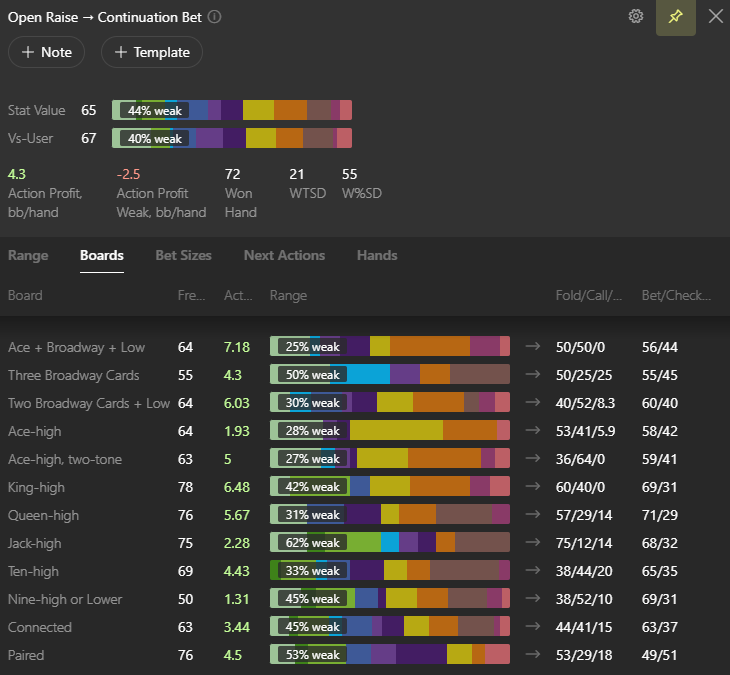
Now I can compare how often this opponent bets on different flops and what hands they bet with.
The boards where I’m unsure how to respond are a good place to start. From there, I can check the same spots in Statistics to see how the rest of the player pool plays. If another board gives me trouble during a game, I can add it later.
# Frequently Asked Questions
Can I buy ready-made board categories?
Yes. To save time on setup, you can buy a stats package from the HUD Store. Check whether it includes board categories before you buy.
How many board categories can I create?
Up to 255 in the general settings. You can also add board filters to individual stats.
How can I share them with a friend?
Close Hand2Note and send your friend BoardCategoryConfig.h2nconfig from:
C:Program FilesHand2Note 4.1Config
Have questions or need help creating a board category? Contact our support team—we’ll help you figure it out.
# Read Next
Aggregate stats of multiple players


