

# Winamax HUD
Winamax restricts specific HUD features. We adapted Hand2Note to fully comply with these rules while still giving you professional statistics at the tables and powerful post-session analysis.
In this guide, you'll learn which HUD features are available on Winamax, how to set up Hand2Note, and how to start analyzing your game with a practical example.
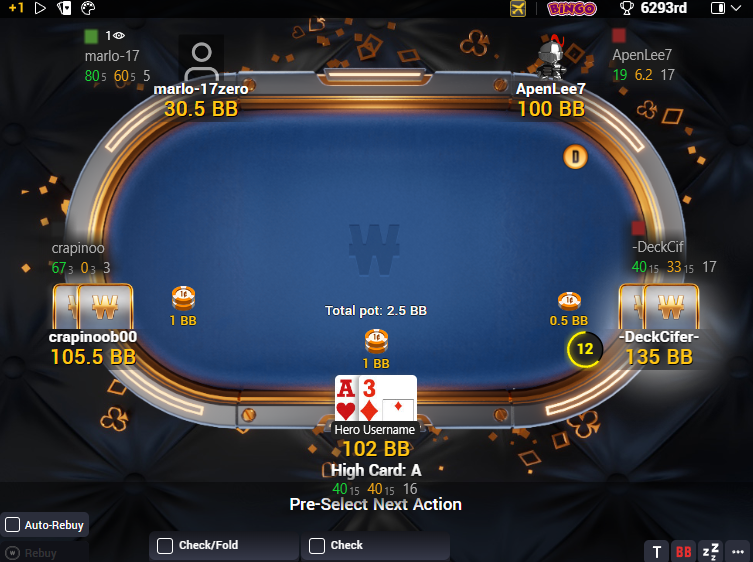
Table of Contents:
Why choose Hand2Note for Winamax?
Getting Started with Hand2Note
# Why Hand2Note for Winamax?
Hand2Note automatically adapts to Winamax restrictions. Get everything the platform allows at the tables, then use powerful analysis to review hands, find leaks, and study your opponents after your session.
# During Play
On Winamax, you can use:
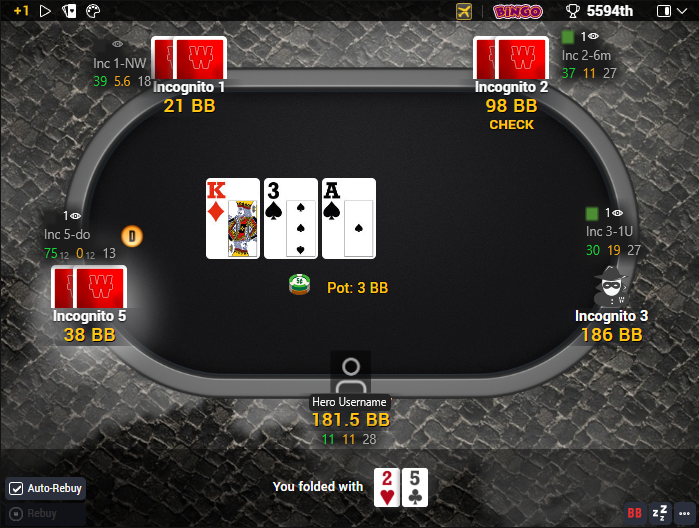
- HUD: static panels, separate statistics for each Incognito table, automatic HUD hiding for inactive players, and unlimited statistics.
- Popups: automatic stat popups with advanced statistics [1], fully customizable popups.
- Additional features: notes, color markers, manual badges, a showdown indicator, and more.
Most features work exactly as they do in other poker rooms. For details, see Hand2Note During Play.
# Post-Session Analysis
Once your session ends, Winamax restrictions no longer apply. Use Hand2Note to:
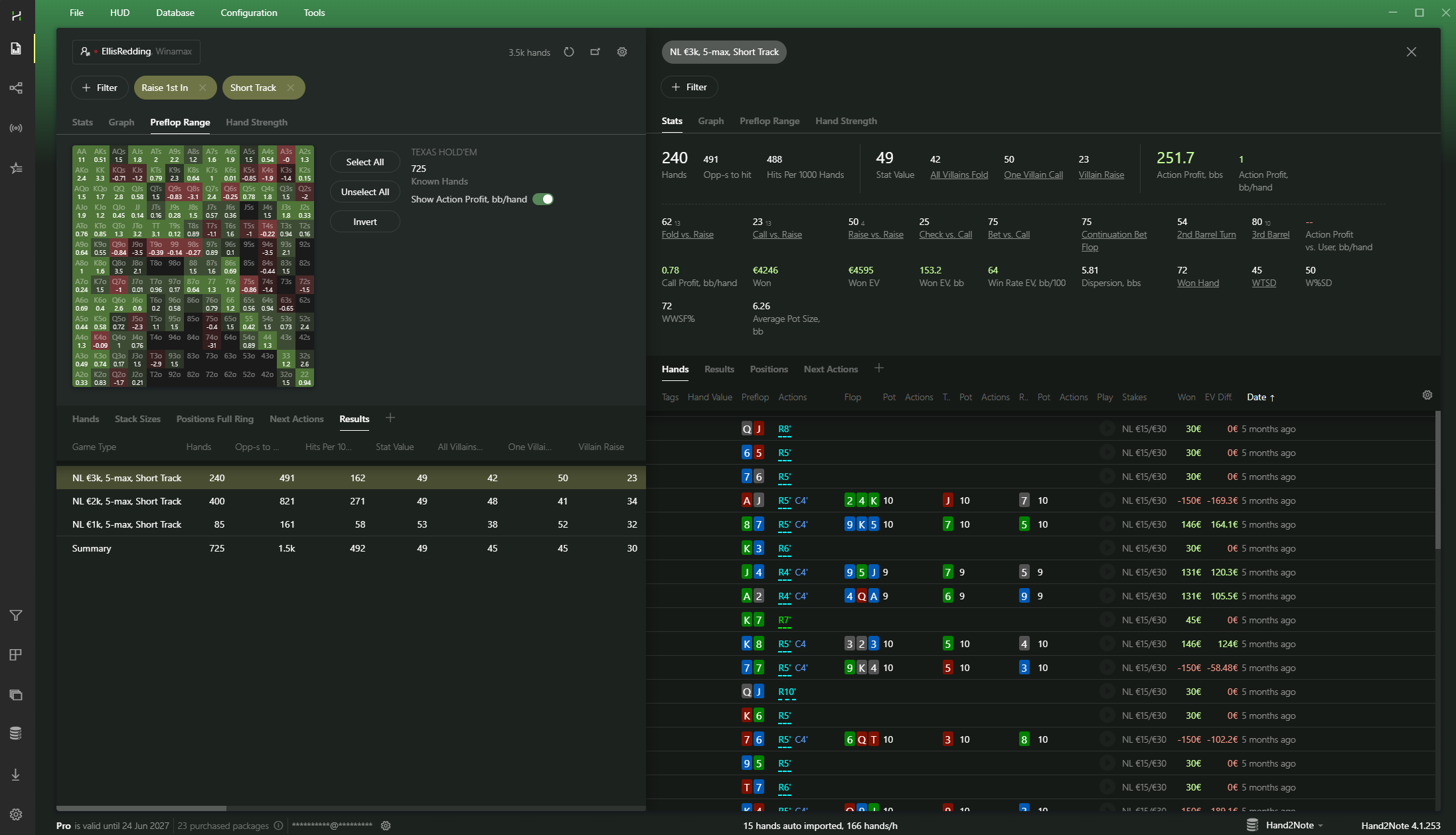
- Review reports: use ready-made reports and filters to analyze Expresso multipliers, regular and Incognito cash tables, MTT blind levels, Short Track, and more.
- Find leaks: evaluate the profitability of specific actions with Action Profit, build custom filters, and review marked hands.
- Study the player pool: analyze population tendencies for your stake in the Statistics section and track your own performance over time.
# Setting Up Hand2Note for Winamax
# Step 1. Install Hand2Note
Download and install Hand2Note from the official website.
Launch the application.
# Step 2. Configure Winamax
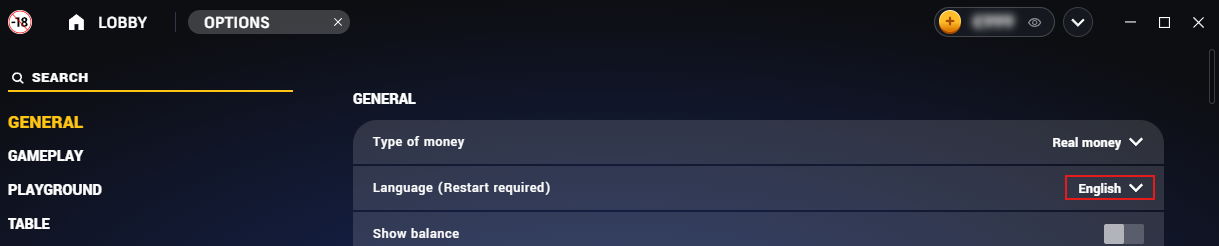
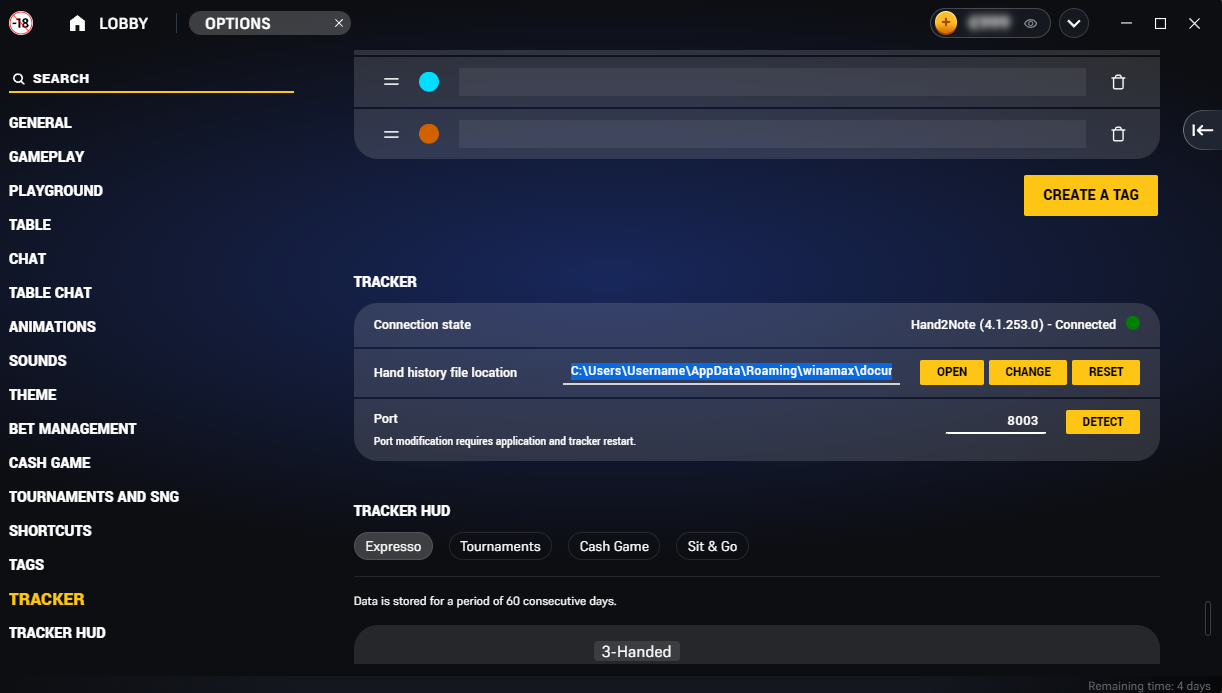
Switch the Winamax client to English.
Open Options → Tracker.
Copy the folder path from the Hand history file location field.
# Step 3. Configure Hand2Note
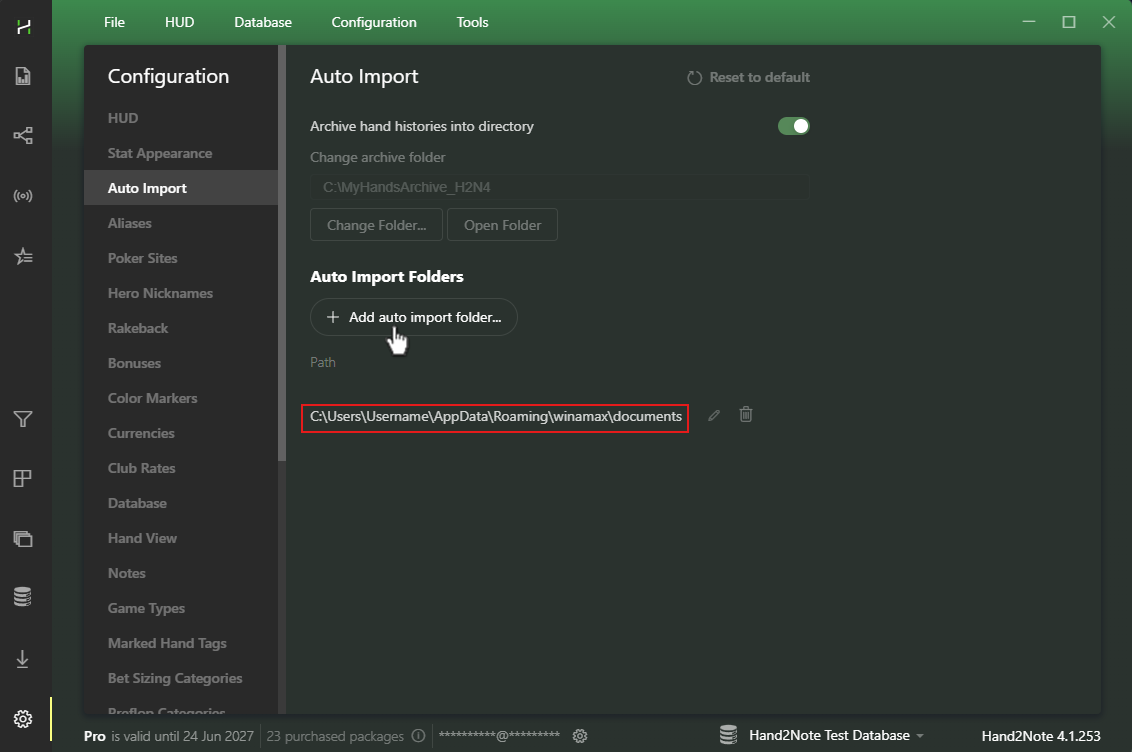
Open Configuration → Auto Import.
Click Add auto import folder..., then paste the folder path you copied from Winamax.
# Start Playing
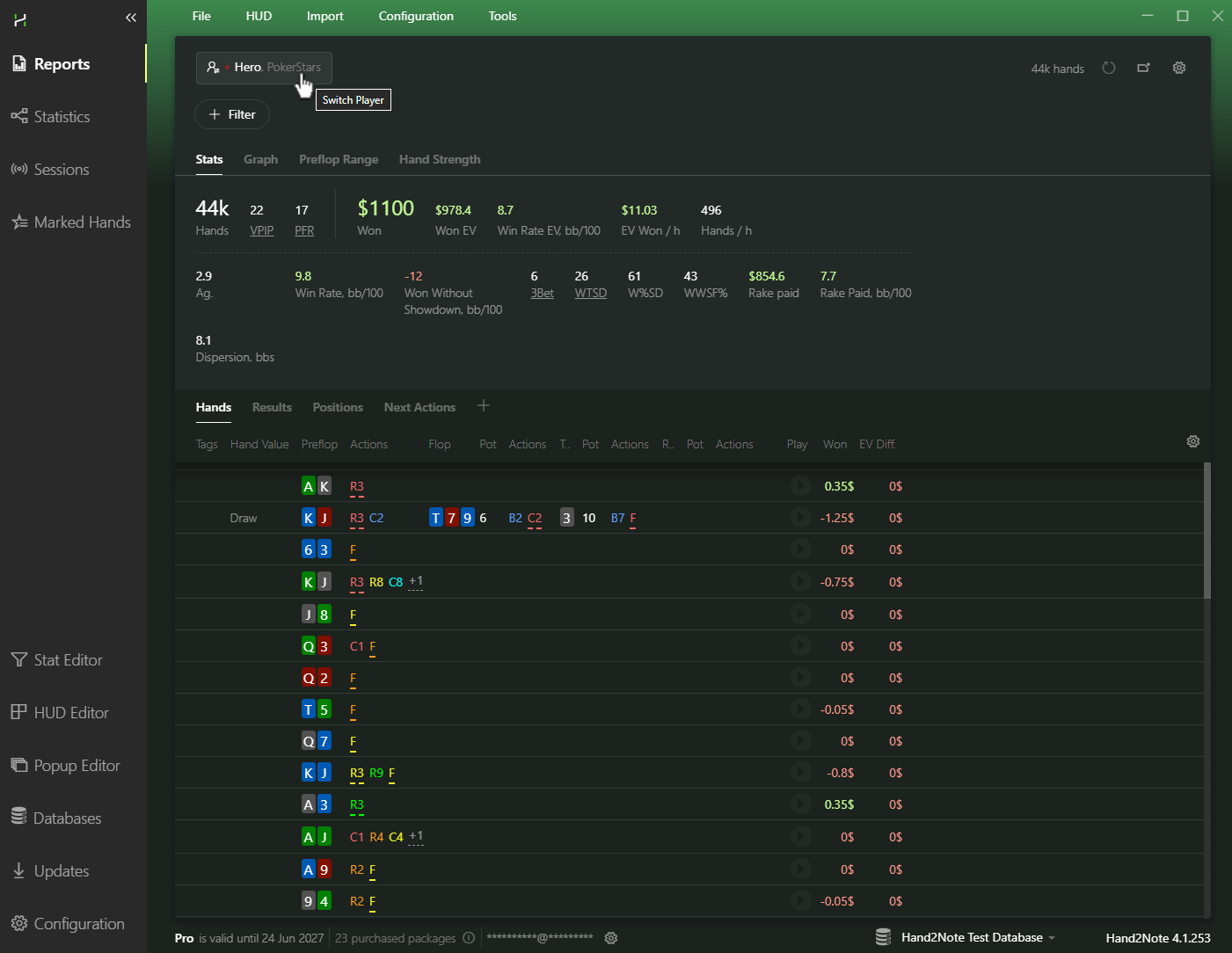
Hand2Note will now automatically import your hands in real time.
Once your session is over, open Reports and select your nickname or alias to start analyzing your results.
# Getting Started with Hand2Note
Let’s look at a quick way to find profitable and unprofitable situations using filters and built-in reports.
Suppose you want to evaluate the profitability of your continuation bets (cbets) specifically at Incognito tables:
Open the Quick Filters tab and select Raise 1st In and Continuation Bet Flop.
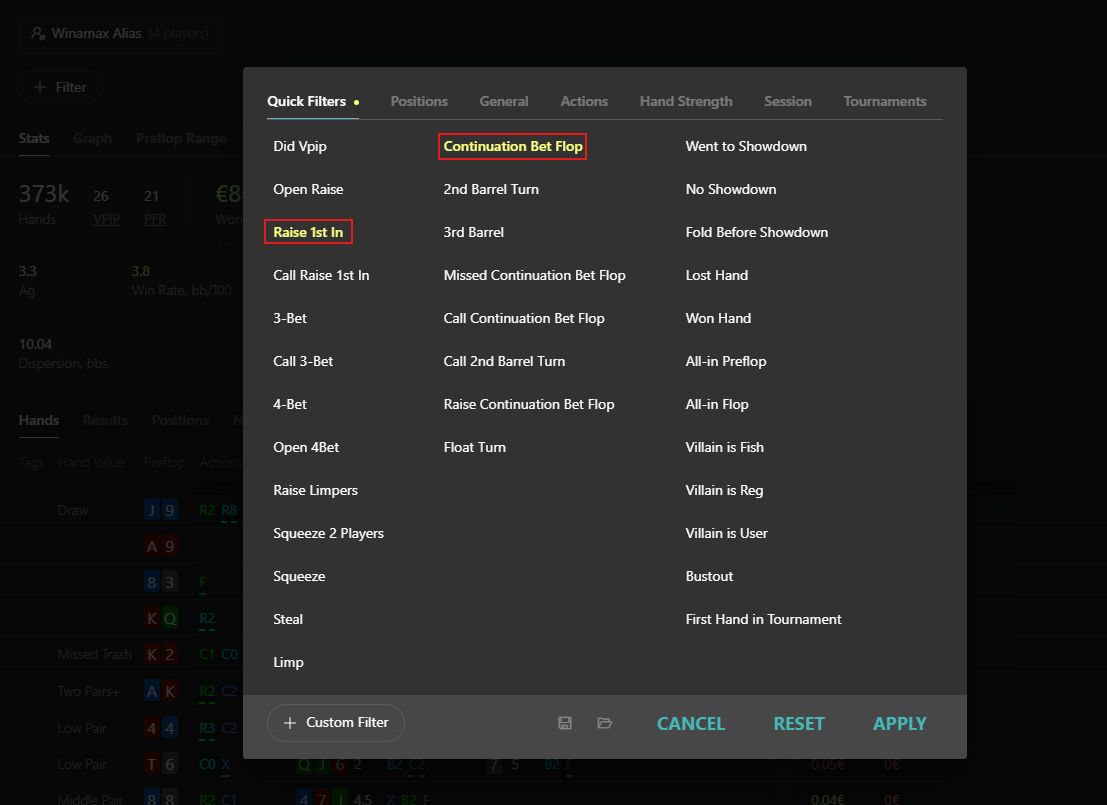
Next, open the General tab and apply the Anonymous filter.
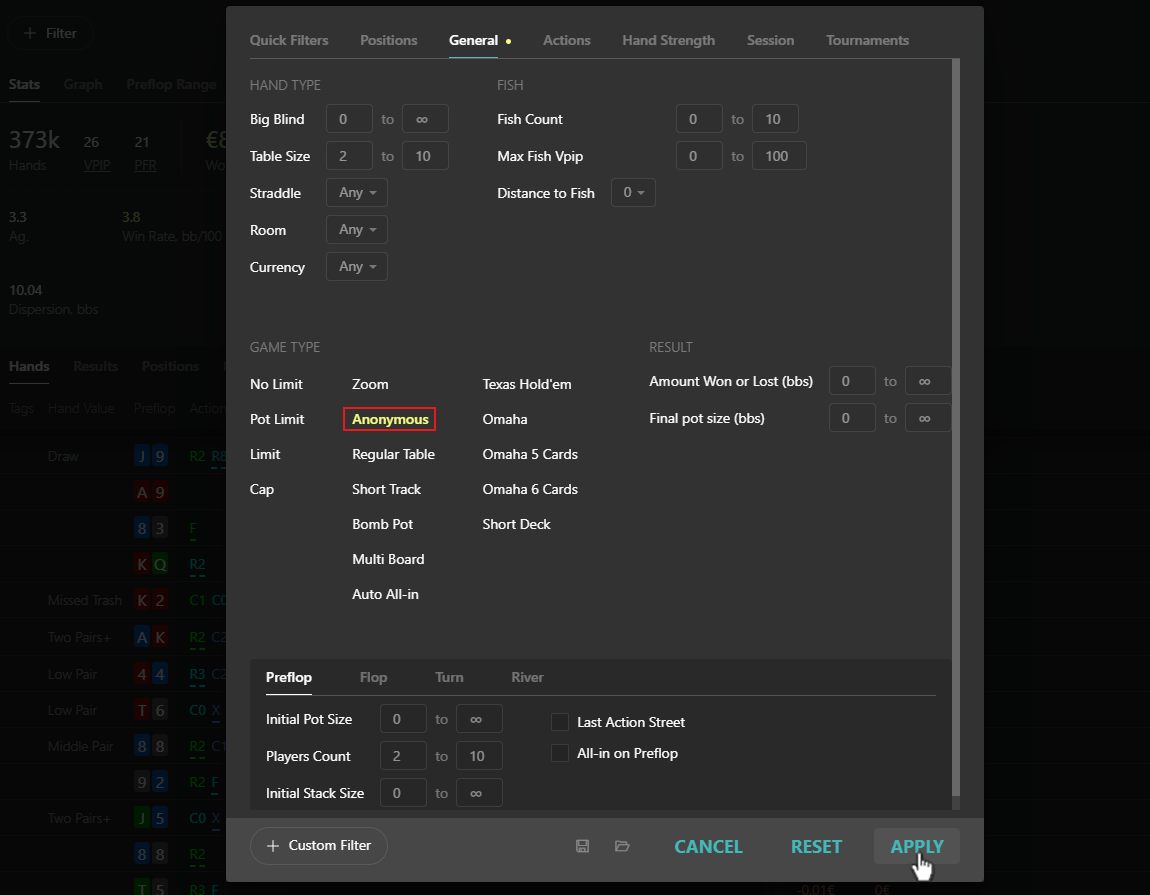
Hand2Note instantly recalculates all statistics for the selected spot.
You'll see the profitability of your continuation bets, how often opponents fold, call, or raise, and much more.
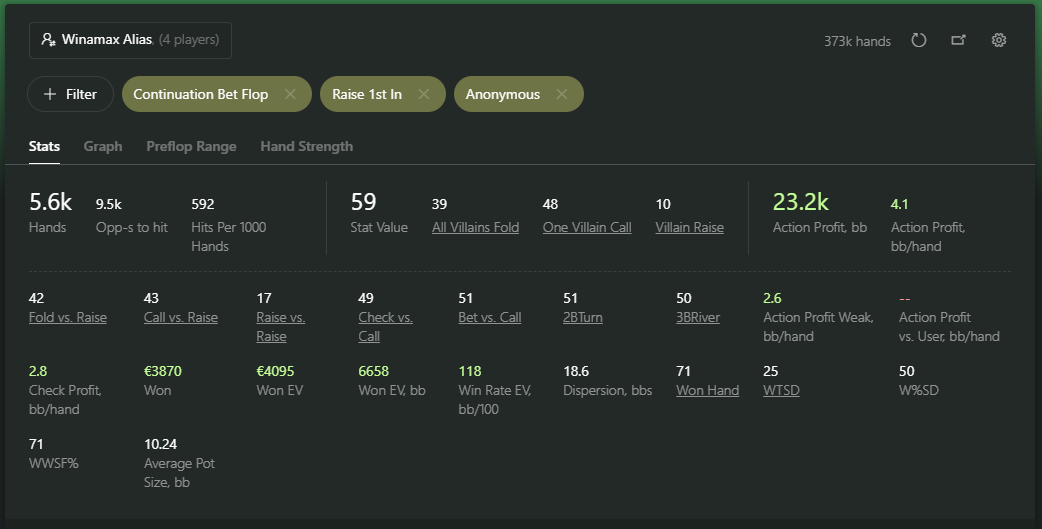
Next, compare your results across different bet sizes.
# Step 2: Analyze by Bet Sizing
Click Add Report and add the Bet Sizing report.

Hand2Note groups your hands by bet size and shows the results for each sizing.
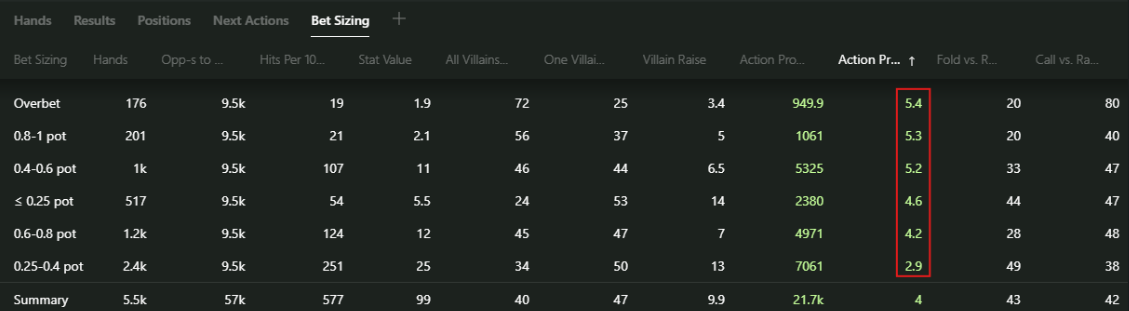
In this example, bets between 25% and 40% pot perform noticeably worse than the other sizings, even though they are the most frequently used, with more than 2,400 hands.
The next step is to find out why.
Click the sizing to view hand ranges, individual hand results, and every hand played with that bet size.
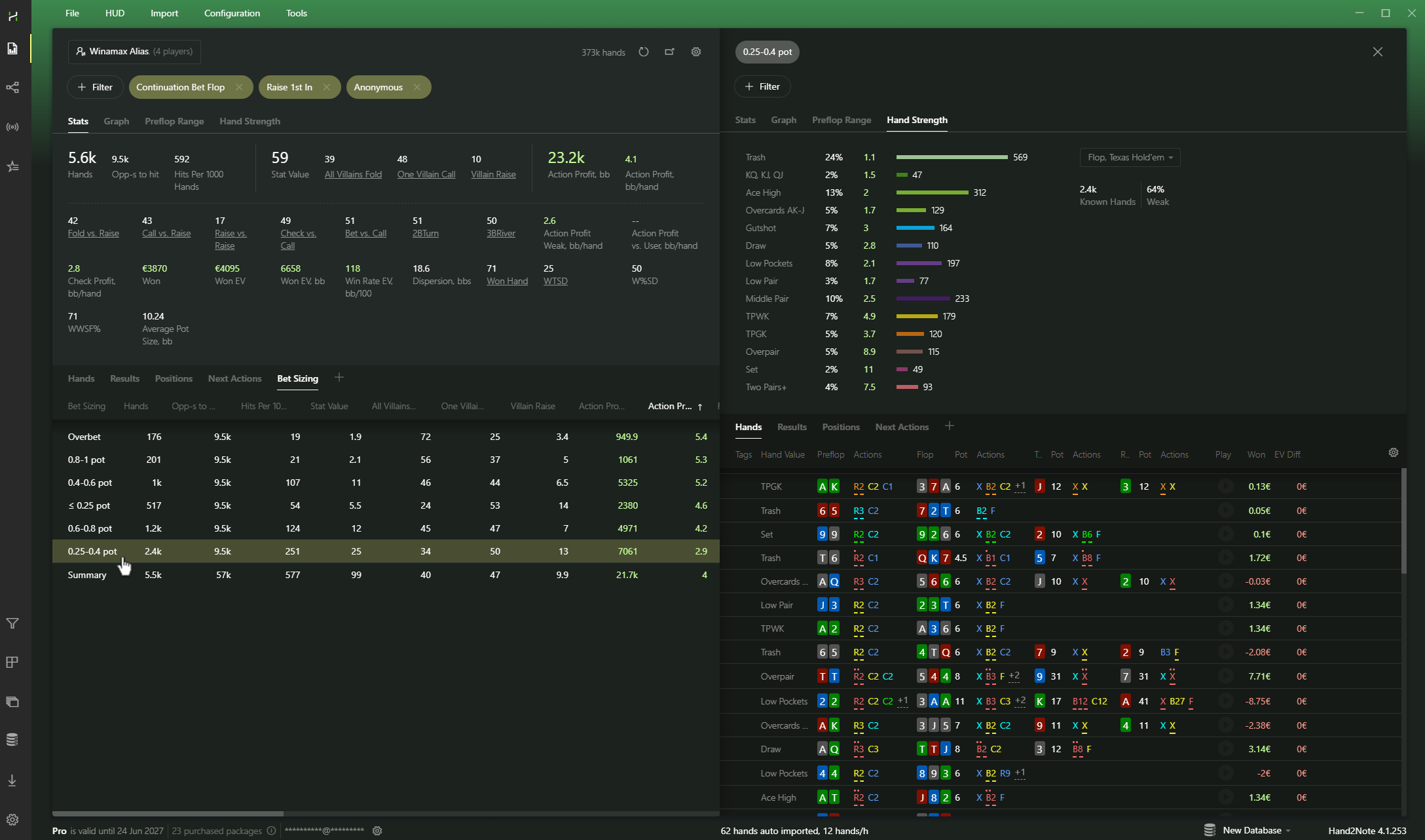
Finished analyzing this spot? Now check your overall results or explore population statistics in the Statistics section.
Learn more in the Hand2Note Interactive Statistics guide.
# Frequently Asked Questions
# Does Hand2Note support Playground mode?
Yes. The HUD works whether Playground mode is enabled or disabled.
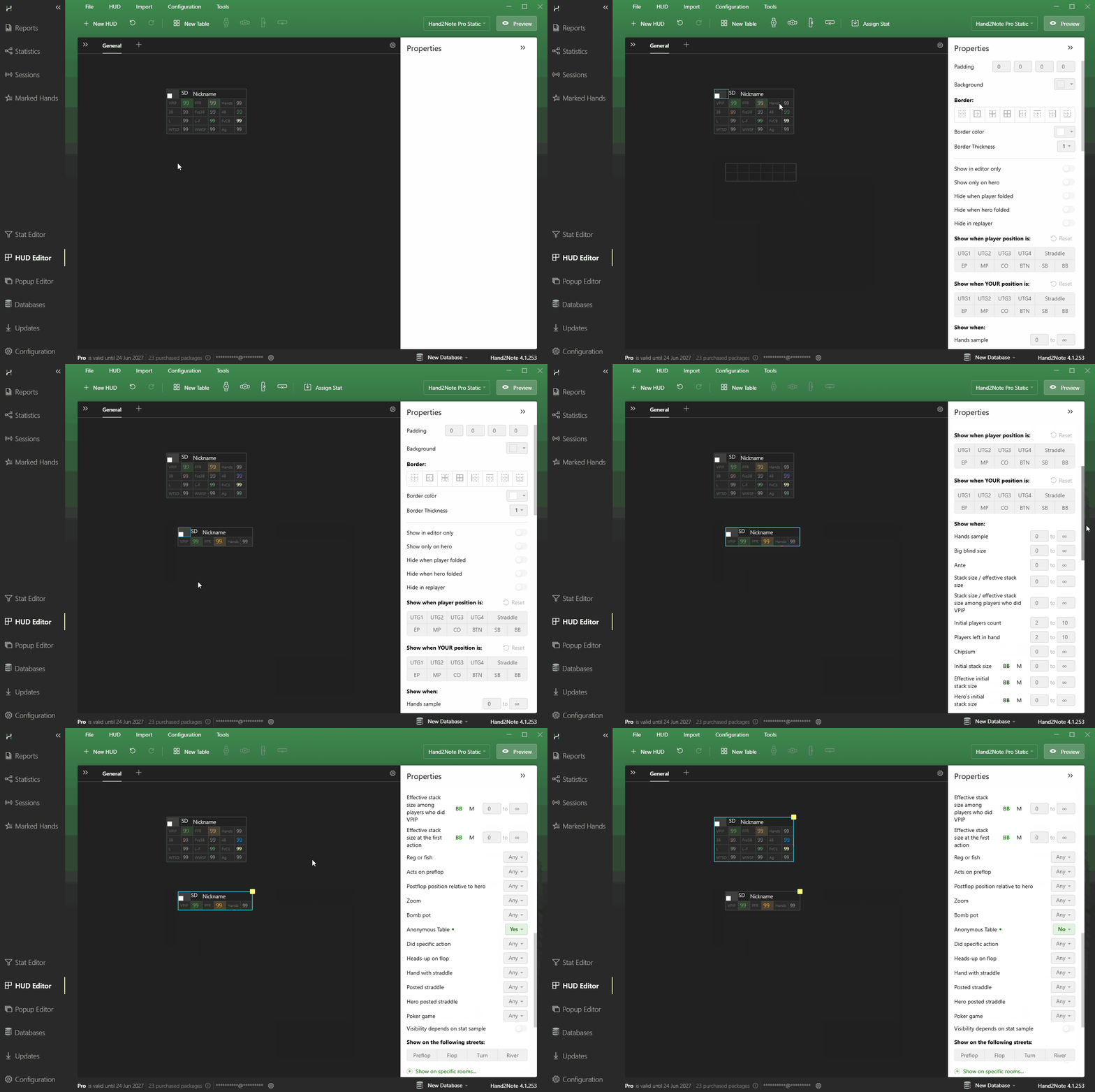
# How do I use a different HUD for Incognito tables?
1. Create a new panel in the HUD Editor.
2. In the panel Properties, set Anonymous Table to Yes for your Incognito HUD, and No for your regular table HUD.
# A player at an Incognito table reseated, and their stats reset. What should I do?
If you are certain it is the same opponent, you can combine their statistics.
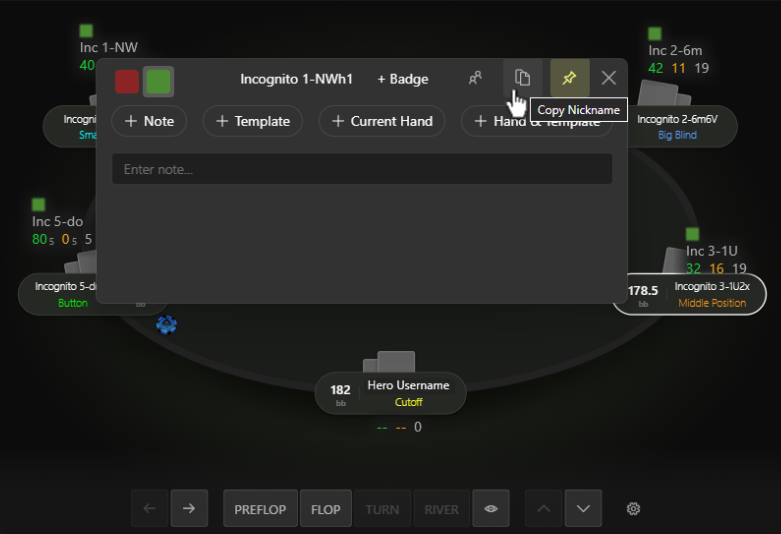
Copy the player's ID from the previous hand using the notes popup in the Replayer.
Open the Notes popup and create an alias for both player IDs.
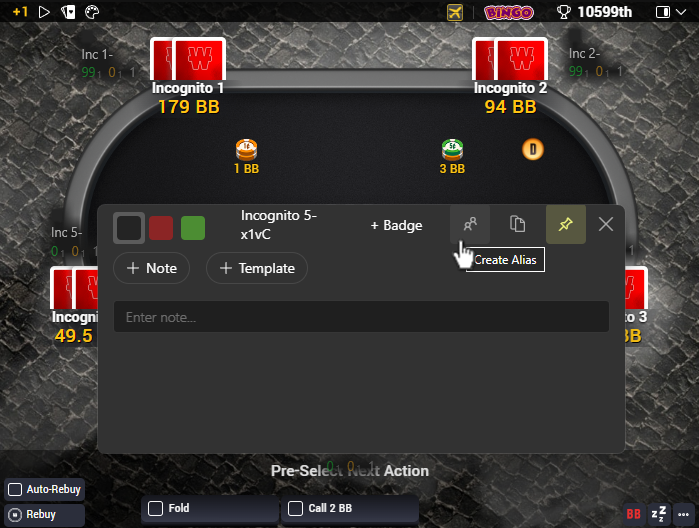
Hand2Note will instantly combine the data.
# Troubleshooting
# HUD is unstable
If you use Playground, try disabling it temporarily.
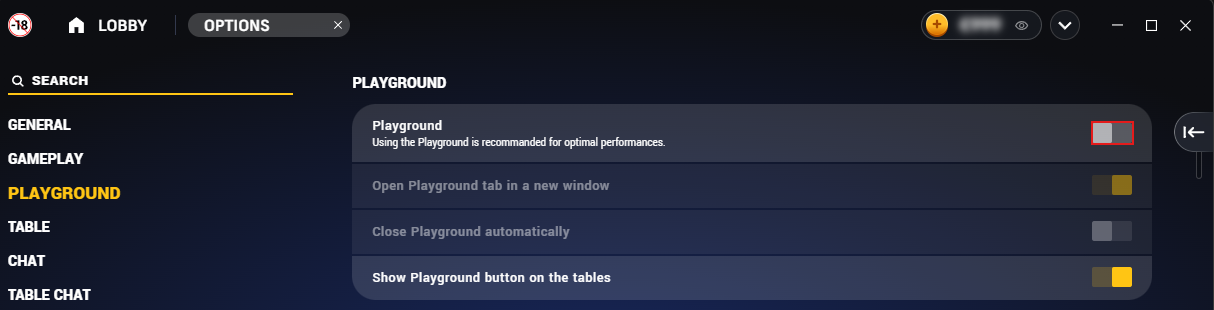
While Hand2Note is fully compatible with Playground, disabling it often improves performance, especially if you multi-table across different poker rooms.
# HUD is not working
Ensure you are running the latest version.
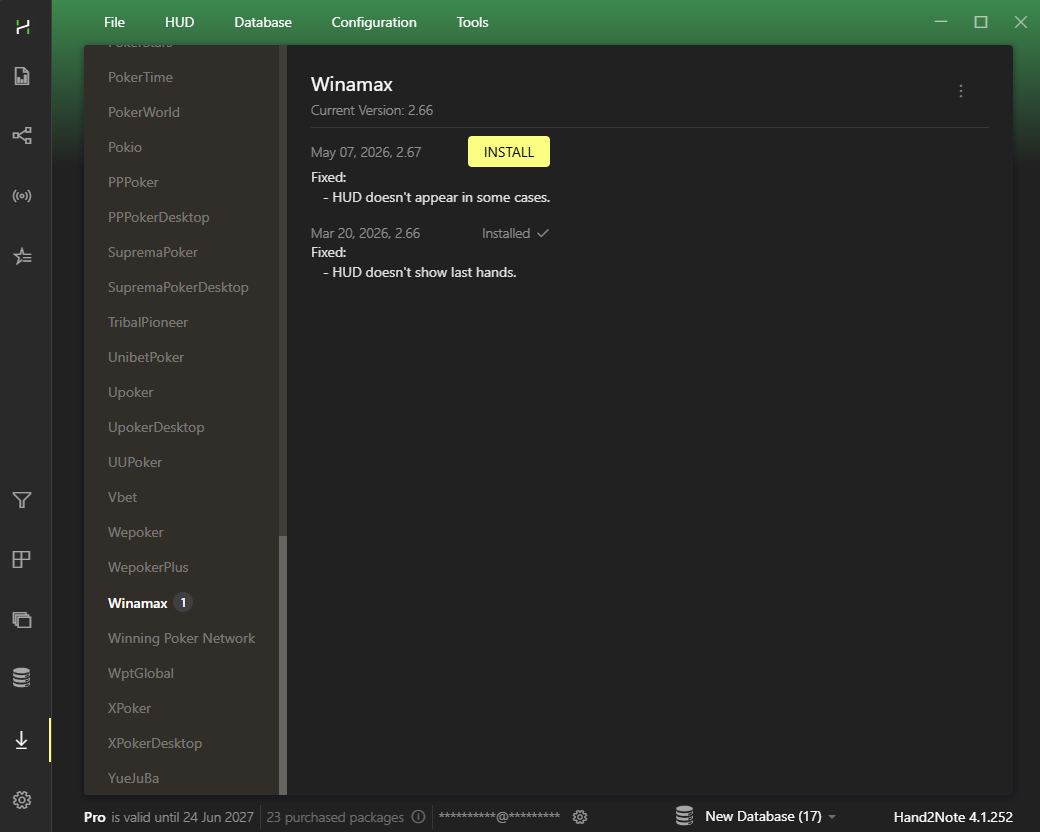
Open the Updates section and install all available updates for Hand2Note, HUD Host, and Winamax.
Still need help? Contact Hand2Note Support — we're always happy to help.


