

# GG Poker Network
Do you play on GG Poker Network and think a poker tracker is useless because HUDs are not allowed? Not quite.
Many players think so, but a HUD is only one part of Hand2Note. Most of its value comes after a session — reviewing hands, analyzing results, finding mistakes, and studying player tendencies.
In this article, you will learn how to:
- download your hand history from GG Poker Network;
- install Hand2Note and import your hand files;
- review your results and find leaks;
- analyze your opponents using statistics.
Table of Contents:
Install Hand2Note and Import Your Hand History
What You Can Do with Hand2Note
# Download Your Hand History
GG Poker Network does not save hand histories to your computer automatically. Instead, you need to download them from PokerCraft and import them into Hand2Note.
Open PokerCraft from the GG Poker client.

Select the game type you want to export, for example My Tournaments.
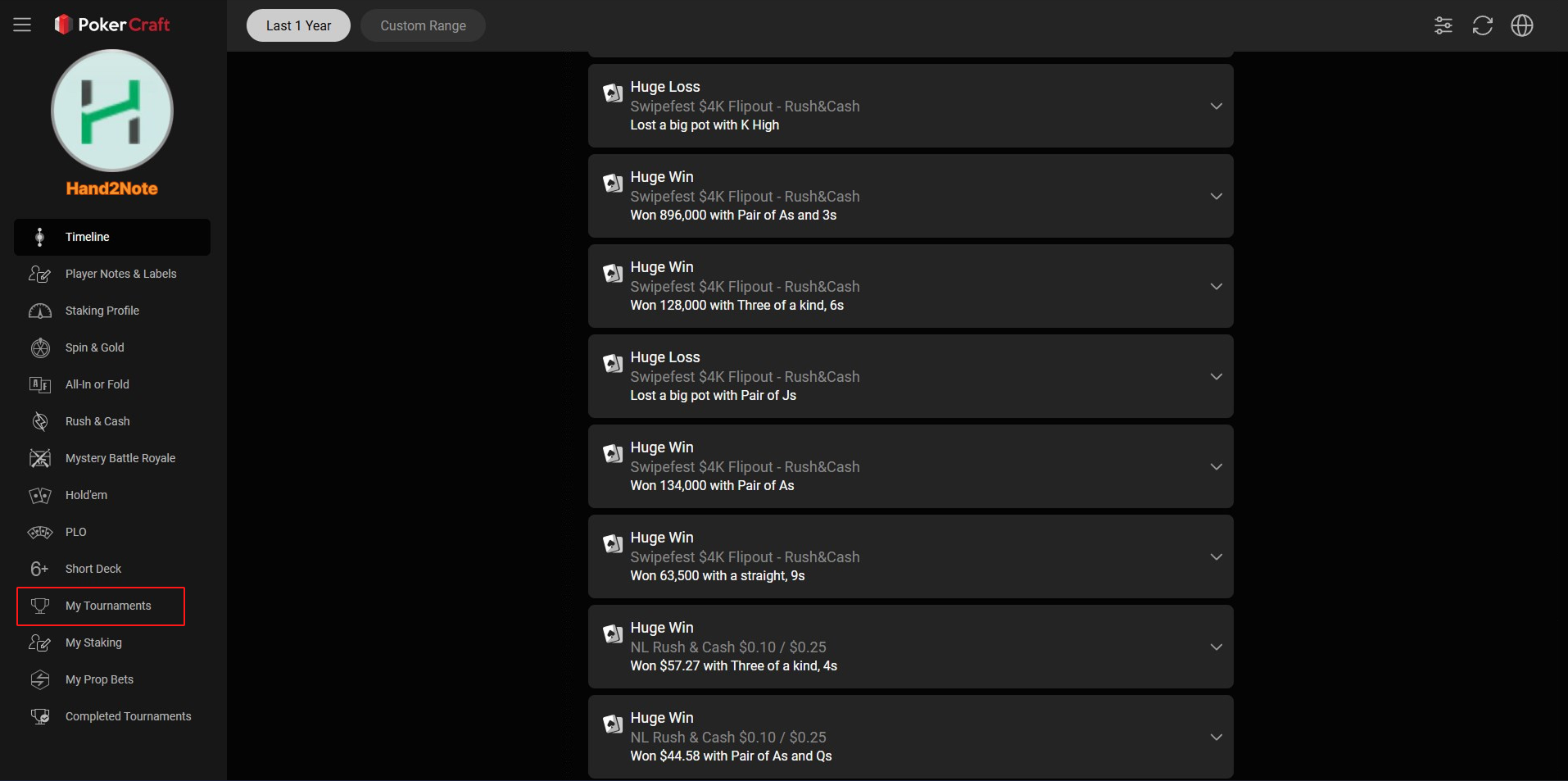
Click Download Game Histories and Download Game Summaries (if available).
You can filter hands by date, buy-in, and other criteria before downloading them.

- Game Histories — contain the actual hand histories.
- Game Summaries — contain tournament results, finishing positions, prizes, and bounty information.
Extract the downloaded archives into a dedicated folder.
For easier organization, store your files in separate folders by year and month.
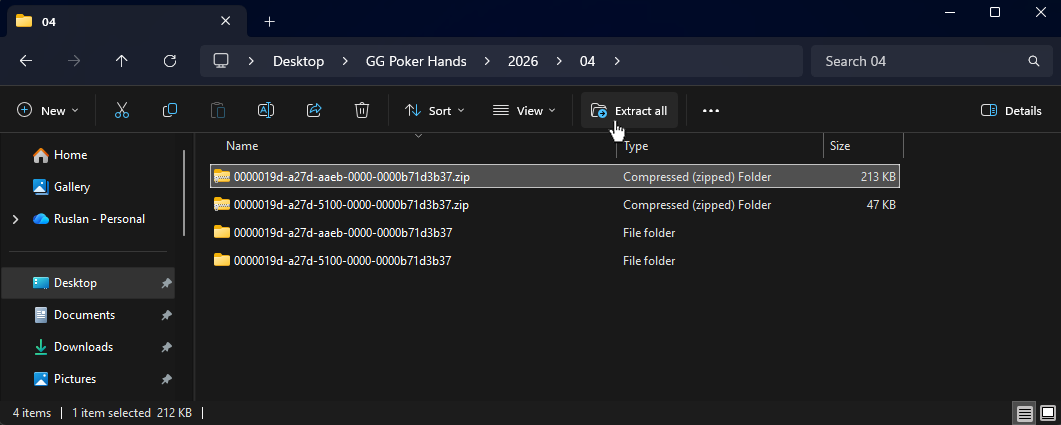
Up to 20,000 hands and up to 500 tournament results are available for download at a time.
After preparing the files, import them into Hand2Note.
# Install Hand2Note and Import Your Hand History
Your hand history files are now ready to import.
Hand2Note supports all GG Poker Network game types. For the latest information, see the Supported Sites and Apps page.
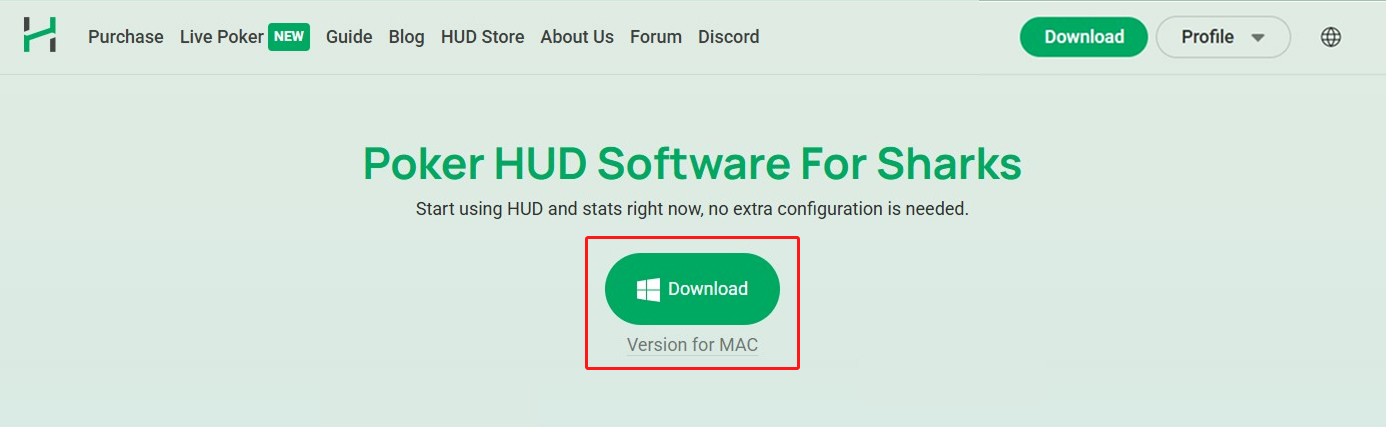
Download and install Hand2Note for Windows or macOS from the official website.
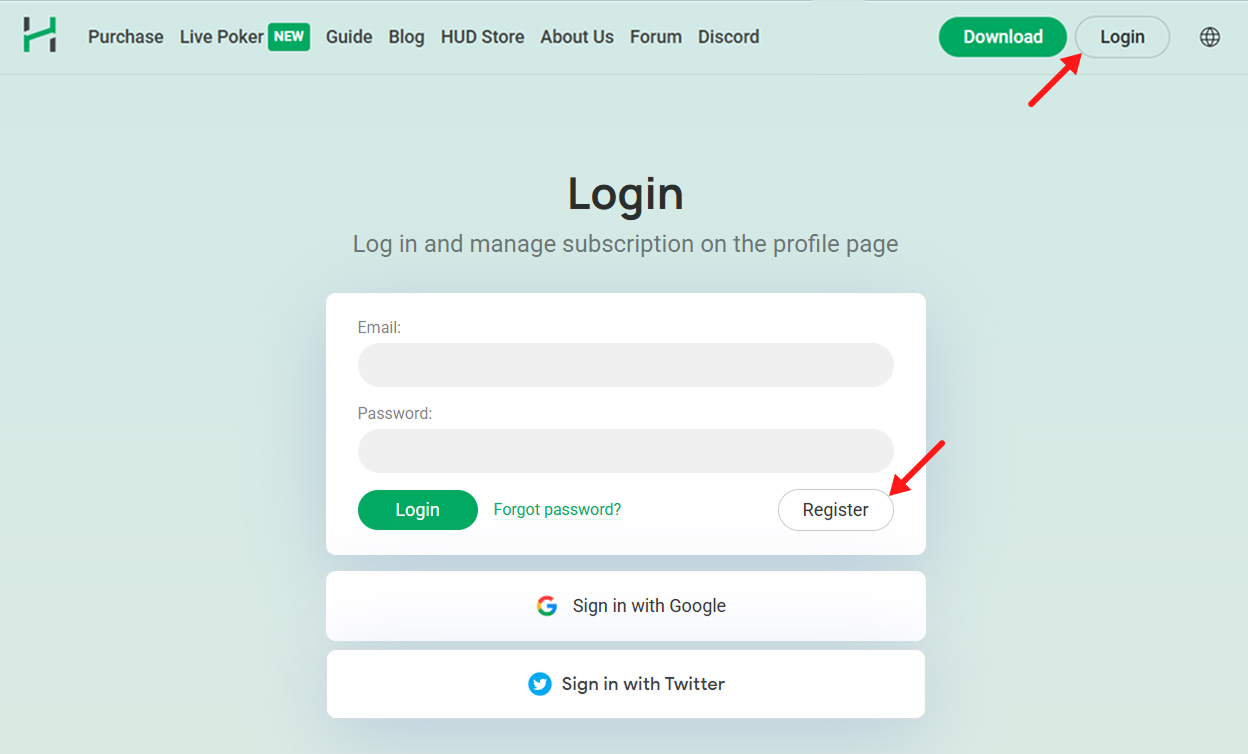
Create a Hand2Note account on the website if you do not have one already.
Launch Hand2Note and click Database → Import from Folder.
Navigate to the folder where you extracted your GG Poker hand history files and click Select Folder.
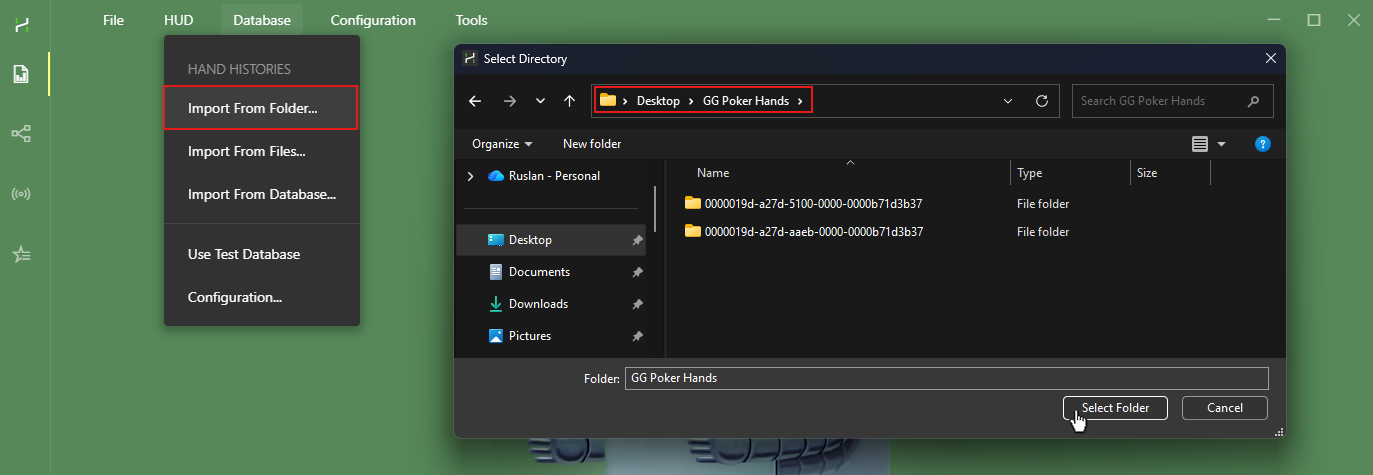
Hand2Note will start importing the files automatically.
When the import is complete, open the Reports tab to view your hand history, tournament results, and statistics.
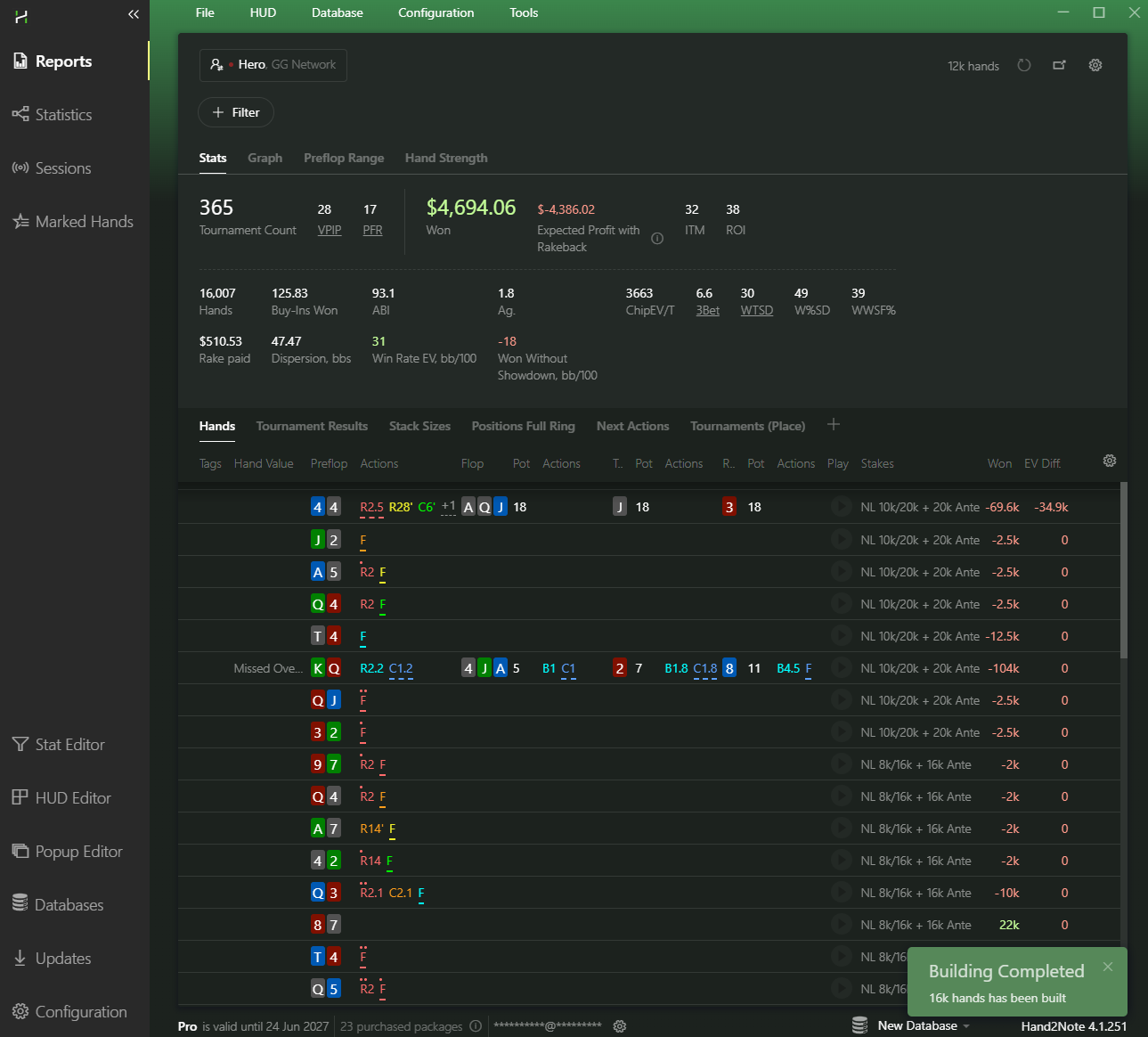
The next section shows a few practical examples of how to use Hand2Note.
# What You Can Do with Hand2Note
Your hands have now been imported into Hand2Note.
The Reports and Statistics sections help you review sessions, analyze results, and find patterns in your game.
Let's start with a few simple examples.
# Find Your Biggest Losing Hands
The biggest losses usually come from the biggest pots.
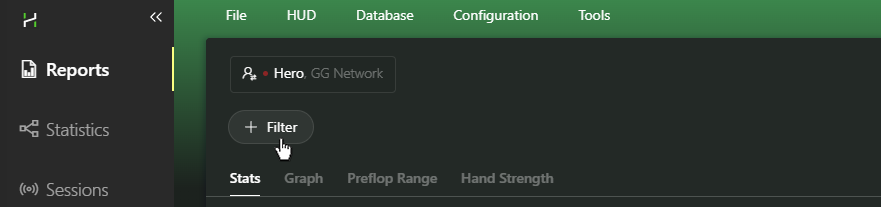
Open the Reports section and click +Filter.
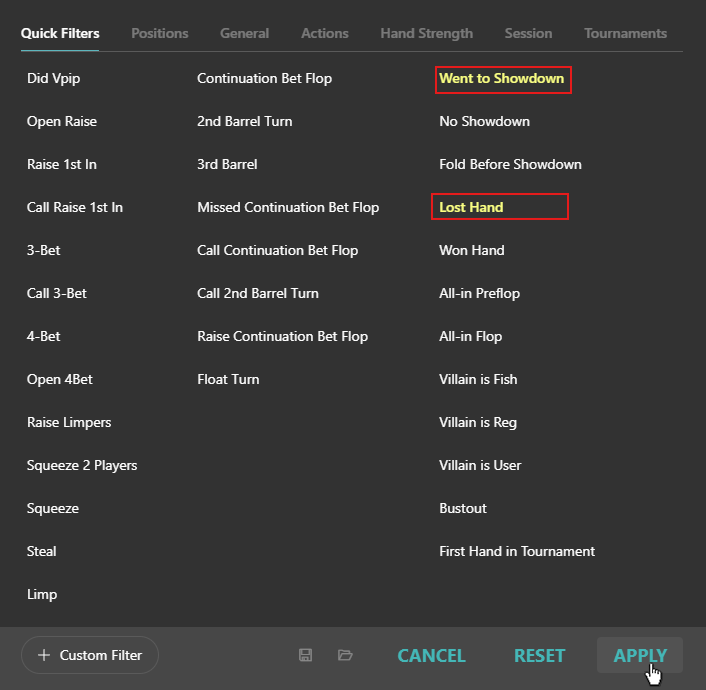
Select the Went to Showdown and Lost Hand filters, then click Apply.
Sort the report by the Won column to bring your biggest losses to the top.
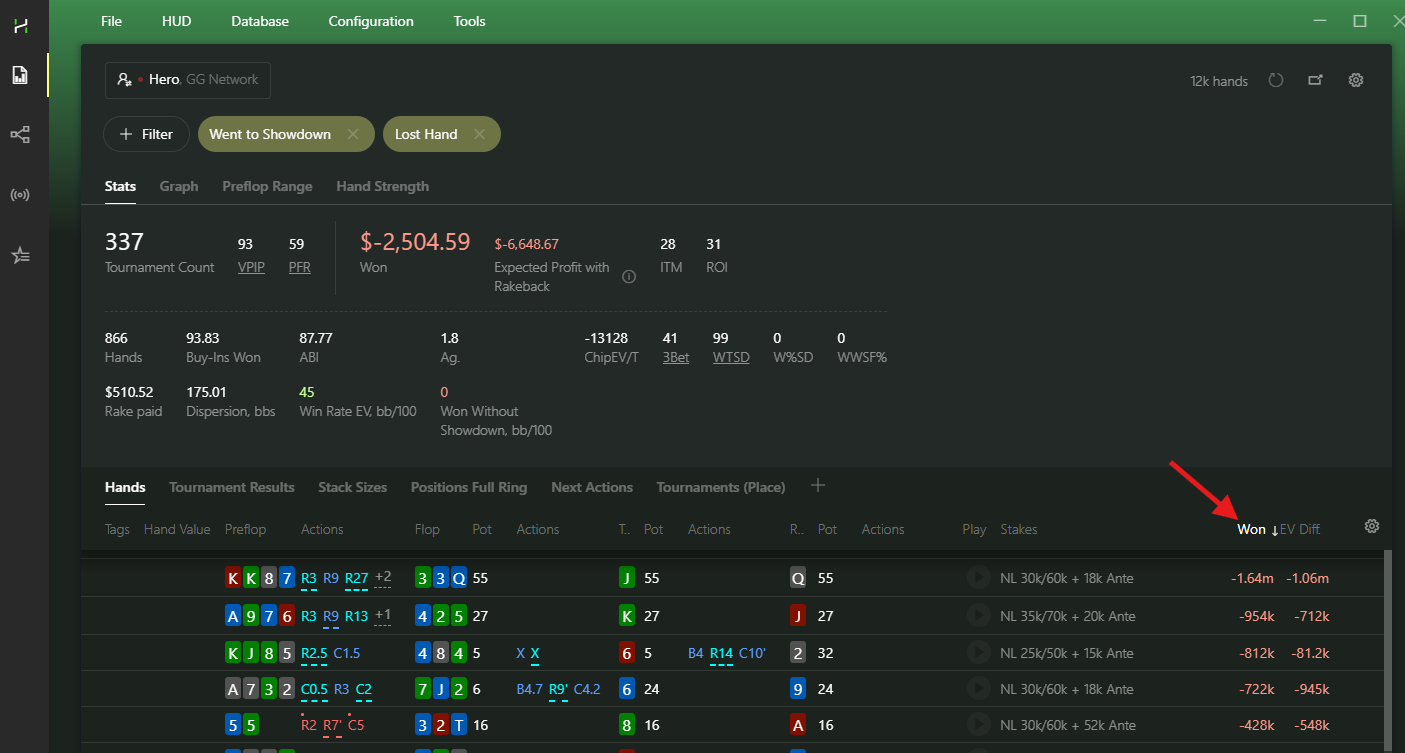
Now review your biggest losing hands and look for patterns.
Did you call too wide? Value bet too thin? Bluff in the wrong spot? Or was it just a cooler?
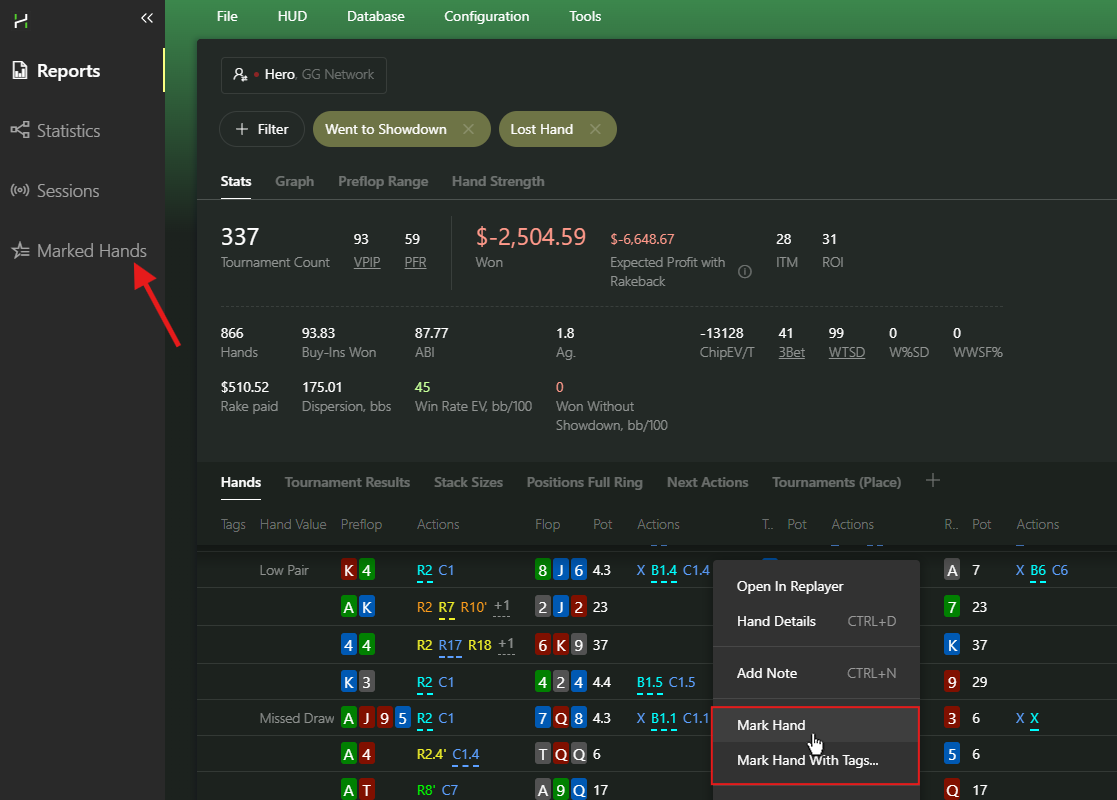
If a hand seems especially important, right-click it and select Mark Hand. Saved hands appear in the Marked Hands section.
# Review Your Results by Position
Not all positions are equally profitable.
Open the Positions tab and click any position to open a detailed report. This report shows how much you win or lose from each position at the table.
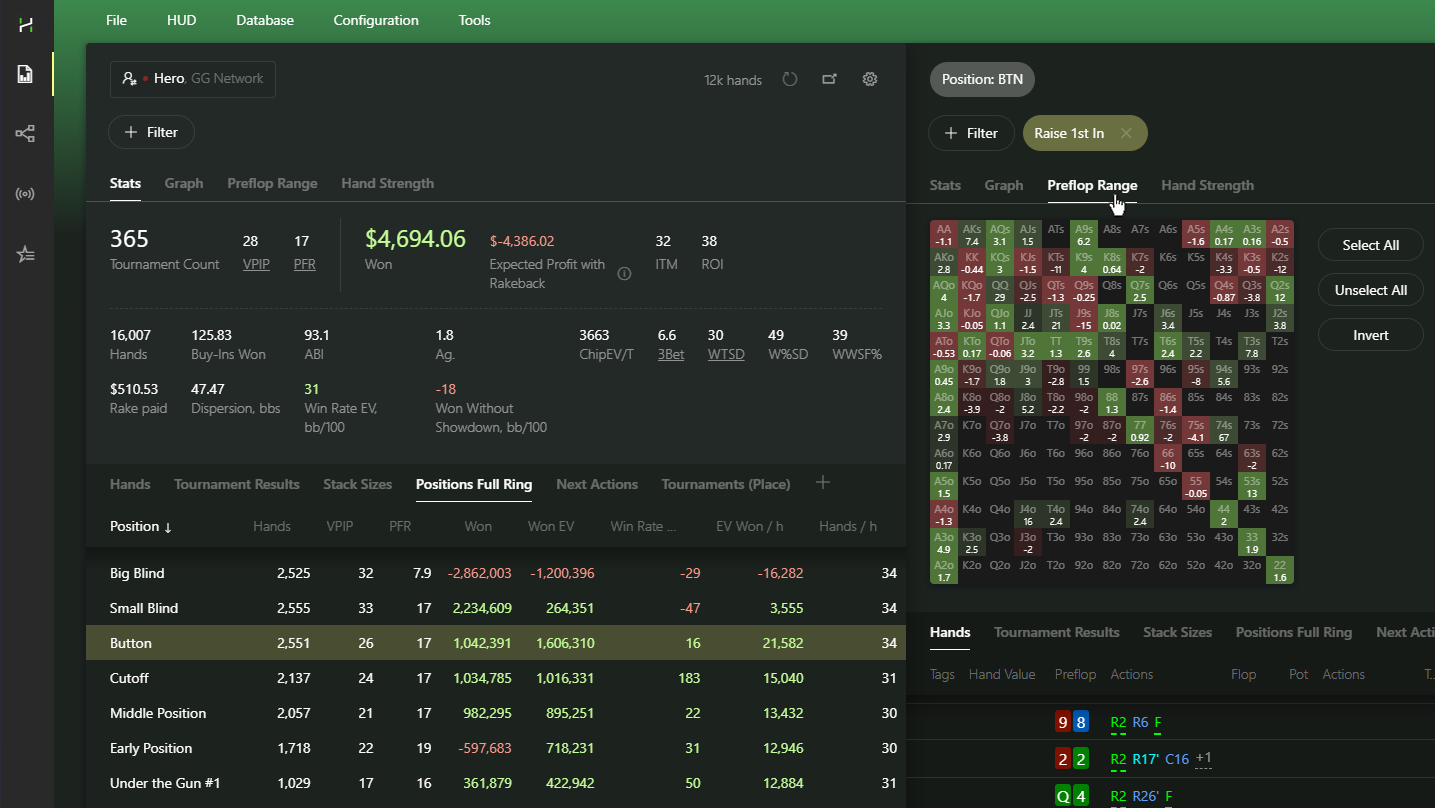
BTN is generally the most profitable position in poker. If your results from BTN are lower than expected, it may be worth taking a closer look at your BTN play.
How often do regular players bluff on the river? Let's find out in the next section.
# Check How Often Regular Players Bluff on the River
Regular players often use river overbets. But how often is it actually a bluff rather than a strong hand?
The Statistics section helps answer questions like this based on real hand data.
First, switch to the Hand2Note Pro Popup. It includes many additional stats that are not available in the default popup.
Click your nickname to open the player selection window.
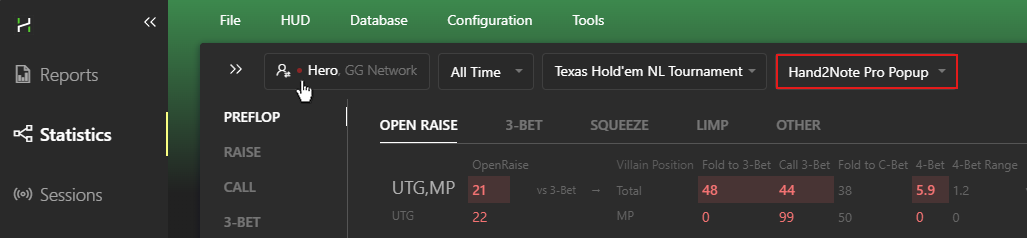
- default with around 100 stats
- Hand2Note Pro Popup with more than 1,700 stats
Next, switch to the Multiple Players tab, enable the Reg filter, and click Apply.
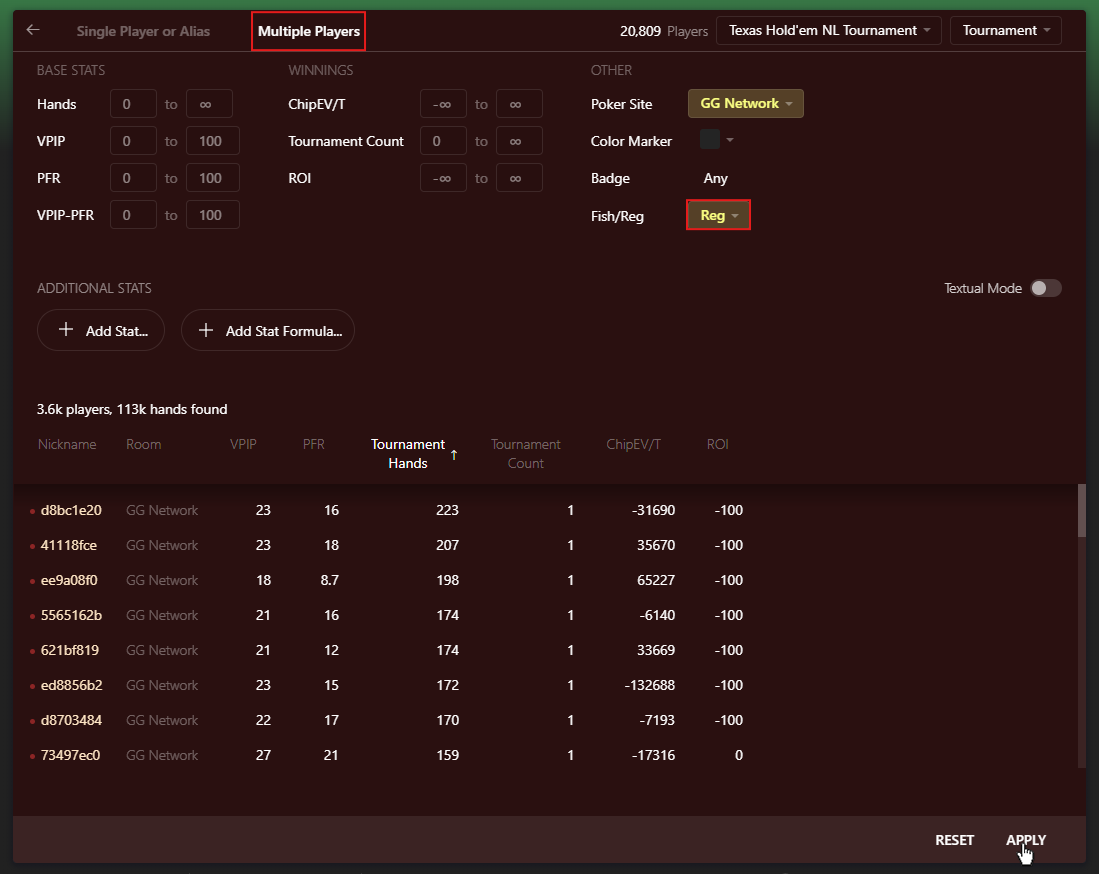
Now let's see what regular players show at showdown after using a river overbet.
Open the GENERAL tab and click the Overbet stat in the River column.
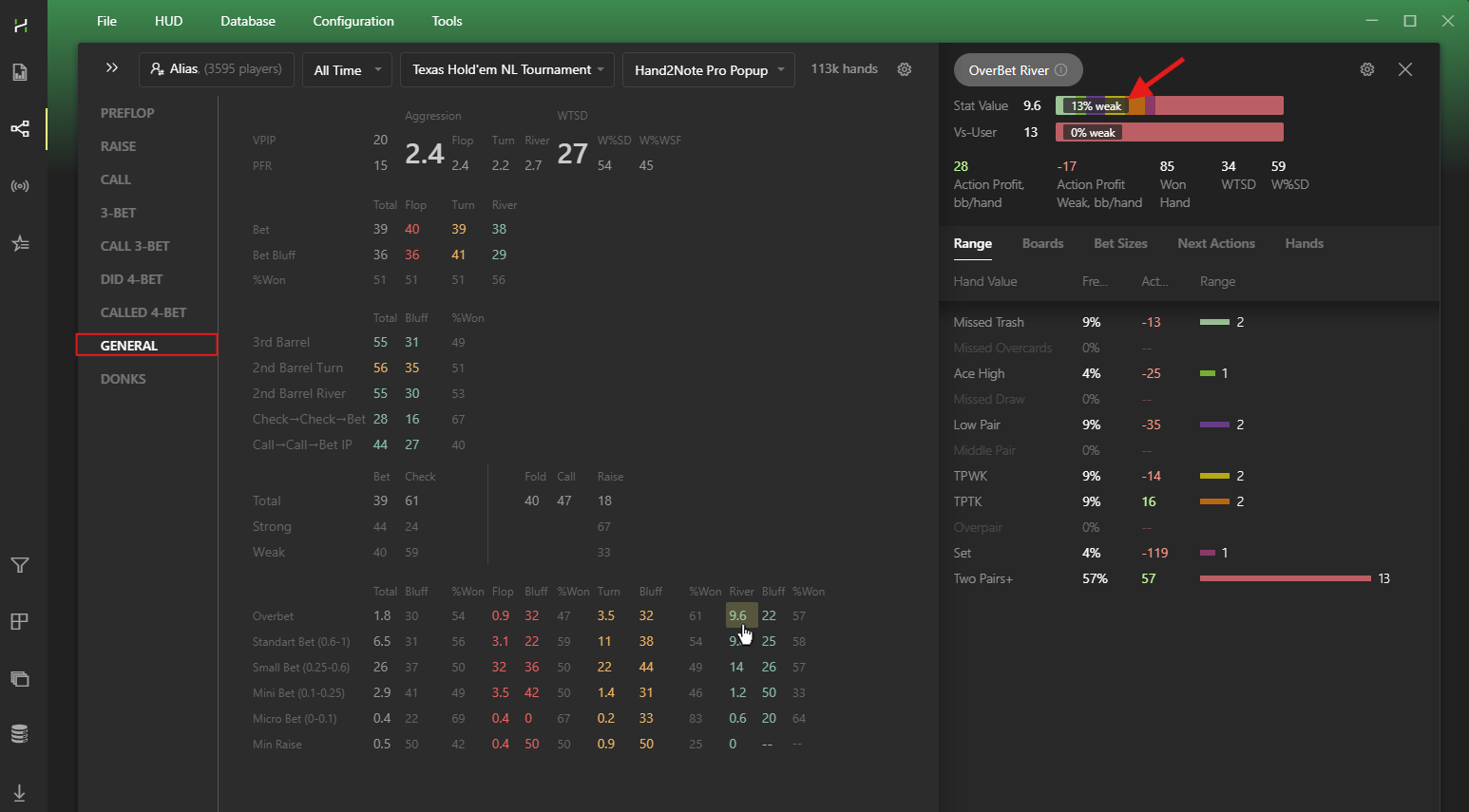
The result speaks for itself: only 13% of hands are classified as weak.
In other words, in this sample a river overbet is much more likely to represent a strong hand than a bluff.
This type of analysis helps you make decisions based on large samples rather than assumptions or a few memorable hands.
That is why Hand2Note remains one of the main study tools used by many professional players, including Benjamin Rolle (bencb) and Saulo Costa.

# Frequently Asked Questions
# Can I Use a HUD While Playing on GG Poker Network?
GG Poker Network provides its own Smart HUD and does not allow third-party HUDs at the tables.
You can keep Hand2Note installed and running while playing on GG Poker Network. Hand2Note complies with all poker site rules:
- No HUD appears at the tables.
- No hands are imported into the database during play.
# Why Do I Not See My Opponents' Real Usernames?
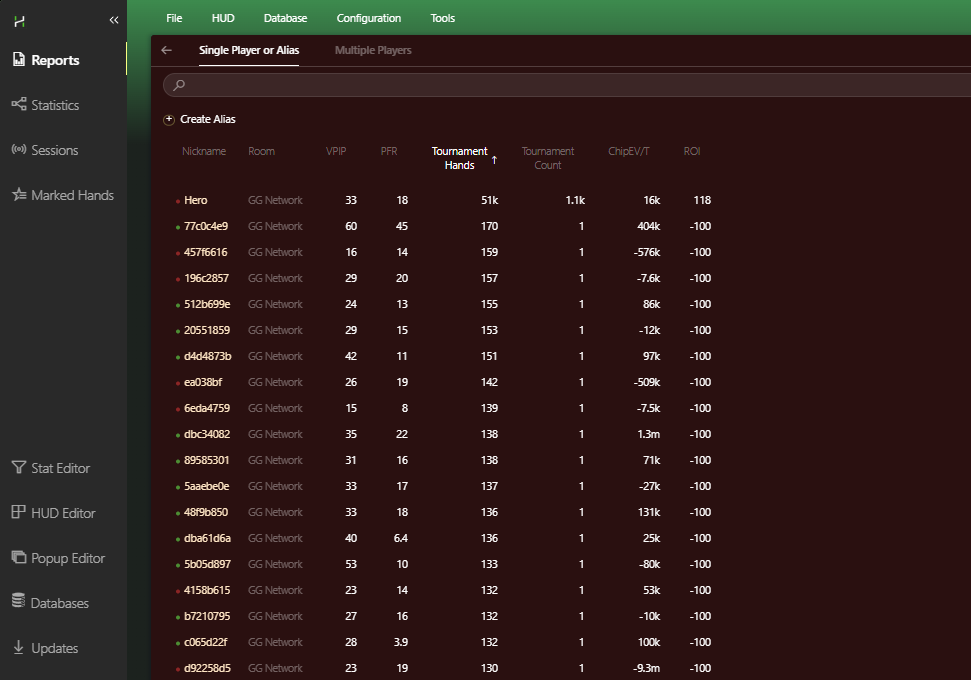
GG Poker Network replaces your nickname with Hero and assigns random names to other players.
Real opponent names are not included in hand histories.
# Troubleshooting
# Hands Do Not Appear in Hand2Note After Import
GG Poker Network occasionally changes its hand history format.
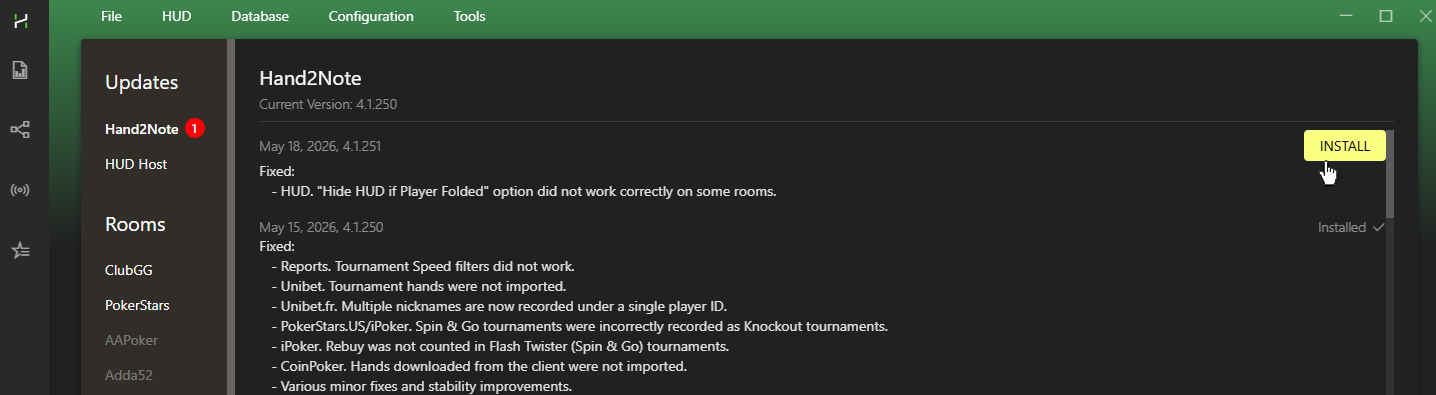
Hand2Note is updated regularly to support these changes. If you have not updated Hand2Note recently, open the Updates tab and check for available updates.
If the problem persists, create a new database and repeat the import.
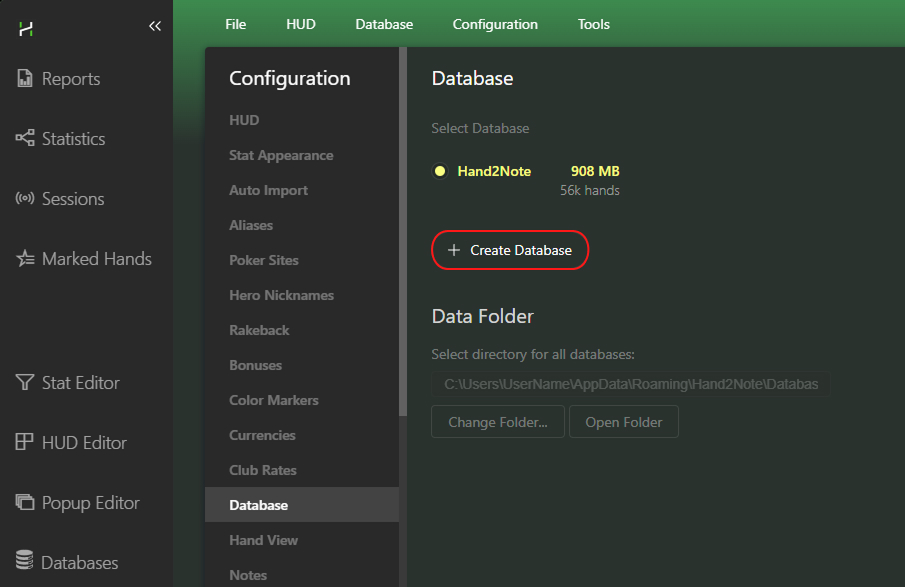
In Configuration, select the Databases tab, click + Create Database, and import the files again.
# Can I Set Up Automatic Hand Import for GG Poker Network?
Unfortunately, no.
Unlike most poker sites, GG Poker Network does not save hand histories to your computer during play.
Do not add GG Poker Network folders to the Auto Import configuration. This feature is intended for poker sites that automatically save hand histories while you play.
Instead, download your hand histories from PokerCraft and import them manually after each session.
# What's Next?
You now know how to import your GG Poker hands into Hand2Note and start analyzing your results.
Ready for the next step? Explore the articles below:
Reports: The Best Analysis Tool in Hand2Note


