

# How to protect your HUD and popups in Hand2Note
Did you know you can create protected HUD packages in Hand2Note? Share them with other players, friends, or students at your poker school—without letting anyone else use them.
Table of Contents:
# How protection works
Say you've built a HUD with your own popups and stats. With Hand2Note, you can:
- Create a single installation file with your HUDs, popups, stats, and settings. Players just install it—no need to copy files into folders.
- Choose who gets access. Only players with a license from you can use the package.
- Remove access at any time—for example, when a student leaves your school. Their package and any copies they made will stop working.
# How to lock your package
From the top menu in Hand2Note, choose Configuration → Lock & Export Package.
# 1. Name your package
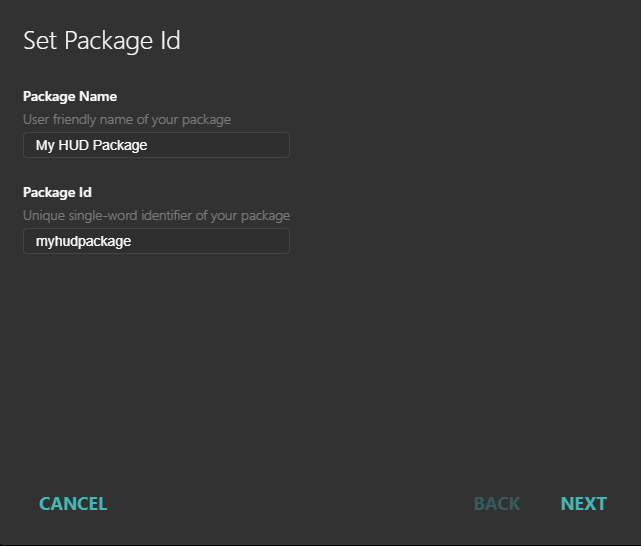
- Package Name — the name players see in Hand2Note settings. Choose a clear name, such as My HUD Package.
- Package Id — the ID you enter on the website when you give someone a license. Use lowercase letters with no spaces, such as myhudpackage.
# 2. Choose HUDs and popups
Choose one or more HUDs in Select HUDs. Click Next, then select the popups you want to include in your package.
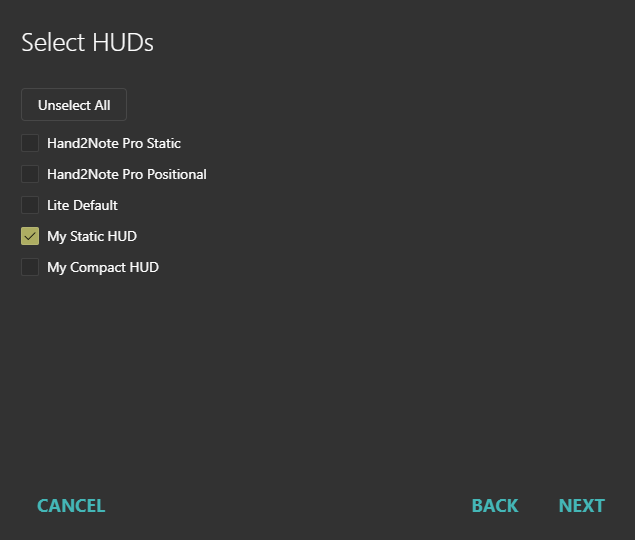
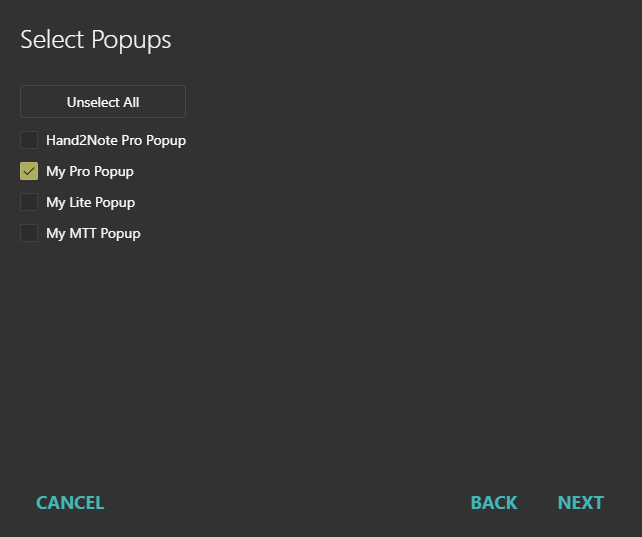
You can include your main HUD and a compact version for playing more tables. Or offer both dynamic and static layouts for sites with different HUD rules.
# 3. Include your settings
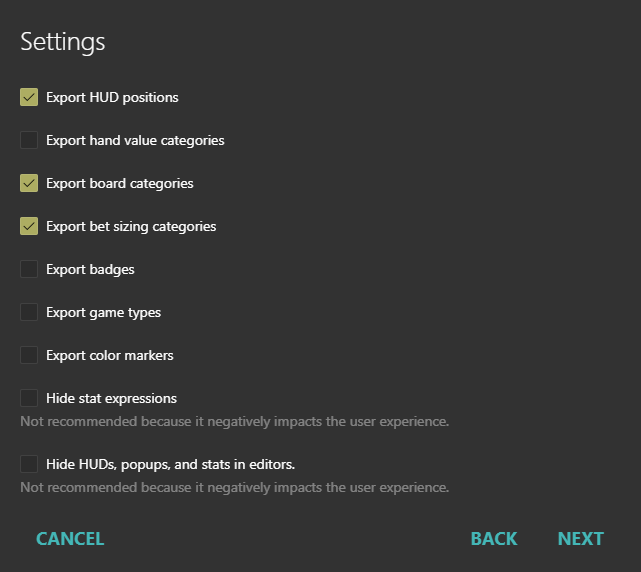
Under Settings, choose what else to include so players don't have to set everything up themselves.
| Option | When to use it |
|---|---|
| Export HUD positions | Arrange the HUD panels on your tables before exporting. Players will get the same layout. |
| Export hand value categories | Include the custom hand strength groups you've set up for postflop histograms. |
| Export board categories | Check this if your package uses custom board categories you've created. |
| Export bet sizing categories | Include the bet size groups you've set up under Configuration → Bet Sizing Categories. |
| Export badges | Add your badges to the package. |
| Export game types | Include your game type settings so players don't have to set them up themselves. |
| Export color markers | Share your color marker settings. This doesn't include the markers you've assigned to individual players. |
The last two options hide parts of the package:
| Option | What it hides |
|---|---|
| Hide stat expressions | The formulas behind expression stats. |
| Hide HUDs, popups, and stats in editors | Players can use the package, but they can't view or customize its contents in the editors. |
# 4. Set stake limits and save your package
In Select Stakes, choose the maximum tournament buy-in (Max Buy-in) and cash game big blind (Max Big Blind) at which players can use your package.
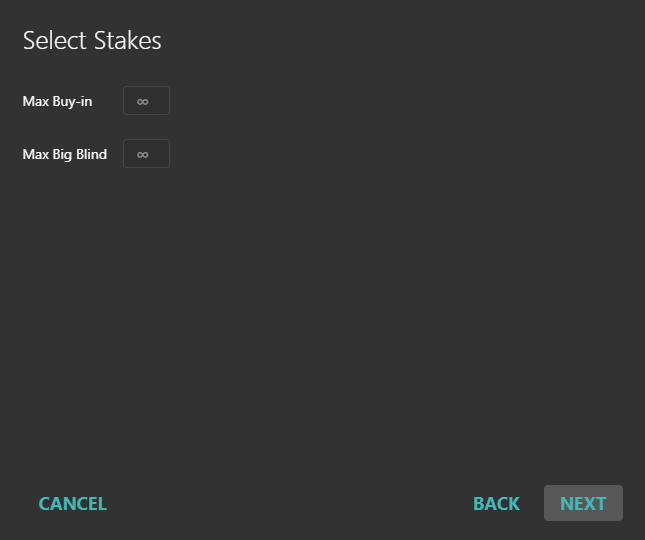
Click Next and export the package to your preferred folder.
Done! Your package is ready to share.
# Give a player access
1. Sign in to the Hand2Note website with the account you used to export the package.
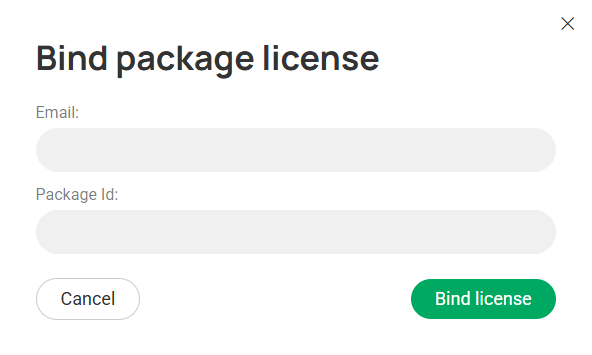
2. Open the Bind package license form.
3. Enter the email address for the player's Hand2Note 4 account and your Package Id.
4. Click Bind license.
Send the player your .h2npackage installation file.
# Frequently Asked Questions
How do I remove a player's access?
On the website, find the player's license by email and click Remove Binding.
What if a player shares the file with someone else?
Don't worry—the file alone won't give another player access. Even if they install the package, Hand2Note won't calculate its protected stats until you give them a license.
Can I hide stat descriptions?
No. We believe anyone who can recreate a stat from its description can create their own from scratch :)
You can still hide the formulas behind expression stats. Some formulas get quite complex, so we leave that choice to you.
Does cloning a stat remove its protection?
No. Players can clone a stat and edit the copy, but they still need your license to use it. If you remove their access, both the original and any edited copies stop working.
Can I sell my package in the HUD Store?
Contact POKER HUD STORE support to learn about listing your package and the store’s terms.


