

# Why Hand2Note HUD?
Many professional players consider Hand2Note one of the most powerful poker HUDs and trackers available today. But a powerful HUD doesn’t have to mean dozens of panels and hundreds of stats on the table.
Hand2Note works equally well with advanced professional HUDs packed with information and simple compact layouts that give you access to additional stats, popups, notes, and other tools when you need them.
In this article, I’ll cover the main HUD features and show you how to customize them.
Table of Contents:
Popups and Advanced Statistics
# Choosing a HUD
Start with a HUD that feels comfortable for your game and table setup.
Choose between default HUDs, fully custom layouts, automatic HUD systems, or ready-made HUD packages from the official store.
# Main HUD Types
Hand2Note supports three main HUD types:
- Static HUD — shows the same stats for every player. This is the simplest and most popular HUD type.
- Positional HUD — adjusts displayed stats depending on player position, player type, or other conditions.
- Dynamic HUD — changes displayed stats depending on player actions and the current hand situation.
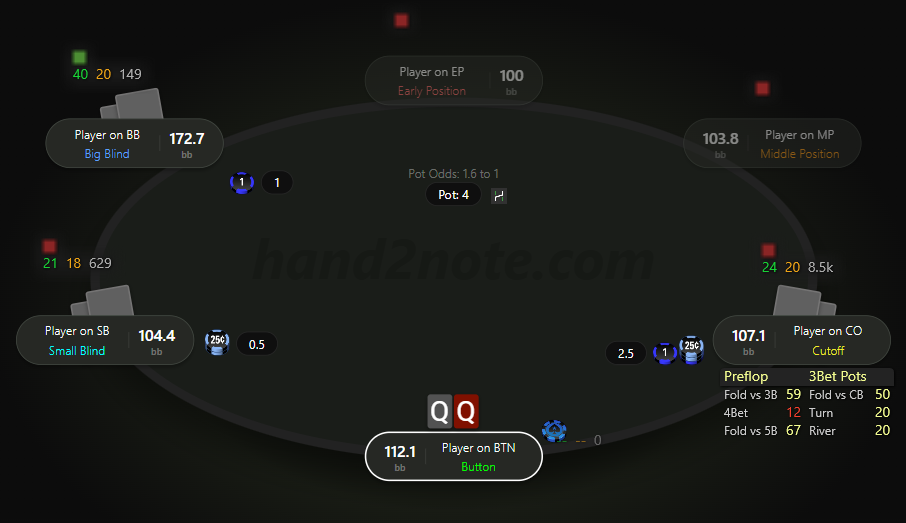
Read more about HUD types in our article about Poker HUD in Hand2Note.
# Auto HUD
Auto HUD complements the main HUD by automatically displaying the most relevant stats for the current situation.
The software detects table action in real time and shows matching statistics from your setup whenever enough hands are available.
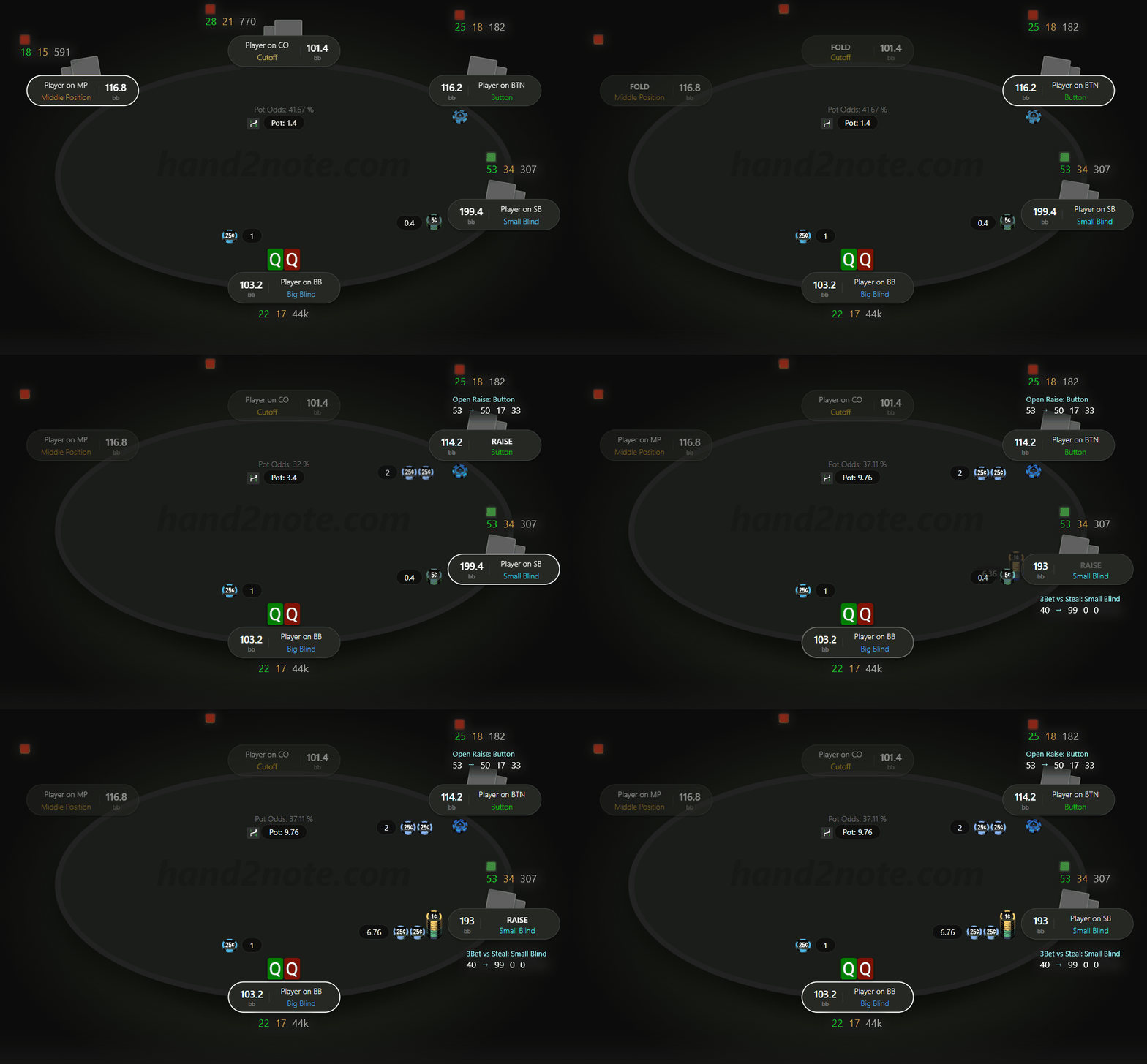
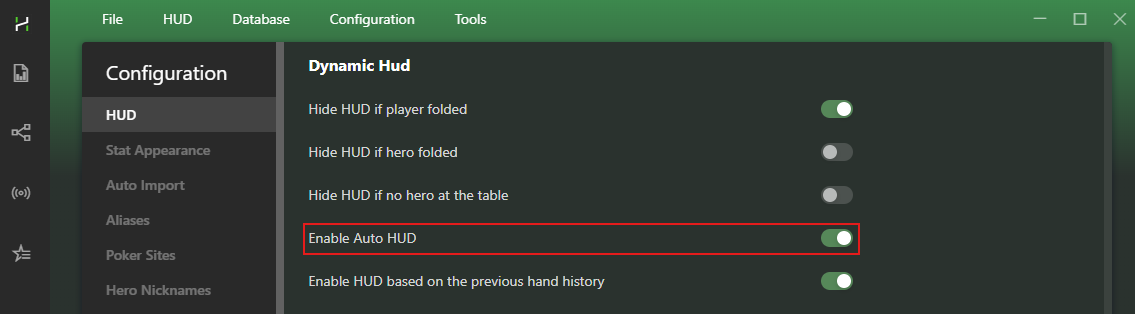
Enable or disable Auto HUD in: Configuration → HUD.
To follow room rules, Hand2Note automatically disables these HUD types during play when required. Check all room restrictions on the Supported Sites and Apps page: HUD restrictions.
# Ready-Made HUDs
Not sure which stats matter most during play? Or simply do not want to spend time building a custom HUD?
Ready-made solutions from Poker HUD Store are a great place to start.
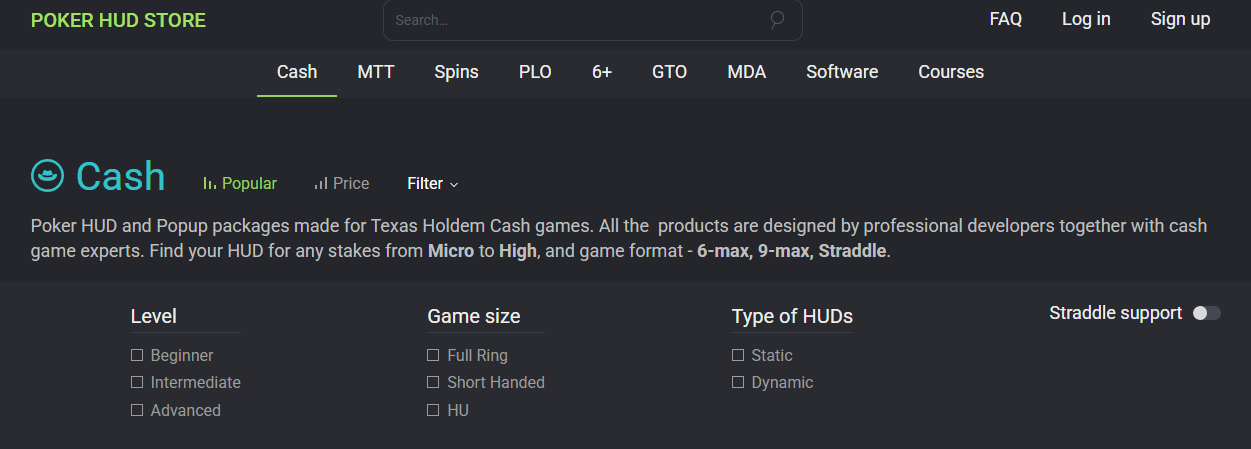
The official store includes HUDs and stat packages created by professional players, coaches, and poker schools.
Layouts are available for almost every format — from beginner-friendly HUDs to advanced setups for MTT, Spin&Go, Cash, and PLO.
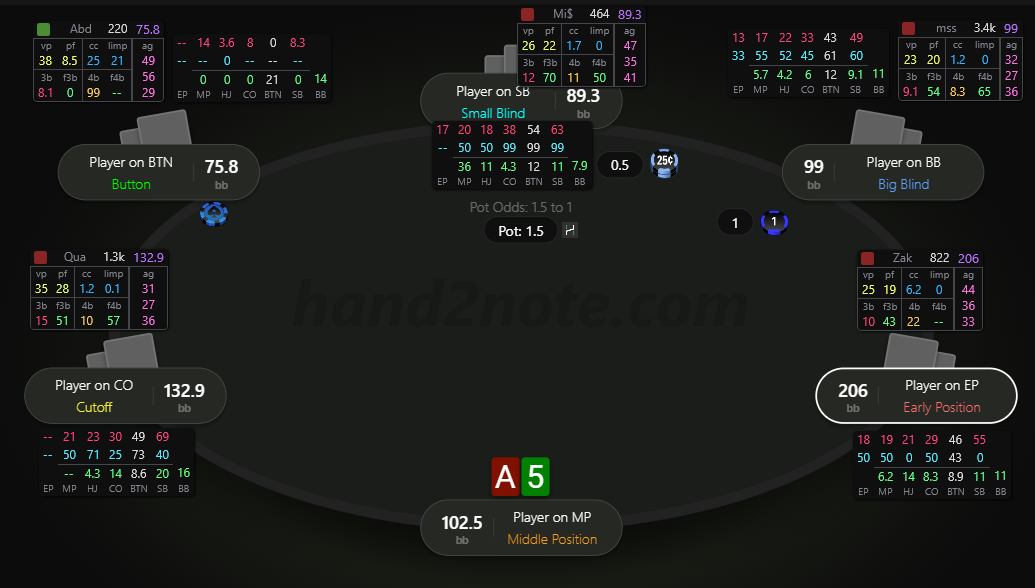
# Popups and Advanced Statistics
A Hand2Note HUD is not limited to stats displayed directly on the table.
Additional information becomes available instantly through the popup system.
# Stat Popups
Hover over any stat to open a popup with visual charts, hand ranges, bet sizing breakdowns, next actions, and other advanced statistics.
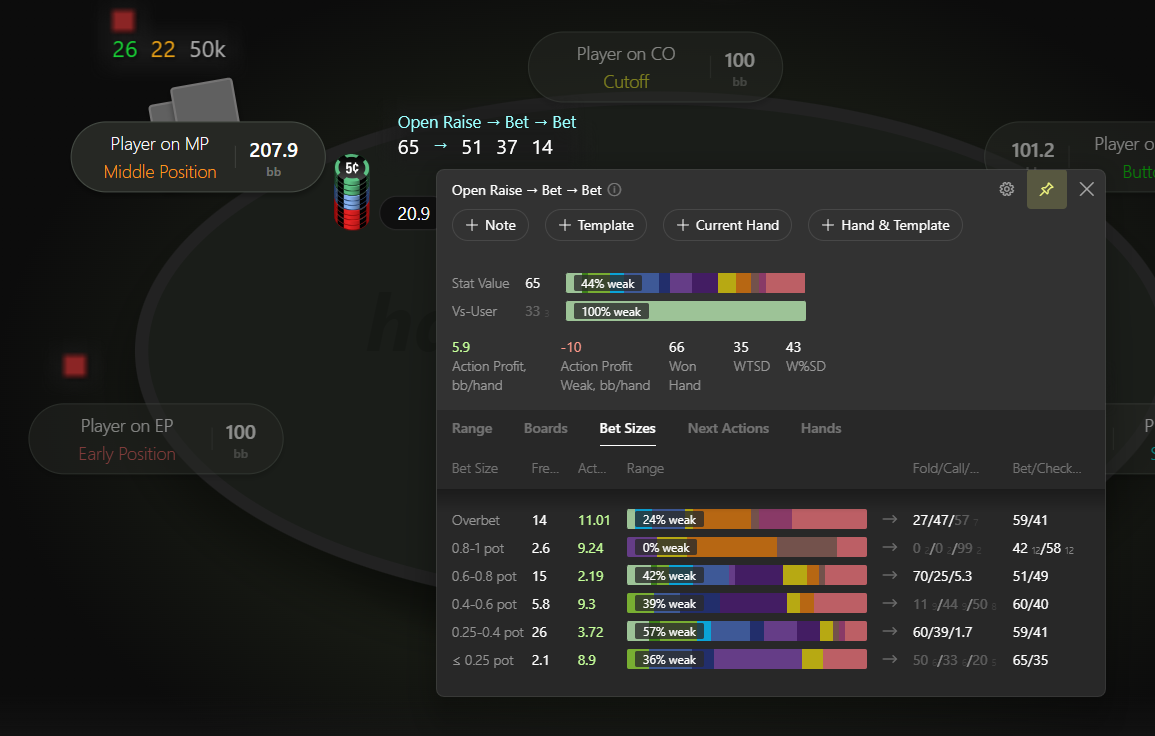
Bet sizing groups, board textures, and hand strength display inside popups can all be customized separately in Hand2Note configurations.
# Assigned Popups
Replace the default stat popup with a completely custom one.
Hovering over a stat can then display completely different information.
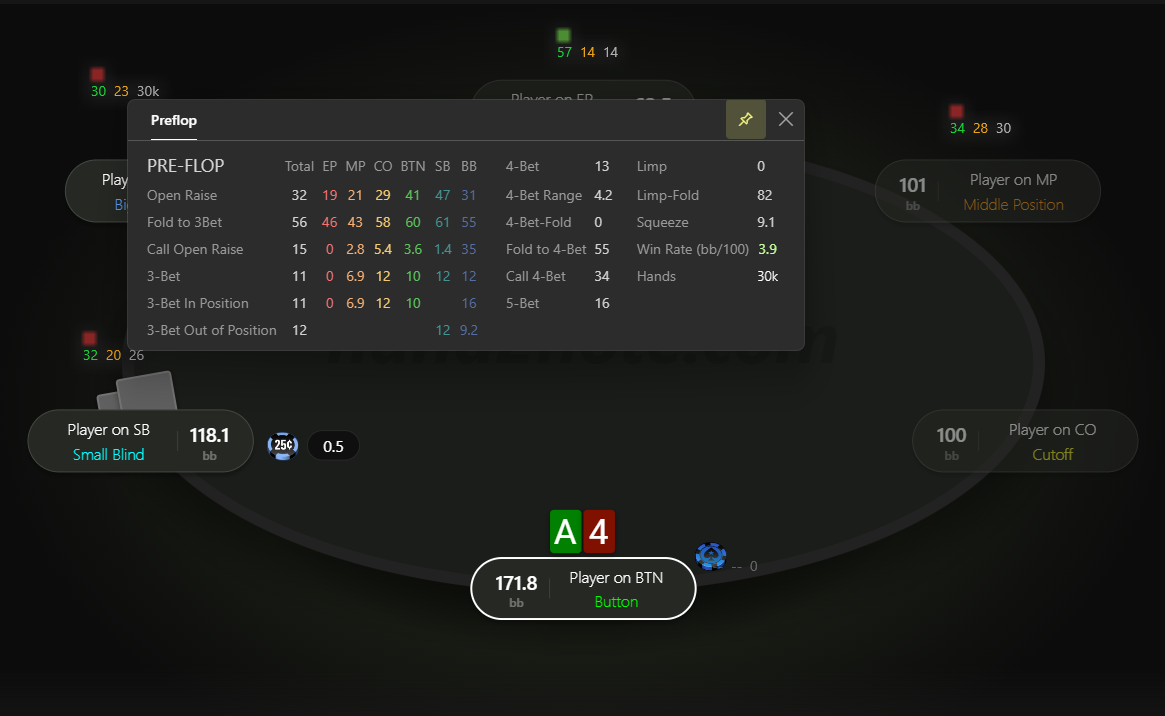
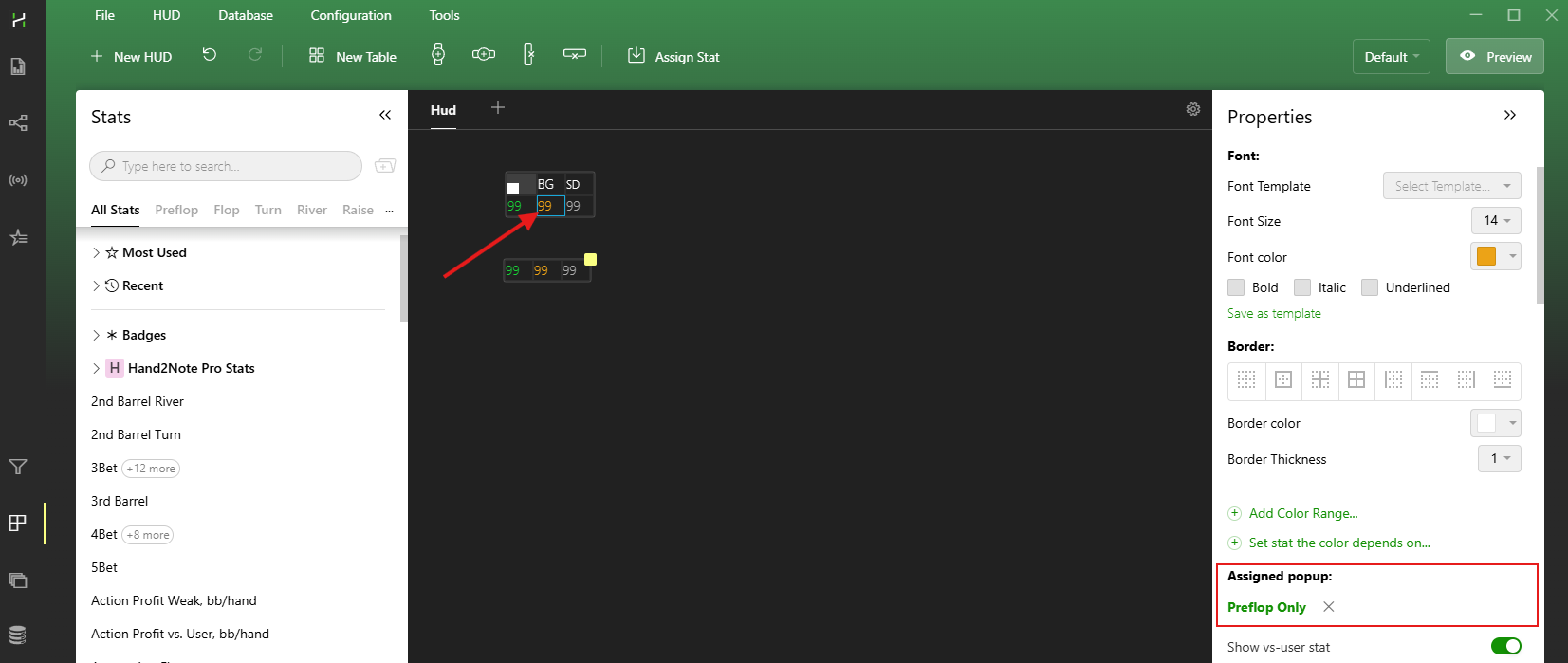
Assign a popup through HUD Editor:
1. Open HUD Editor.
2. Click the required stat cell.
3. In the Properties panel, select + Assigned popup and choose a popup from the list.
# Main Player Popup
Click any HUD panel to open the main player popup with all key opponent information in one place.
The popup gives quick access to detailed stats, notes, player graphs, and other advanced information.
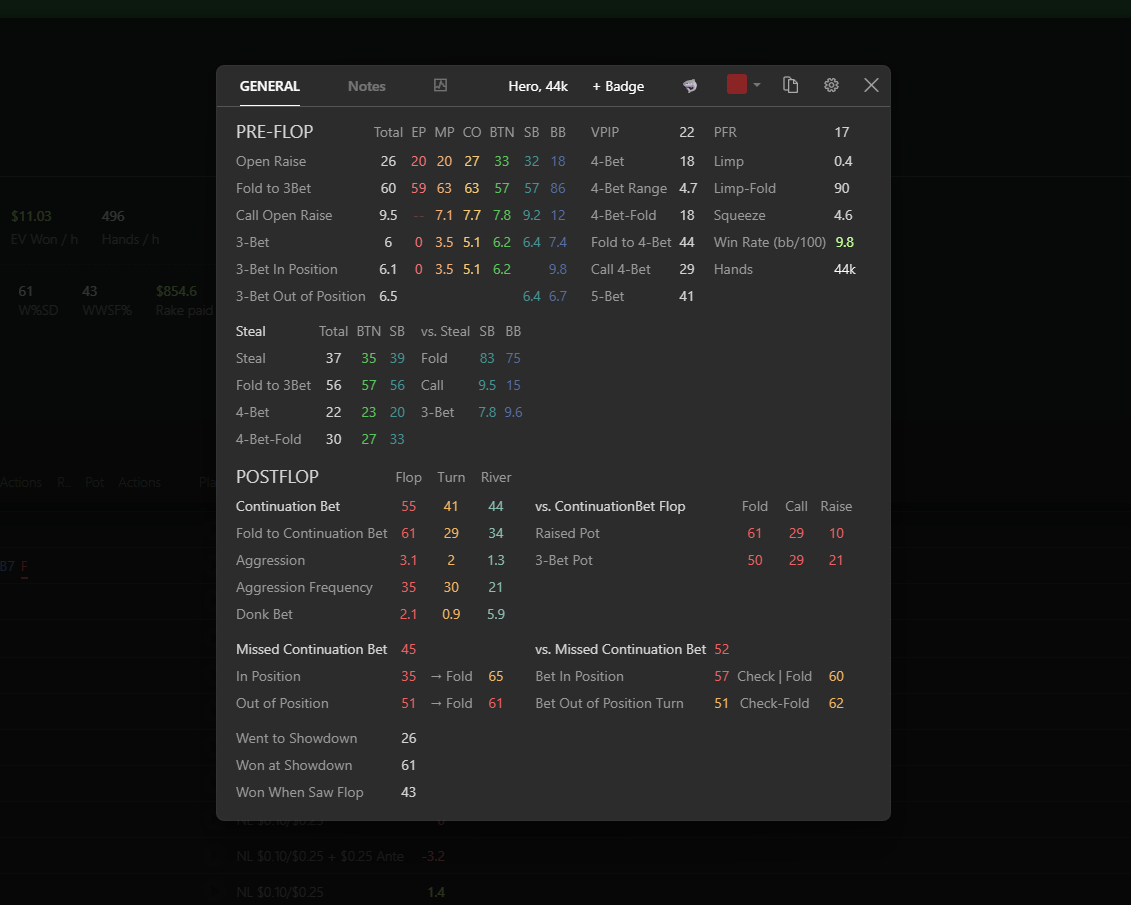
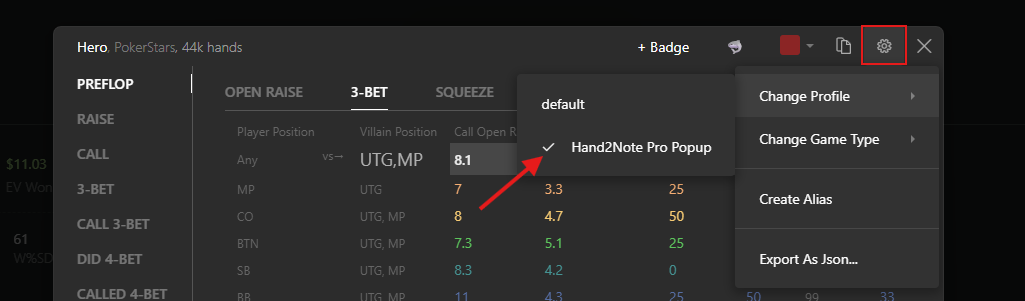
Any custom popup can be used as the main popup. Hand2Note automatically adds a graph tab, notes, and a settings panel.
# Notes and Visual Markers
Statistics alone are not always enough during play.
Personal observations often help players adapt faster and find exploitative adjustments more easily.
# Player Notes
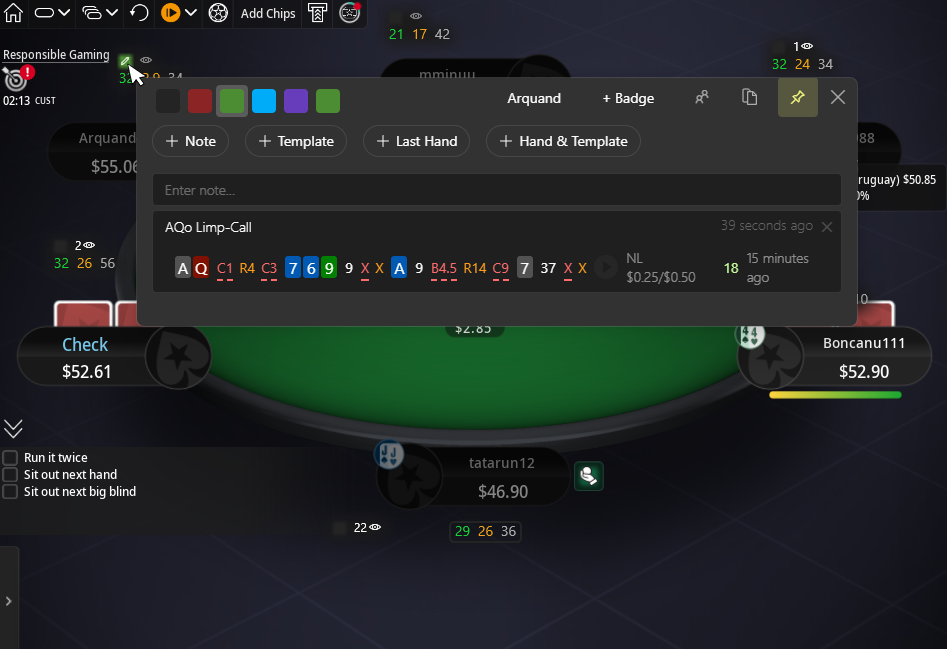
Hover over the notes icon to open the notes popup.
Inside the popup, add notes manually, use templates, attach hands, and replay hands from the beginning to review the entire action.
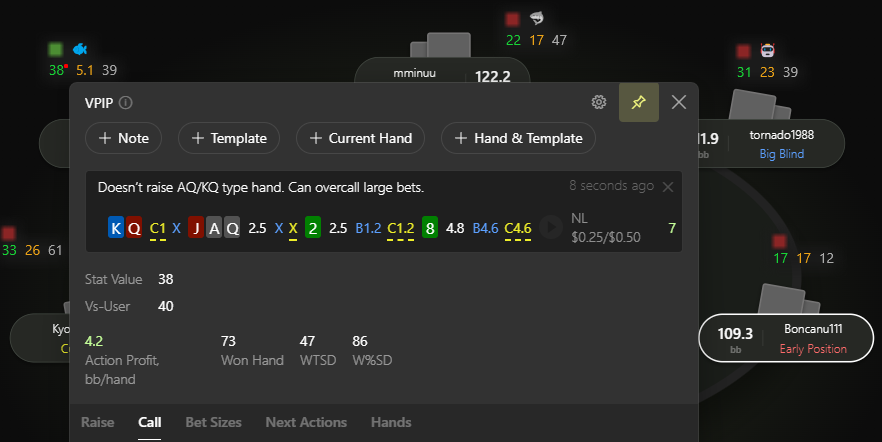
Notes can also be attached directly to individual stats, keeping important reads and observations exactly where they matter most.
Read more about the notes system in our separate article about Notes in Hand2Note.
# Last Showdown Indicator
When multi-tabling, important showdowns and table dynamics are easy to miss.
To help with this, Hand2Note tracks recent showdowns and displays the latest revealed opponent hands through a dedicated eye indicator.
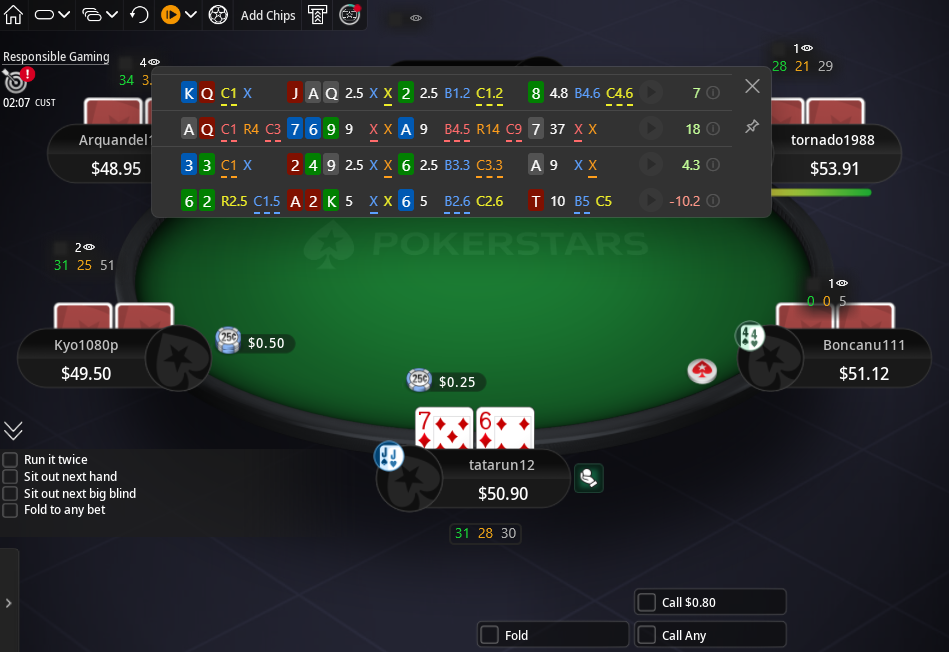
Hovering over the indicator opens a list of recent hands for quick review or note-taking.
Visual hand display settings are available in: Configuration → Hand View.
# Colored HUD Border
Colored HUD borders make important opponents easier to spot instantly.
The border color automatically follows player color labels and helps quickly identify profitable tables and recreational players.
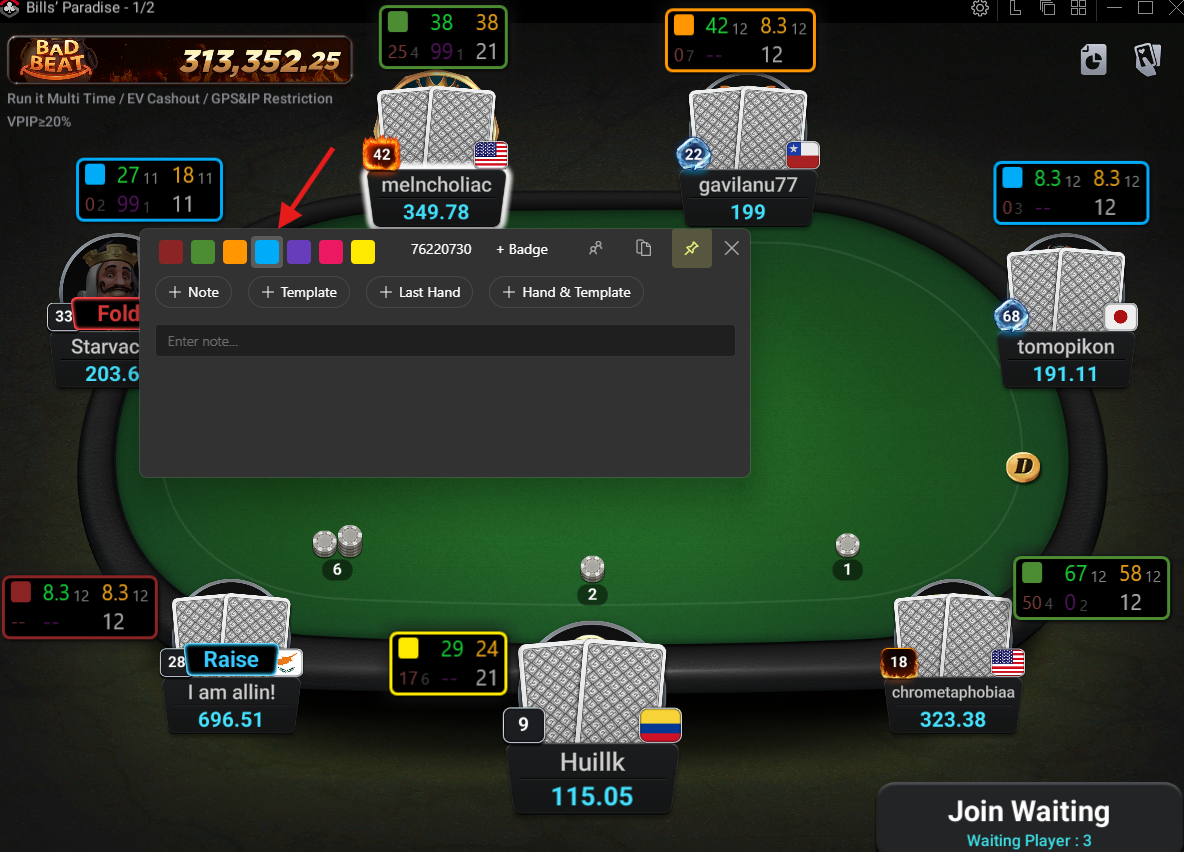
The feature is especially useful on poker sites and Asian apps where standard color labels may be difficult to see or partially hidden behind the HUD itself.
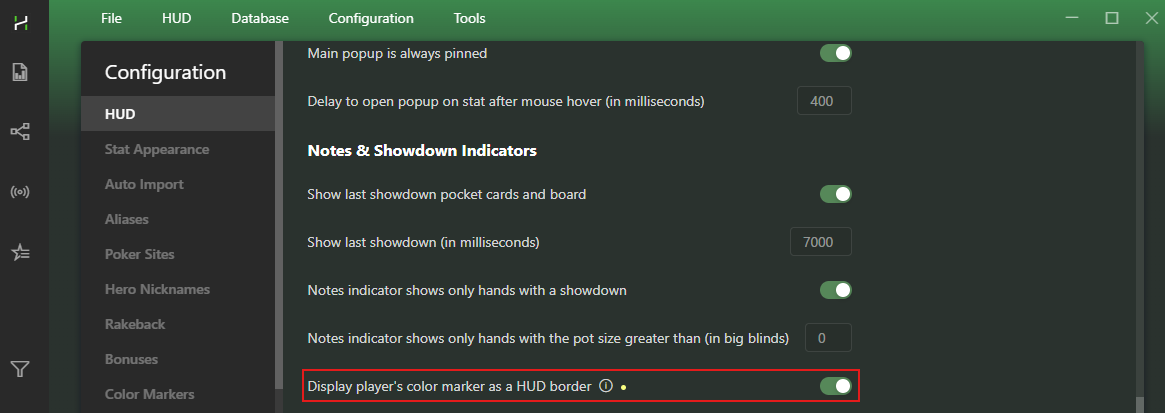
Enable colored HUD borders in: Configuration → HUD → “Display player’s color marker as a HUD border”.
# Player Badges
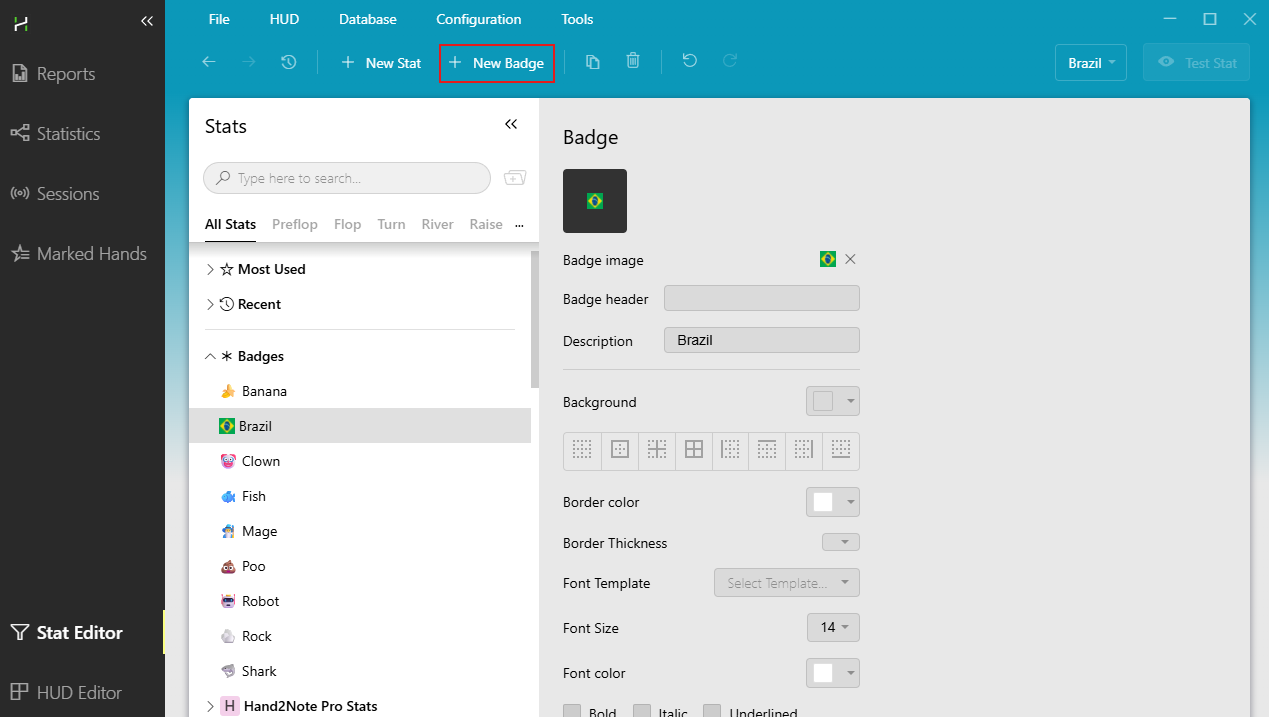
Player badges provide another quick way to mark opponents during play.
Multiple badges can be assigned to the same player to highlight tendencies, strategy patterns, or important reads.
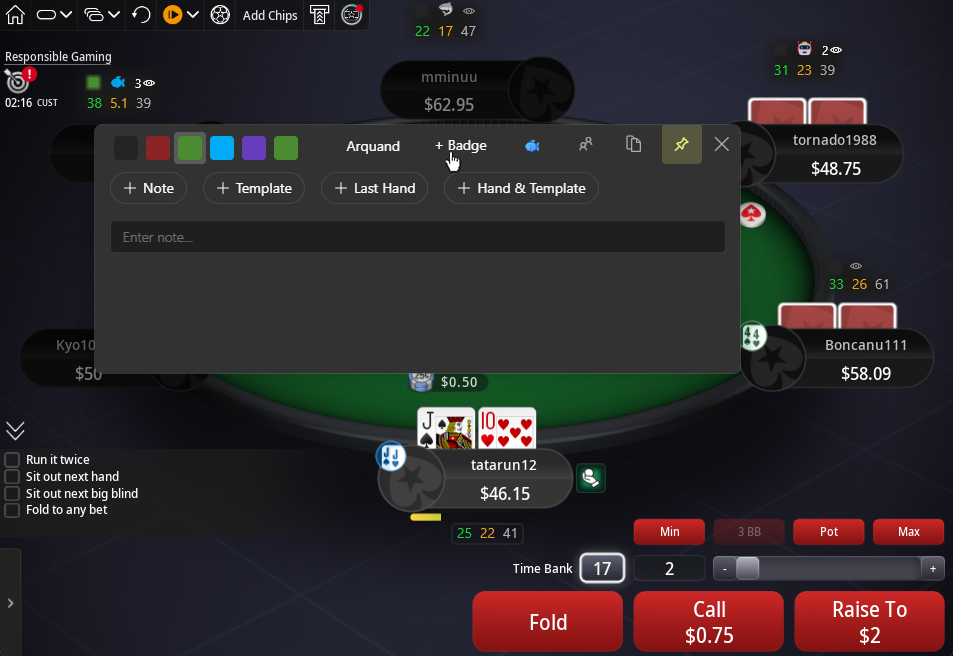
Use built-in badges or add your own custom images through Stat Editor.
# HUD Display During Play
HUD elements do not always need to stay visible.
Grouping, hiding, and simplifying HUD panels helps keep the table clean and comfortable even with large amounts of statistics.
# Hide HUD After Fold
During a hand, HUD panels for inactive players can hide automatically.
This removes unnecessary information from the table and helps focus only on players still involved in the hand.
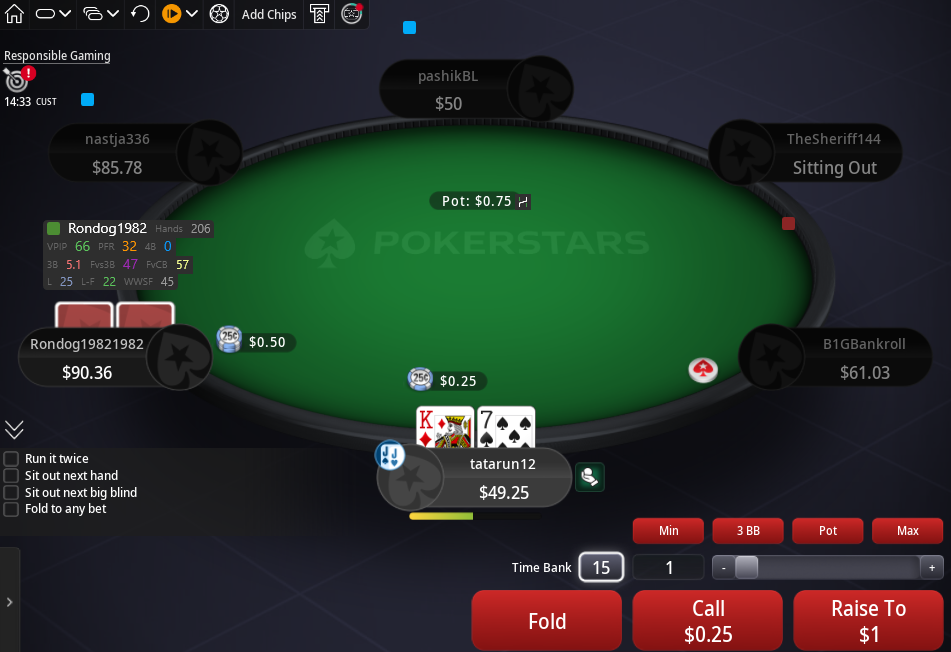
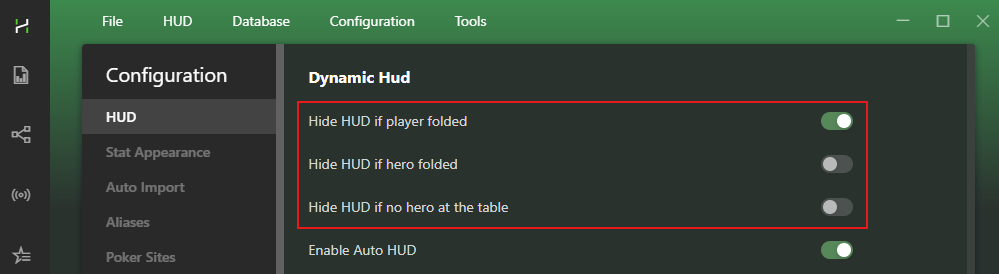
Automatic HUD hiding supports several situations:
- when a player folds;
- when Hero folds — hide all HUD panels until the hand ends;
- when observing tables without Hero at the table.
# Show HUD Only on Hover
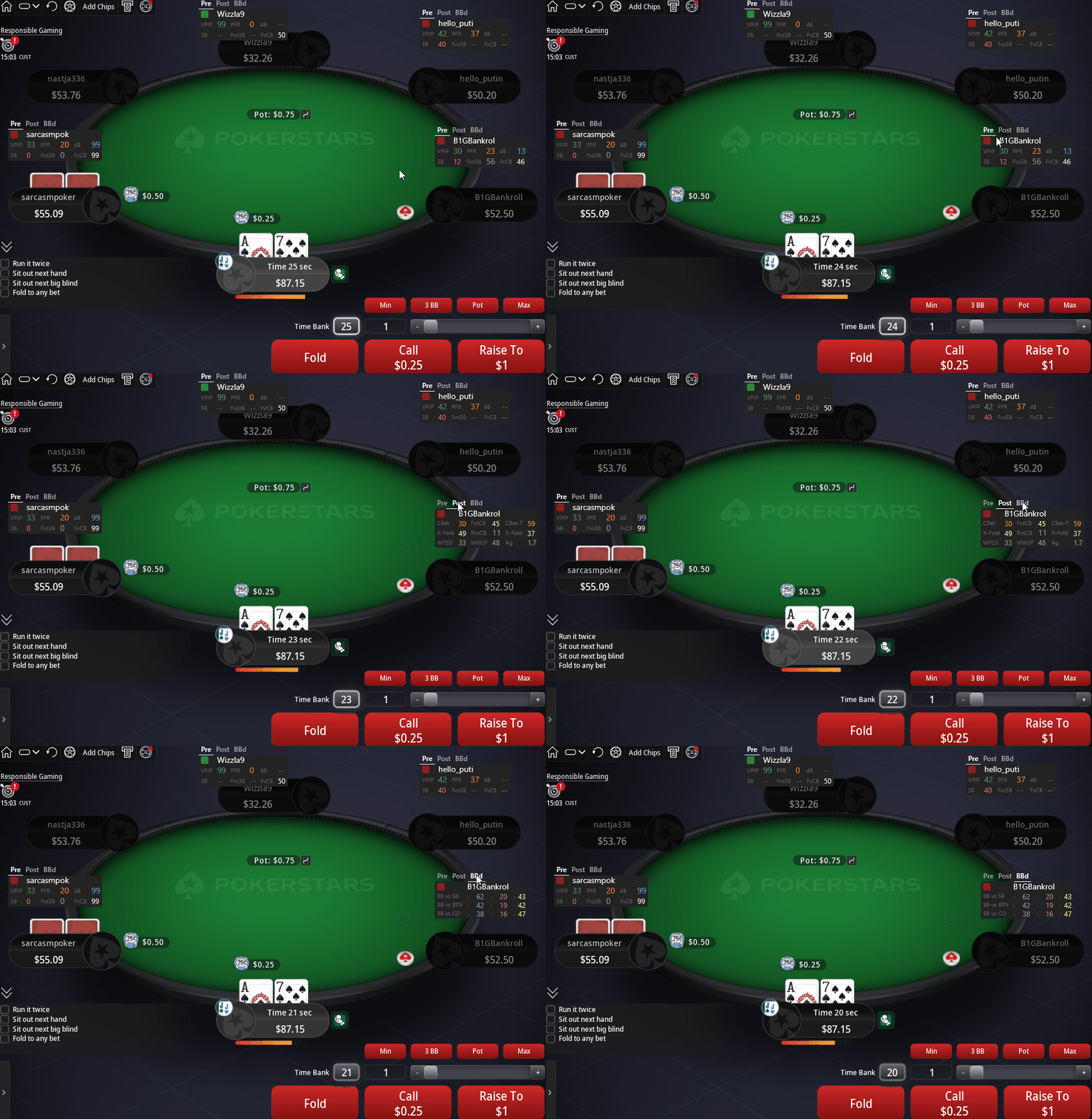
This mode works well for players who rarely look at statistics during play. The HUD only appears when the cursor moves over it.
Streamers also often prefer this mode because viewers can follow table action more clearly without too many numbers on the screen.
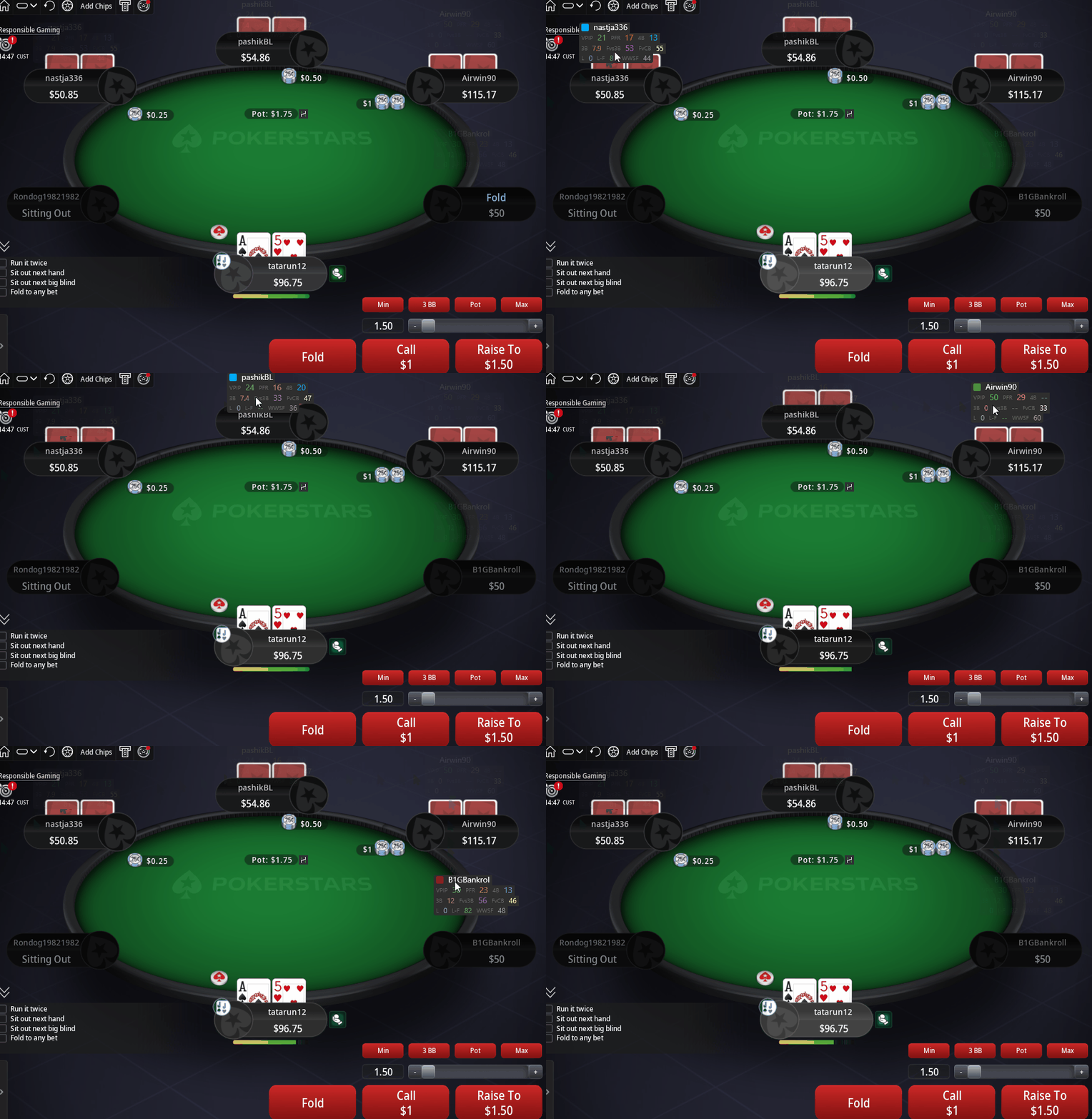
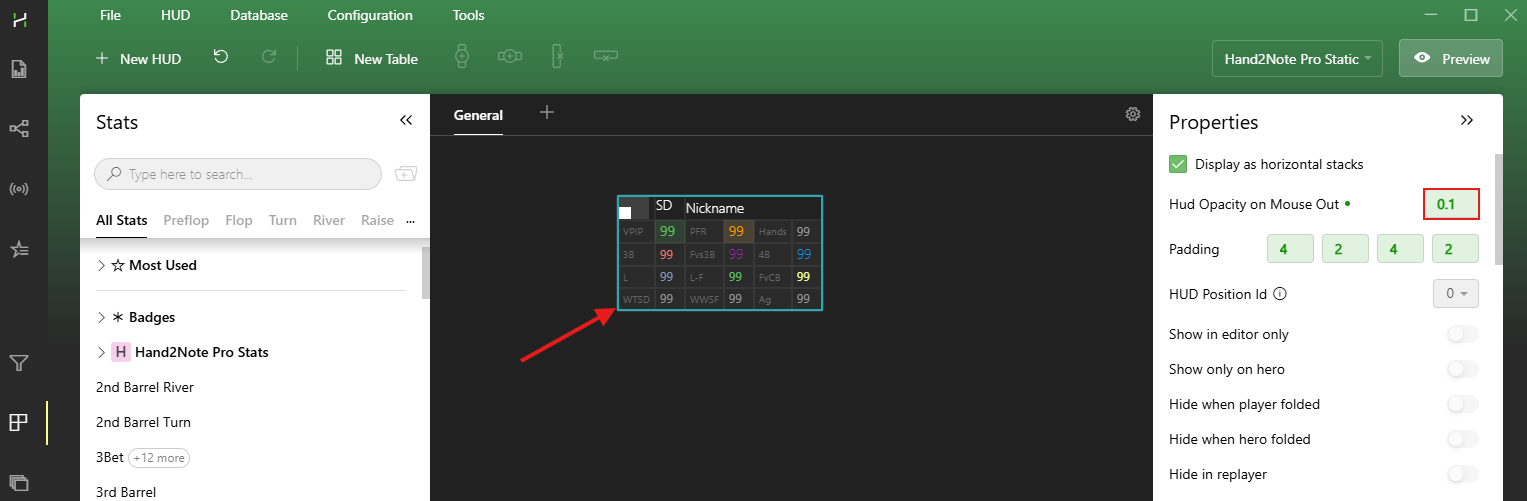
Configure mouse-out opacity separately for the entire HUD or individual panels through HUD Editor.
Select the required panel and set transparency from 0 to 1.
# HUD with Tabs
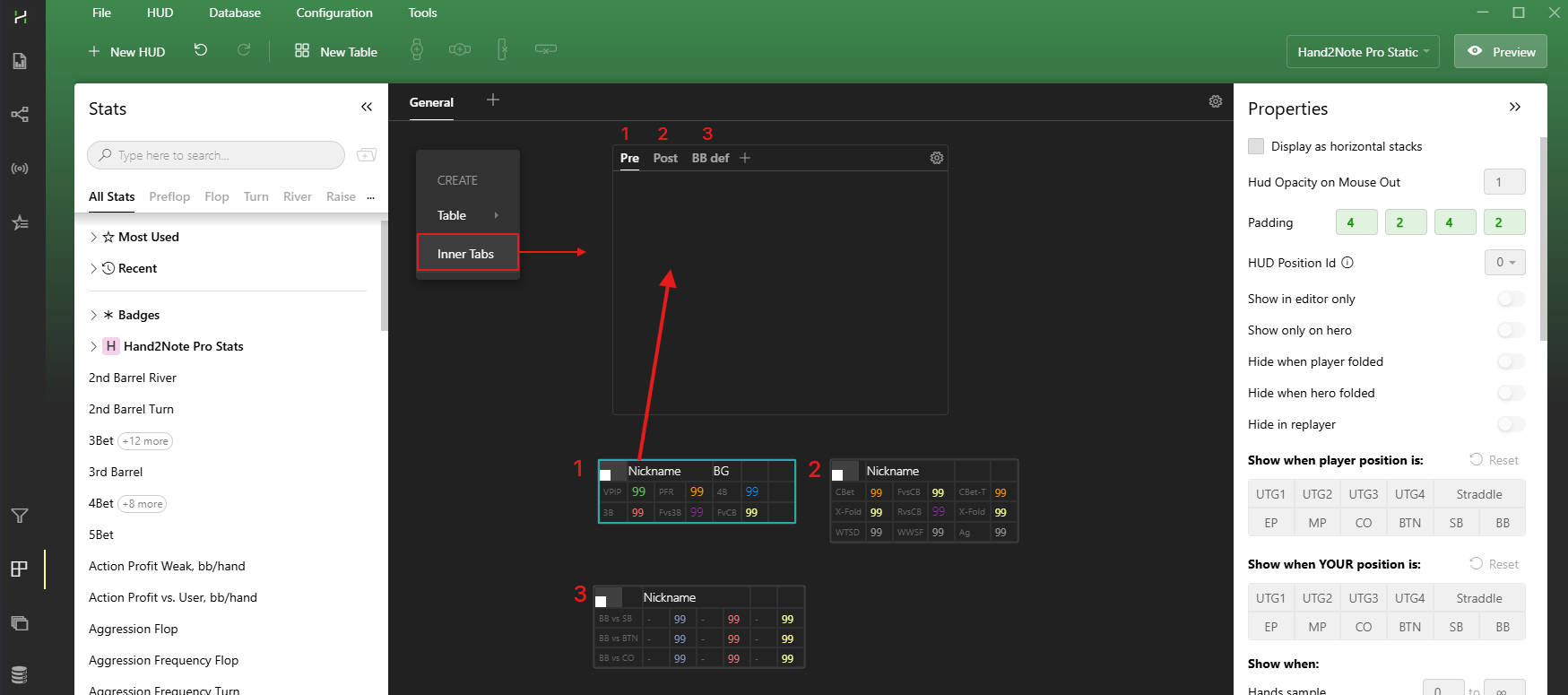
Split stats into tabs to avoid overloading the table with rarely used information.
With tabs, additional stats only appear when needed.
Add the Inner Tabs element inside HUD Editor and drag the required panels or stat tables into the tabs.
# Session Control
Reviewing sessions and saving important hands remains an important part of poker improvement for many professional players.
# Marking Hands During Play
During a session, hands can be marked in several ways:
- through the H icon at the table;
- with hotkeys F5 and F6 (change hotkeys in: Configuration → HUD)
- or through the Last Hands list.
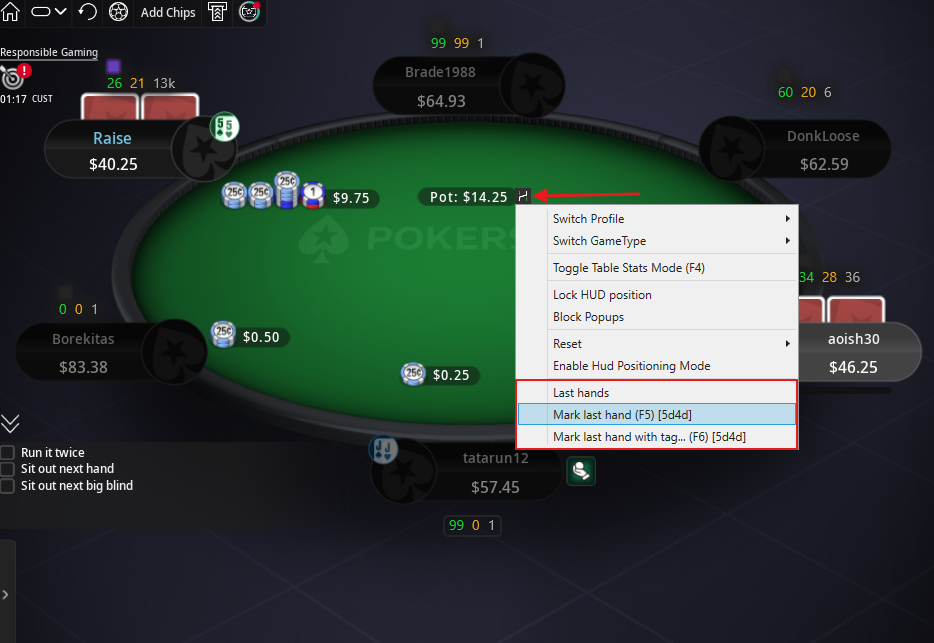
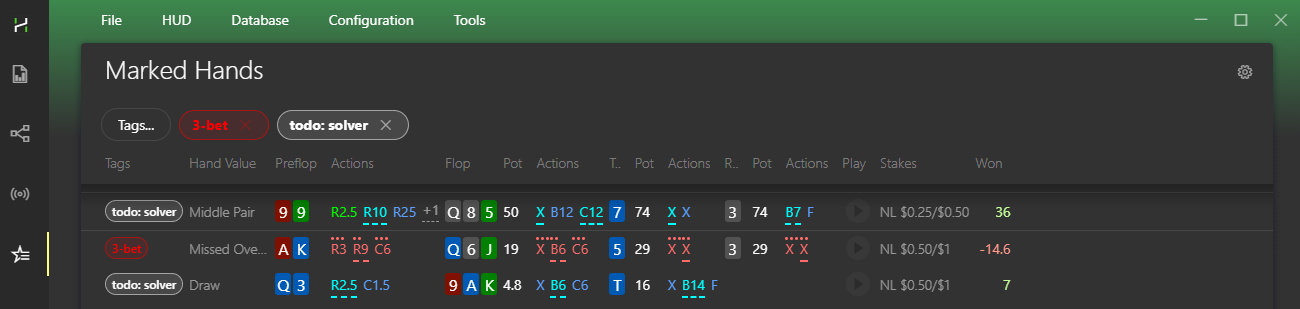
All marked hands appear in the Marked Hands section for quick review, sorting, and tag filtering.
Hands can also be exported for coaching or review in third-party software.
# Sessions and Results
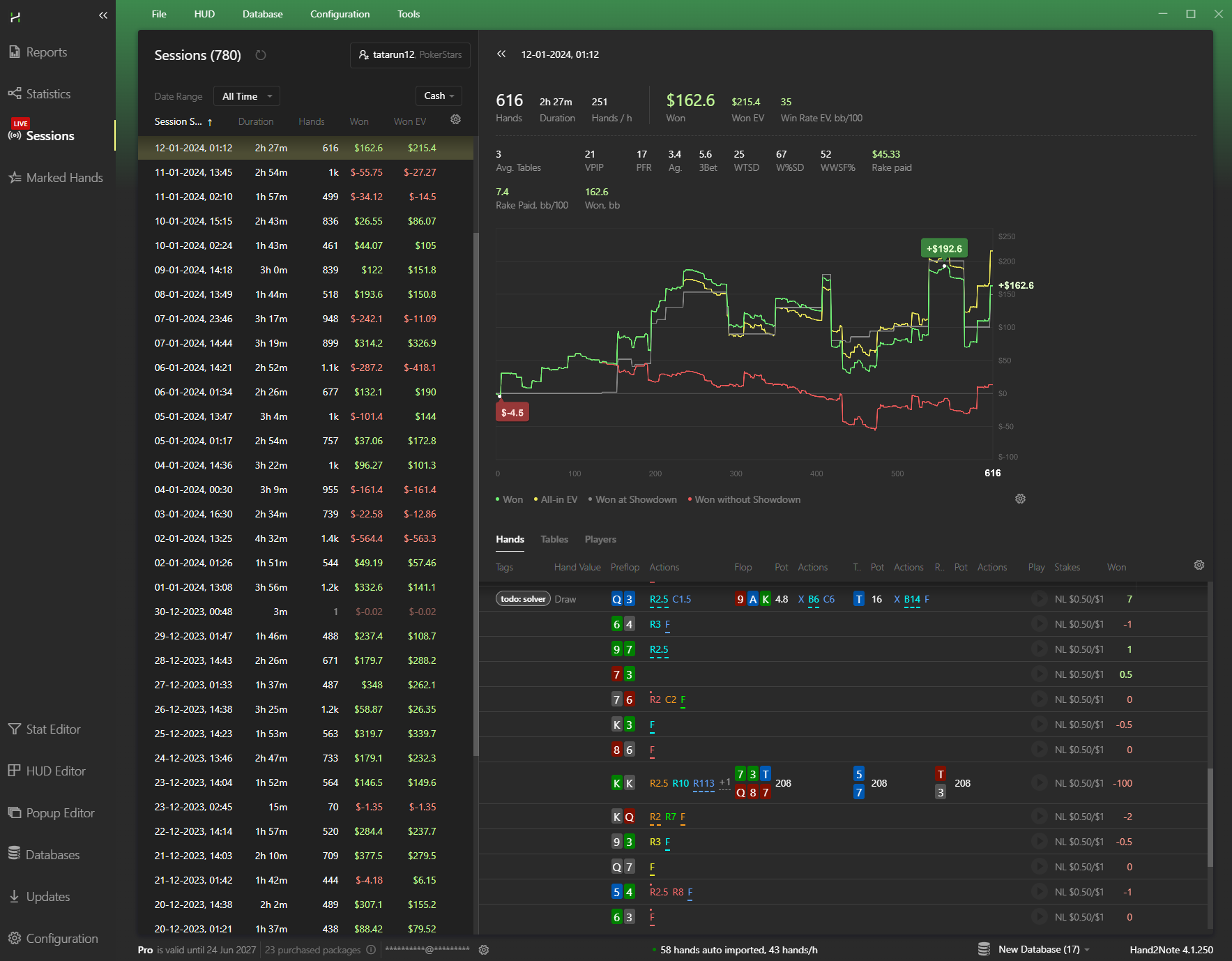
Hand2Note automatically tracks current session results, including graphs, hand count, duration, and overall statistics.
Review played hands, mark important spots, and export hands directly from the Sessions section.
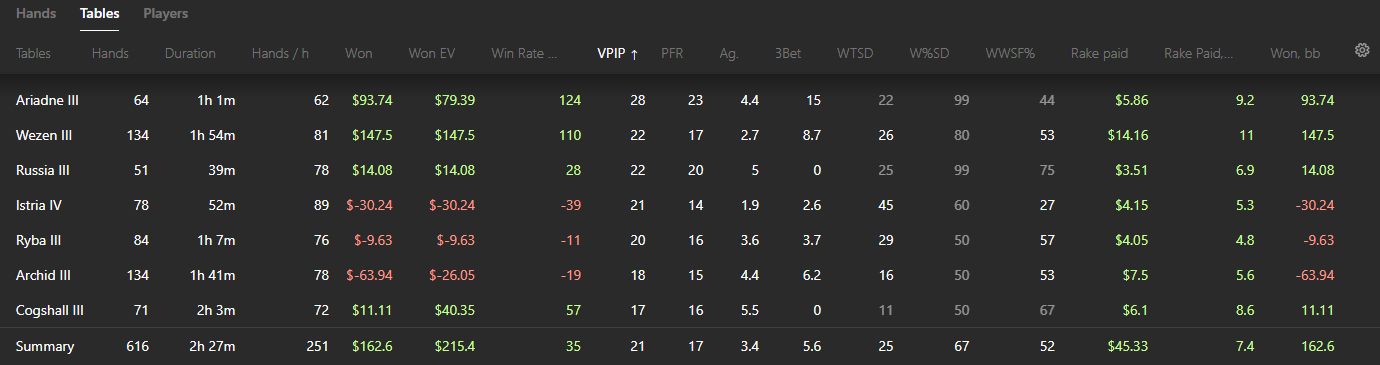
Besides personal results, the section also helps track table statistics, sort tables by VPIP, view opponent statistics, and find players encountered most often.
# Frequently Asked Questions
# Can I Use Different HUDs on Different Poker Rooms?
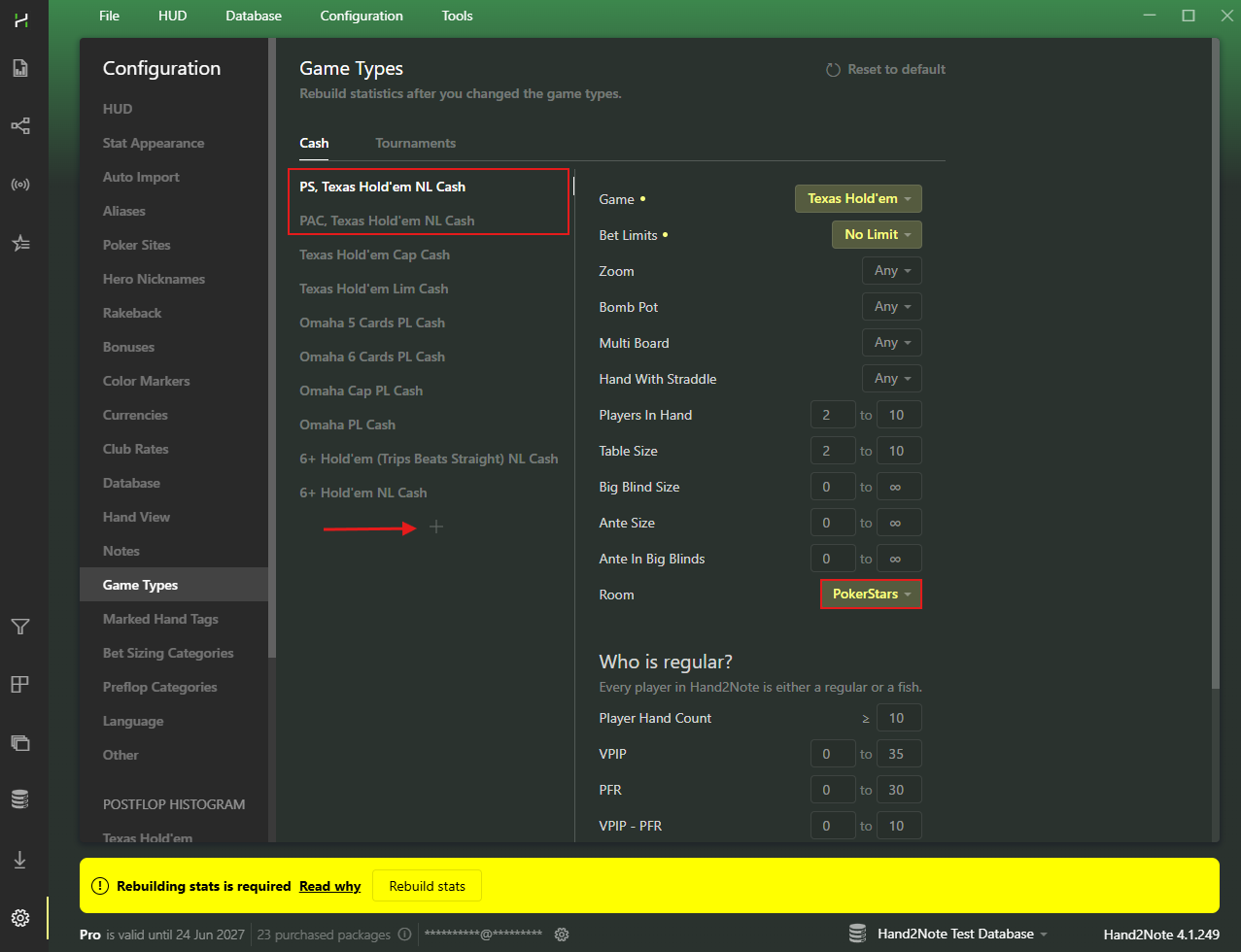
Yes. Create separate Game Types for different poker rooms in: Configuration → Game Types.
After that, rebuild statistics.
Switch between HUDs directly through the H icon during play.
For example:
- use Static HUD for PokerStars;
- and Pro Positional HUD for 888.
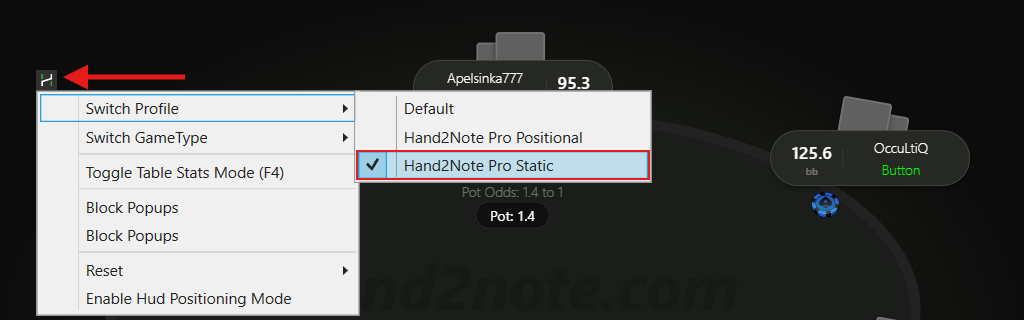
Hand2Note remembers your selected HUD and automatically uses it for that room in future sessions.
# Can I Disable the HUD Only on One Poker Room?
Several methods are available for disabling the HUD on a specific poker room.
Method 1. Open the Updates section and uninstall the module for the required poker room.
This completely disables the HUD for that site.
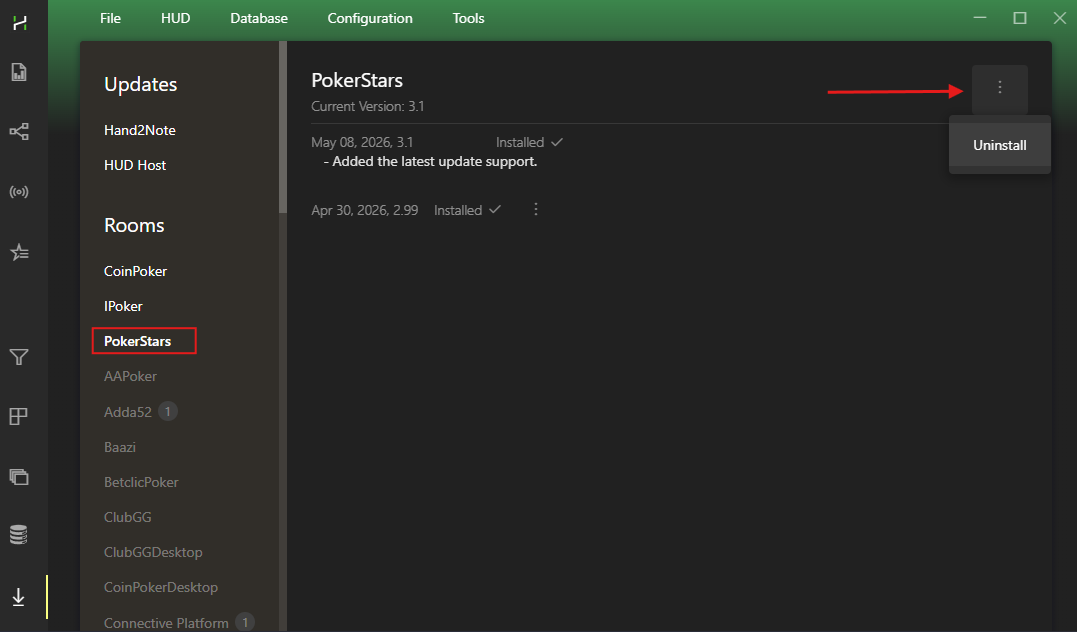
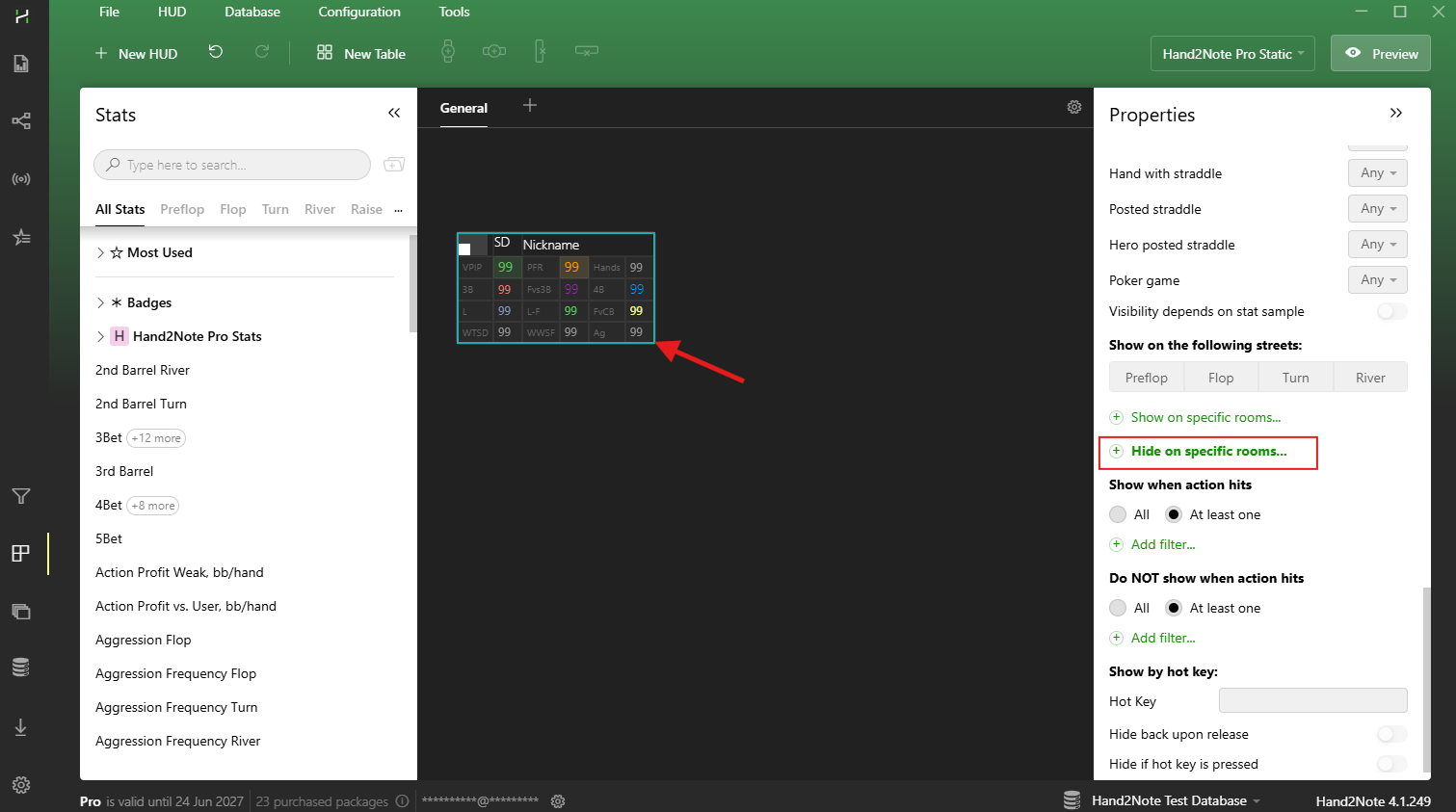
Method 2. Open HUD Editor, select the required panel, and enable the Hide on specific rooms option.
Then choose one or several poker rooms.
Method 3. Create an empty HUD and assign it to the required Game Type.
In this case, the HUD will simply not appear on tables from that poker room.
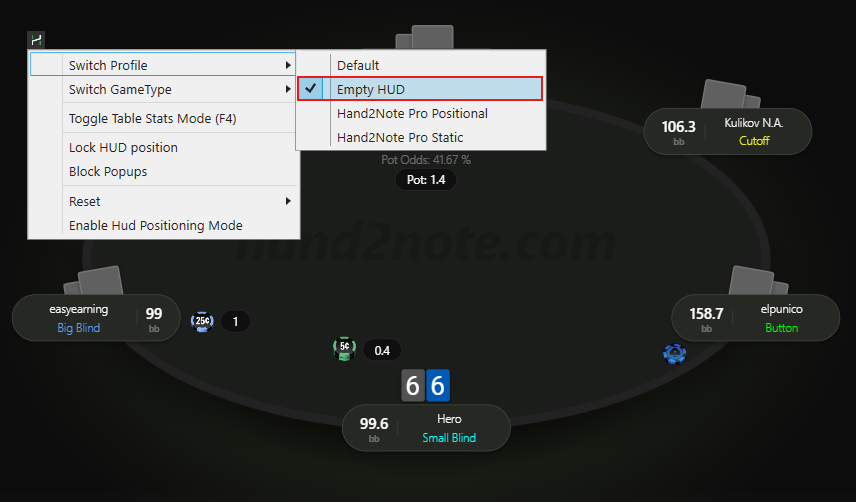
# Read Next:
- Reports


